
Giving Agent Elite access to your Business Page
Add Agent Elite as a Partner on Facebook
Section titled “Add Agent Elite as a Partner on Facebook”Go to Business.facebook.com/settings
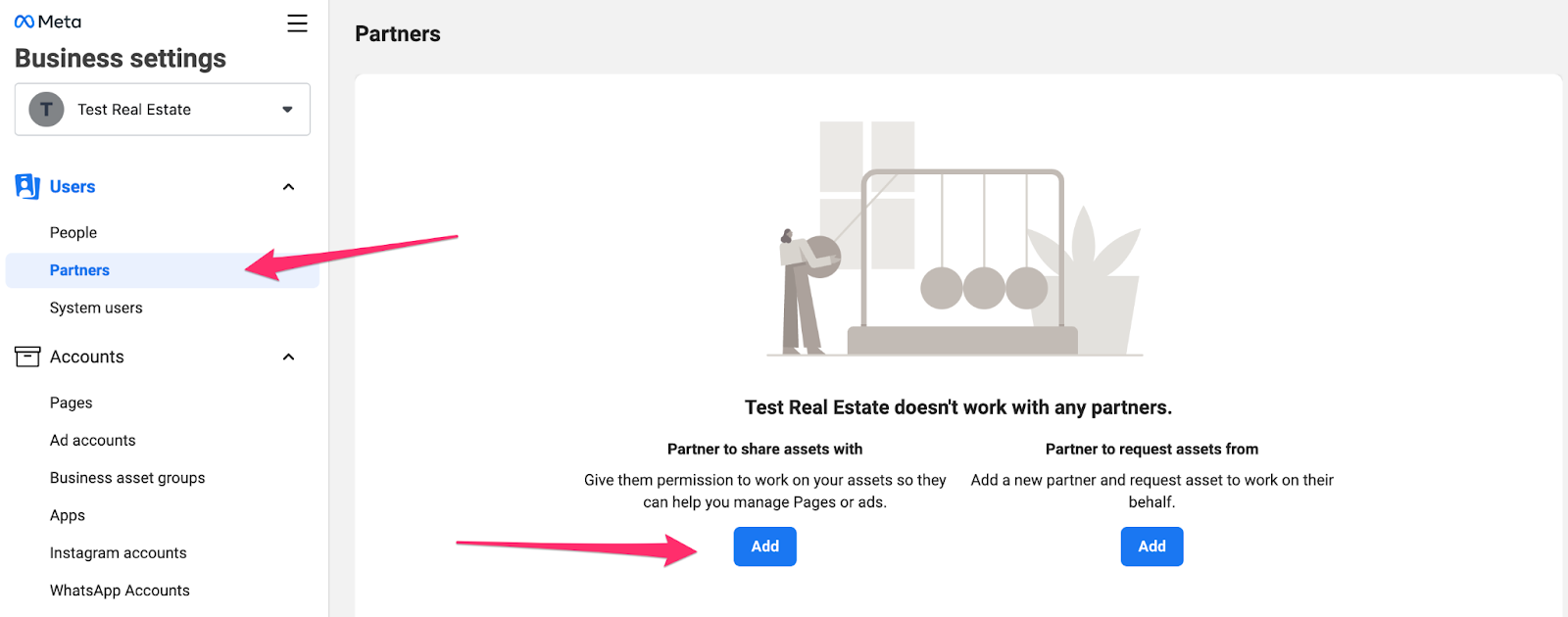
You will see the “Partners” tab on the left-hand menu. Click on the “Partners” link and then the Add button for “Partner to share assets with”.
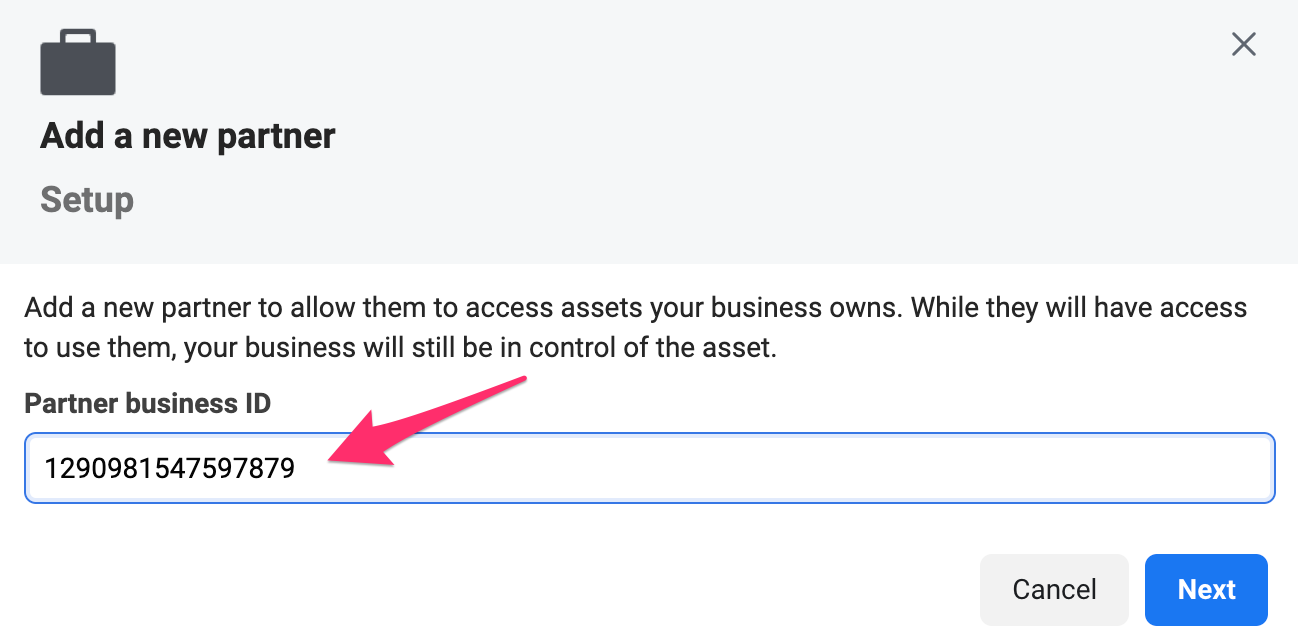
In the next screen, simply paste the Agent Elite Meta Business Manager ID #: 1290981547597879
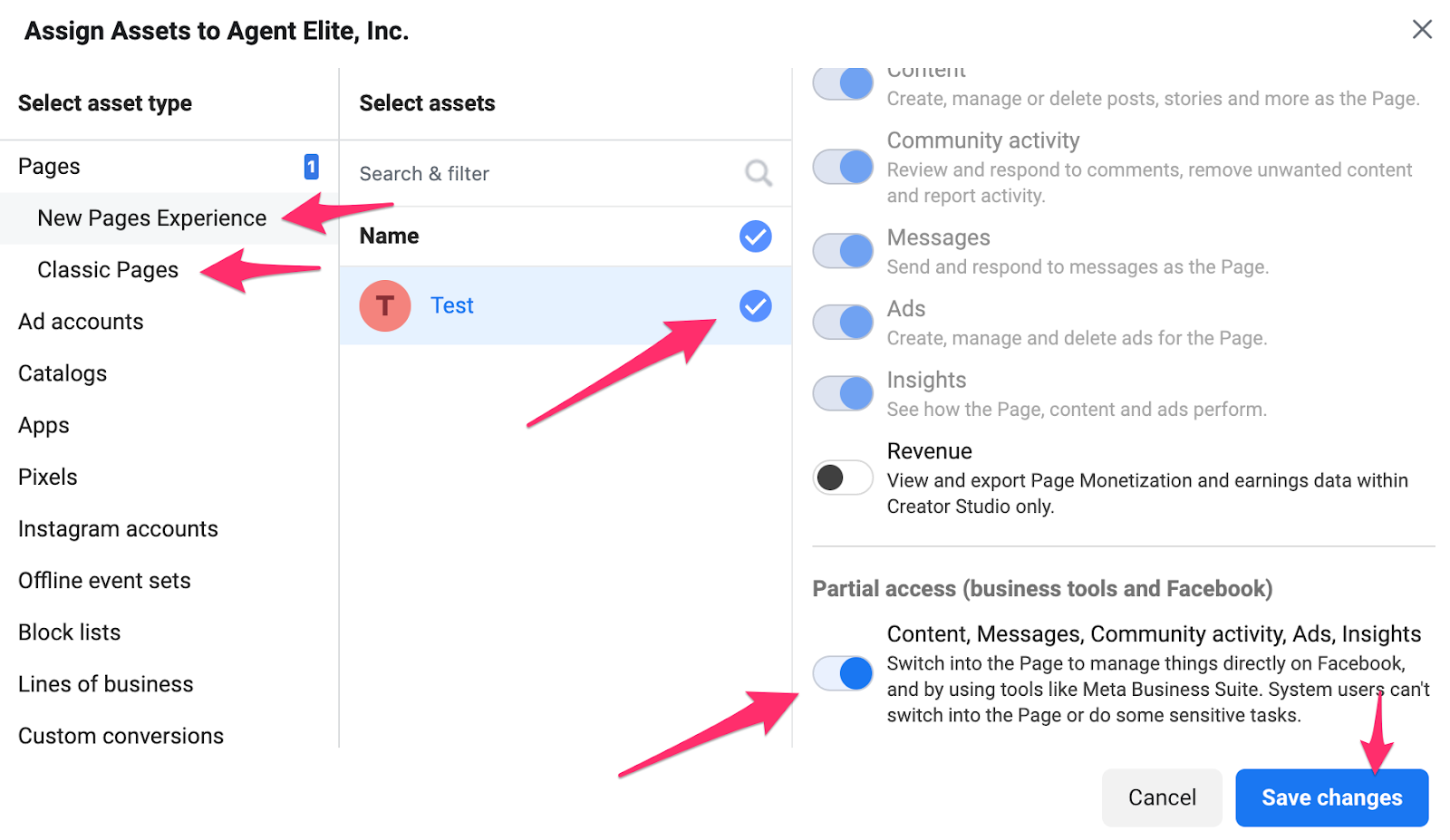
Here you may need to toggle between “new pages experience” and “classic pages” depending on how old your page is. Select your page when you find it, and then be sure to turn on the bottom-most selection to give Agent Elite the access it needs to run ads to your page.
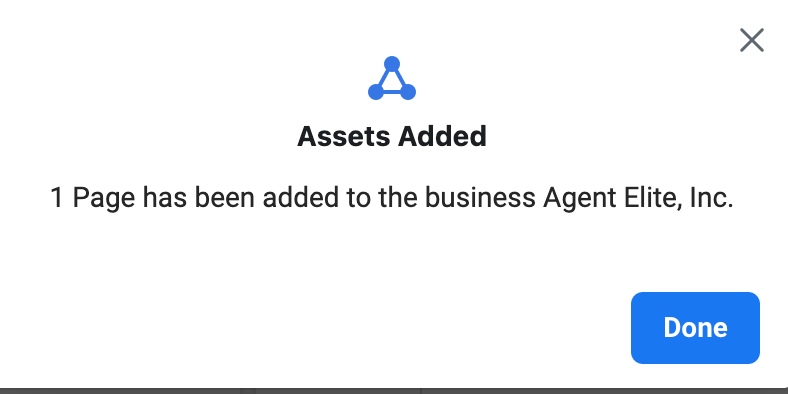
Once that is complete, please let your Agent Elite rep know, and you’re all set for Agent Elite to run ads on behalf of your business page!
Troubleshooting:
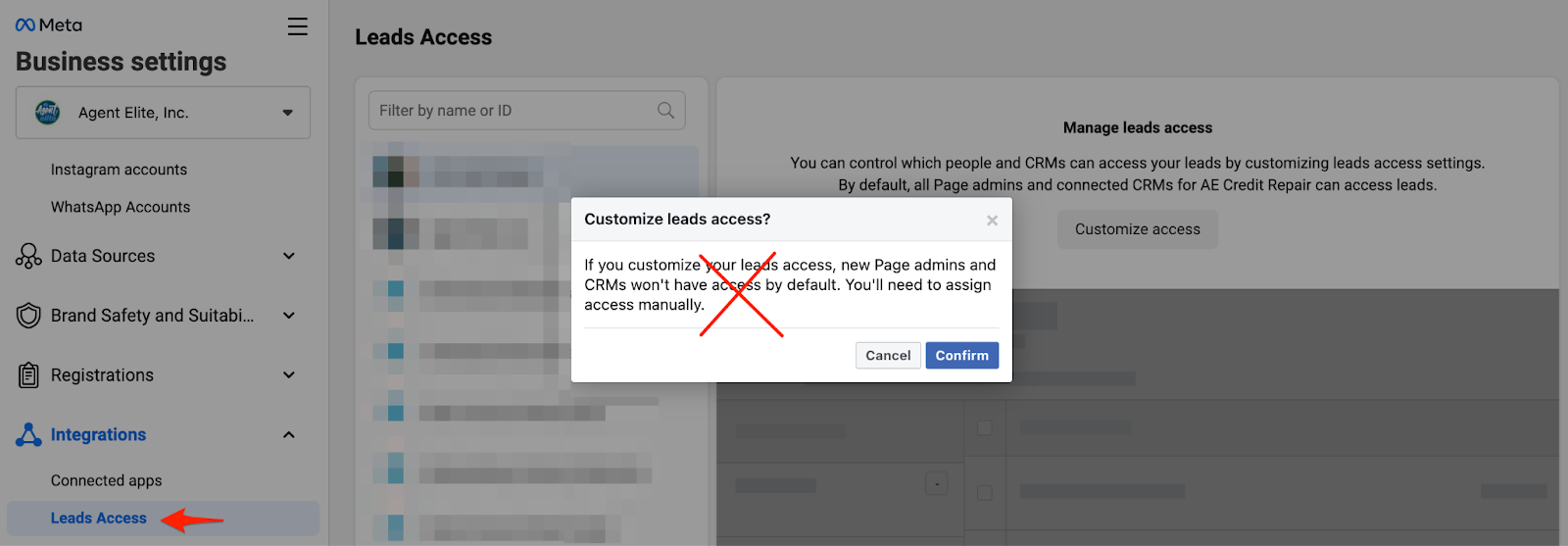
- There is no need to adjust Lead Access. The default setting is ideal.
- Two-Factor Authentication Requirement:
In most cases, Facebook is now requiring page admins to have 2-factor authentication set up to assign assets. Please follow these steps in case 2FA is not set up on your account and you are having trouble assigning the page to yourself and sharing the page with Agent Elite as a partner.
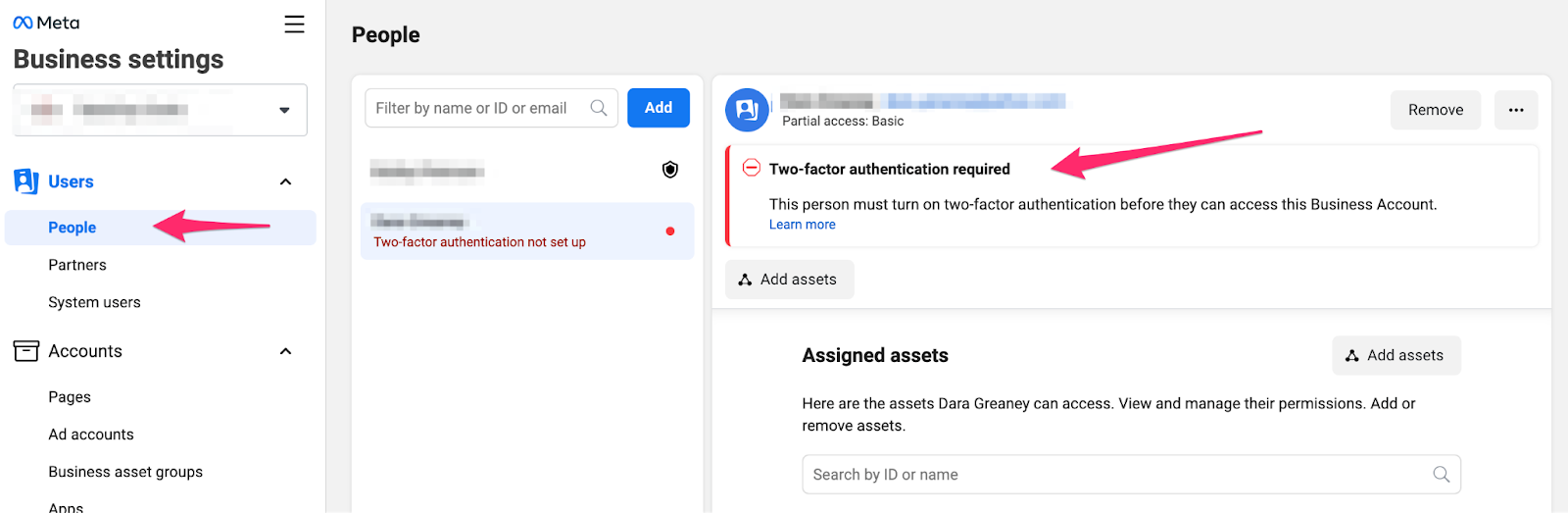
If you are seeing this under “People”, then you need to set up 2FA for your login, which is a good idea to do anyway. Here are the steps to set up 2FA and clear this error:
From Facebook:
Turn on or manage two-factor authentication
- Go to your Security and Login Settings.
- Scroll down to Use two-factor authentication and click Edit.
- Choose the security method you want to add and follow the on-screen instructions.
When you set up two-factor authentication on Facebook, you’ll be asked to choose one of three security methods:
- Tap your security key on a compatible device.
- Login codes from a third-party authentication app.
- Text message (SMS) codes from your mobile phone.
Once you’ve turned on two-factor authentication, you can get 10 recovery login codes to use when you’re unable to use your phone. Learn how to set up recovery codes.
Approving AE’s Invite as a partner in Meta Business Manager
Section titled “Approving AE’s Invite as a partner in Meta Business Manager”To give someone permission to access a Page in a Business Account that owns the page, you can approve their partner request within the owning Business Account. To transfer ownership of your Page to someone, you can approve their ownership request if you have full control of the Business Account. This scenario applies when you’re trying to claim a Page that’s not owned by your Business Account. If a Page is not owned by a Business Account, you can accept the partner request on the Page by going to Settings and then Roles.
Before you begin
If you have Facebook access with full control of the Page, you can approve the request. These steps only apply to the person who has Facebook access through Business Manager.
If you don’t have Facebook access with full control, send this article to the person with Facebook access in the owning Business Manager to get your request approved.
If you have made a partner or ownership request, you must know who has permission to accept the request. Due to privacy concerns, we cannot provide more information about who can accept your request.
Understanding Page and Business Account Access
A person with full control of a partner Business Account: The person with full control of the partner Business Account can request access to an outside Page. That request needs to be approved by either:
Facebook access with full control of the Page: Someone who has Facebook access with full control if there is not an owning Business Account
Person with full control of the Business Account: Person with full control of the Business Account that owns the Page and other business assets
How to approve a partner request from Pages
If you are a Page owner, you can approve ownership or partner requests for your Page. The steps below only apply if you are a Page owner. To approve ownership or partner requests from Pages:
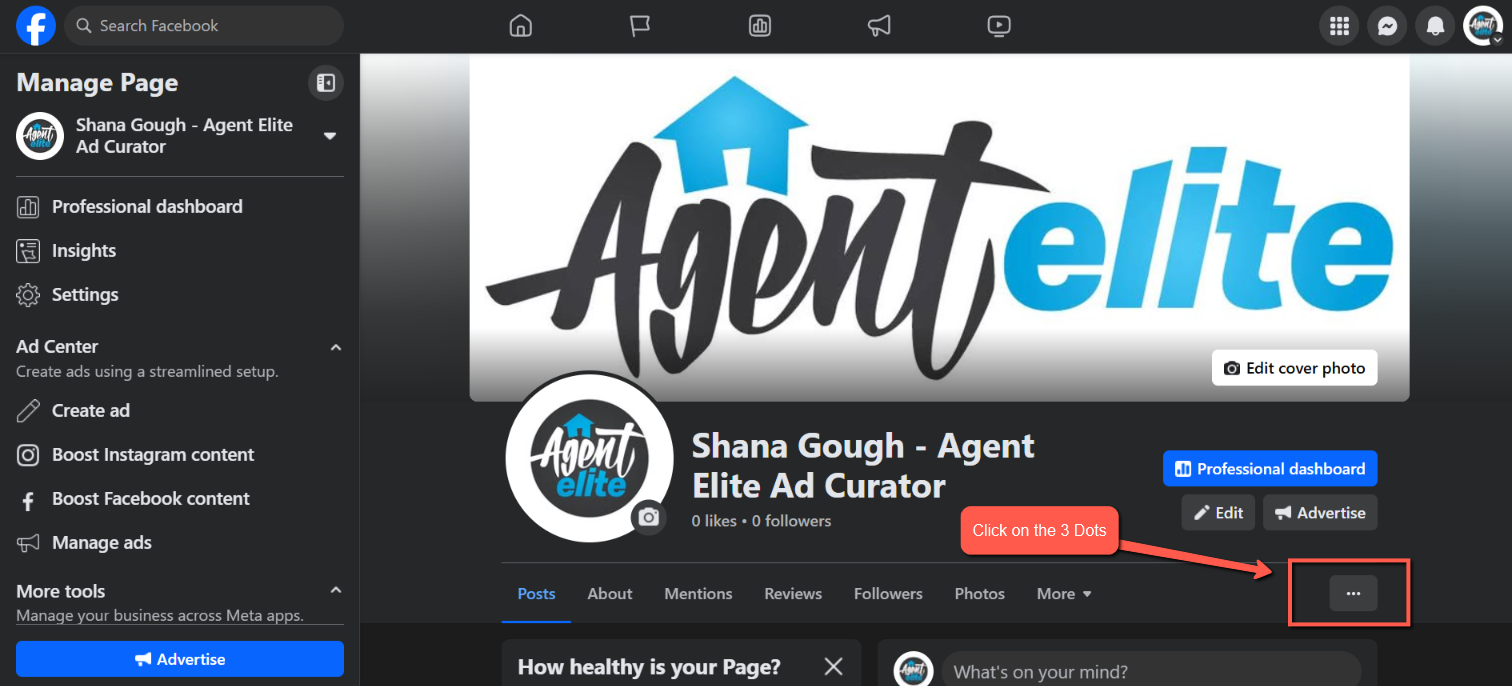
Open Your Facebook Business Page
Click on the 3 Dots located just below your profile banner on the right-hand side of the screen.
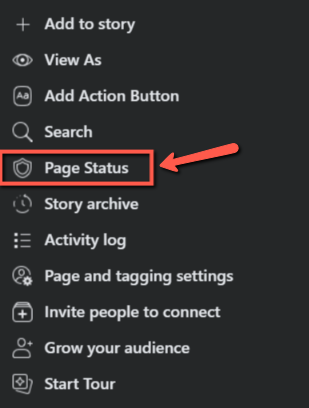
Click the option for Page Status
Under “More About Your Page” Located on the right side of the screen, click “Manage Admins”
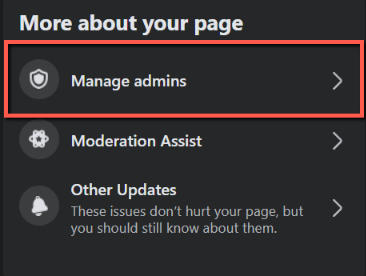
You will find the request under Partner Request or Ownership Requests. Select Respond to request.
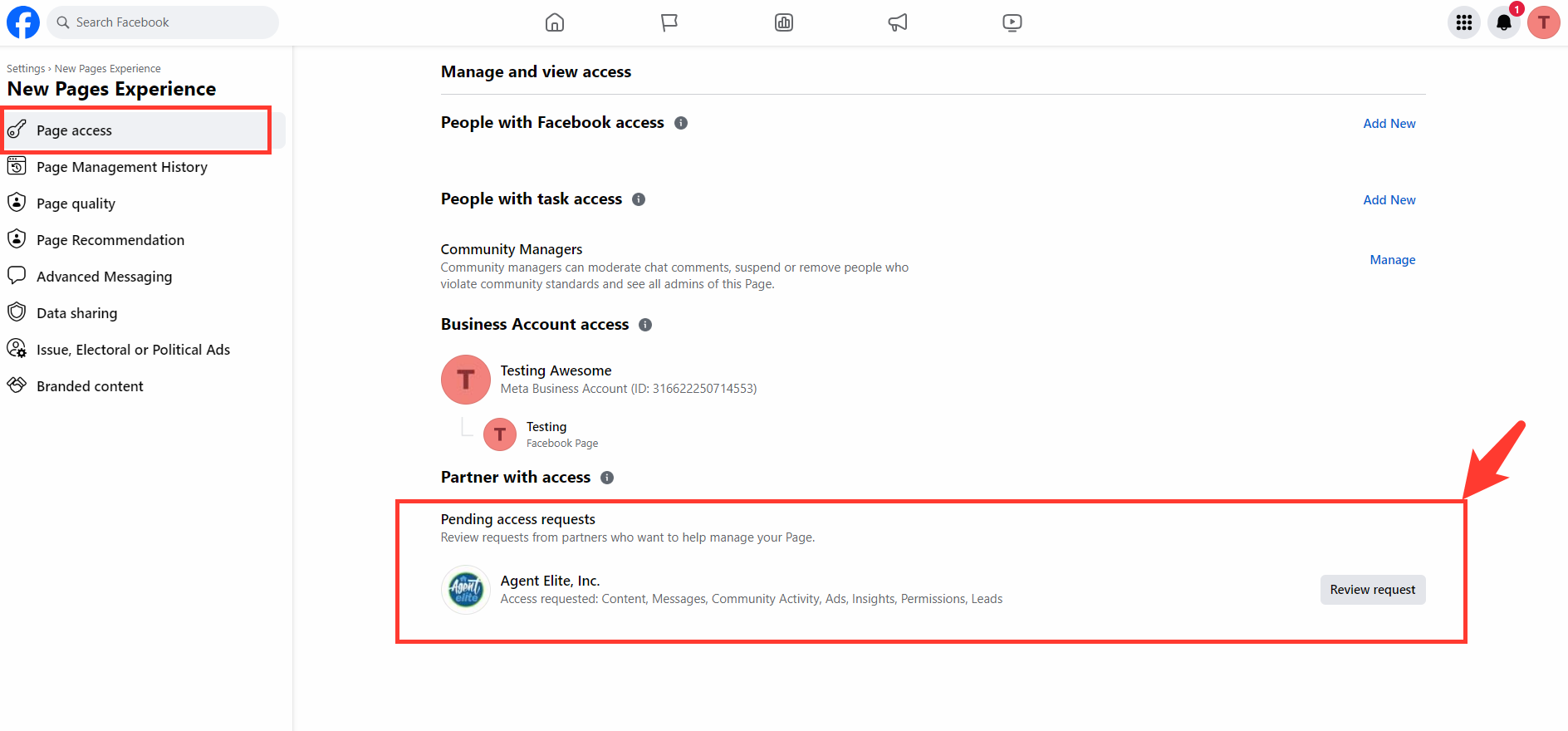
Select Give Agent Elite, Inc. access to my Page if it’s a Partner Request.
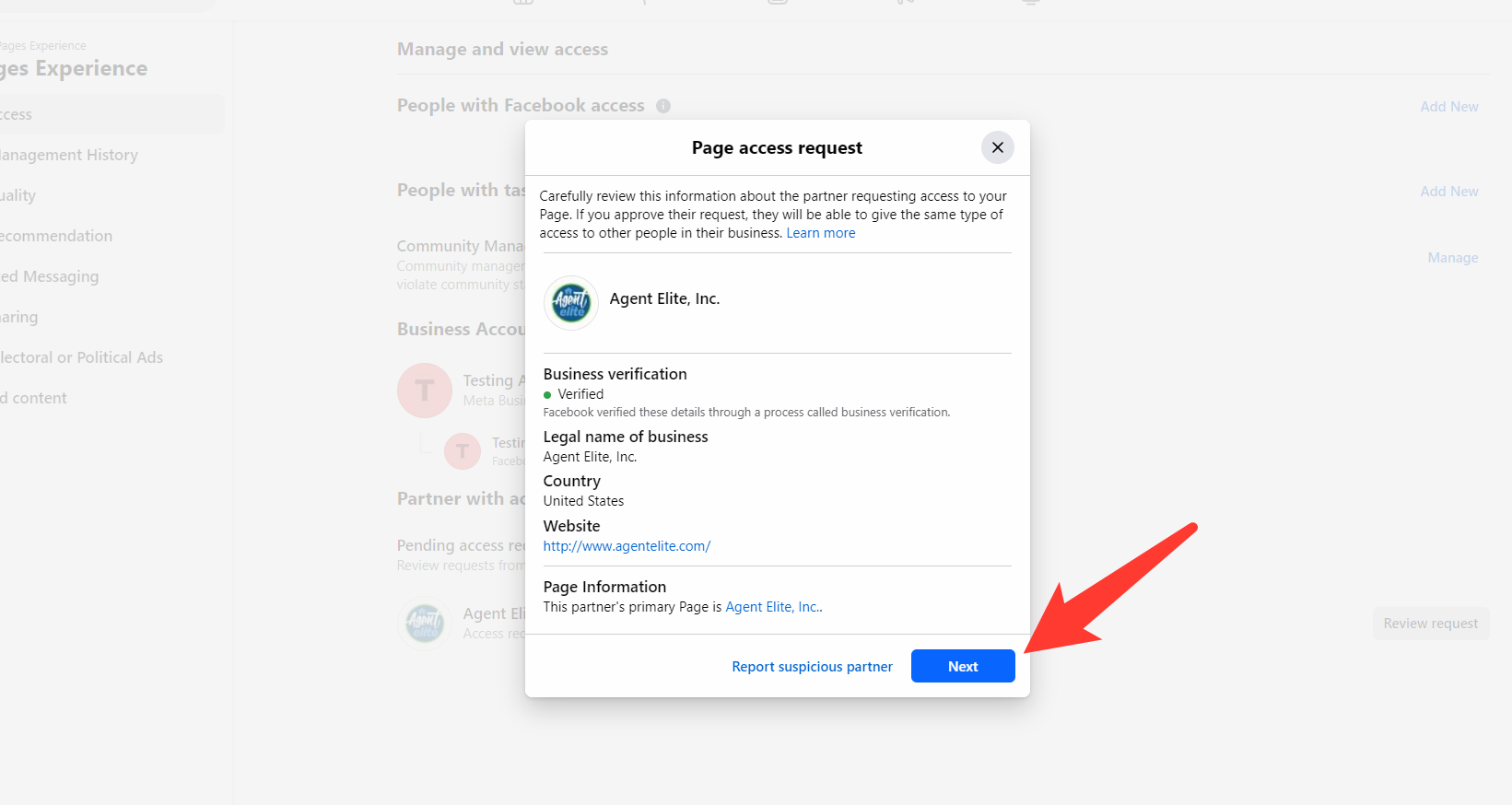
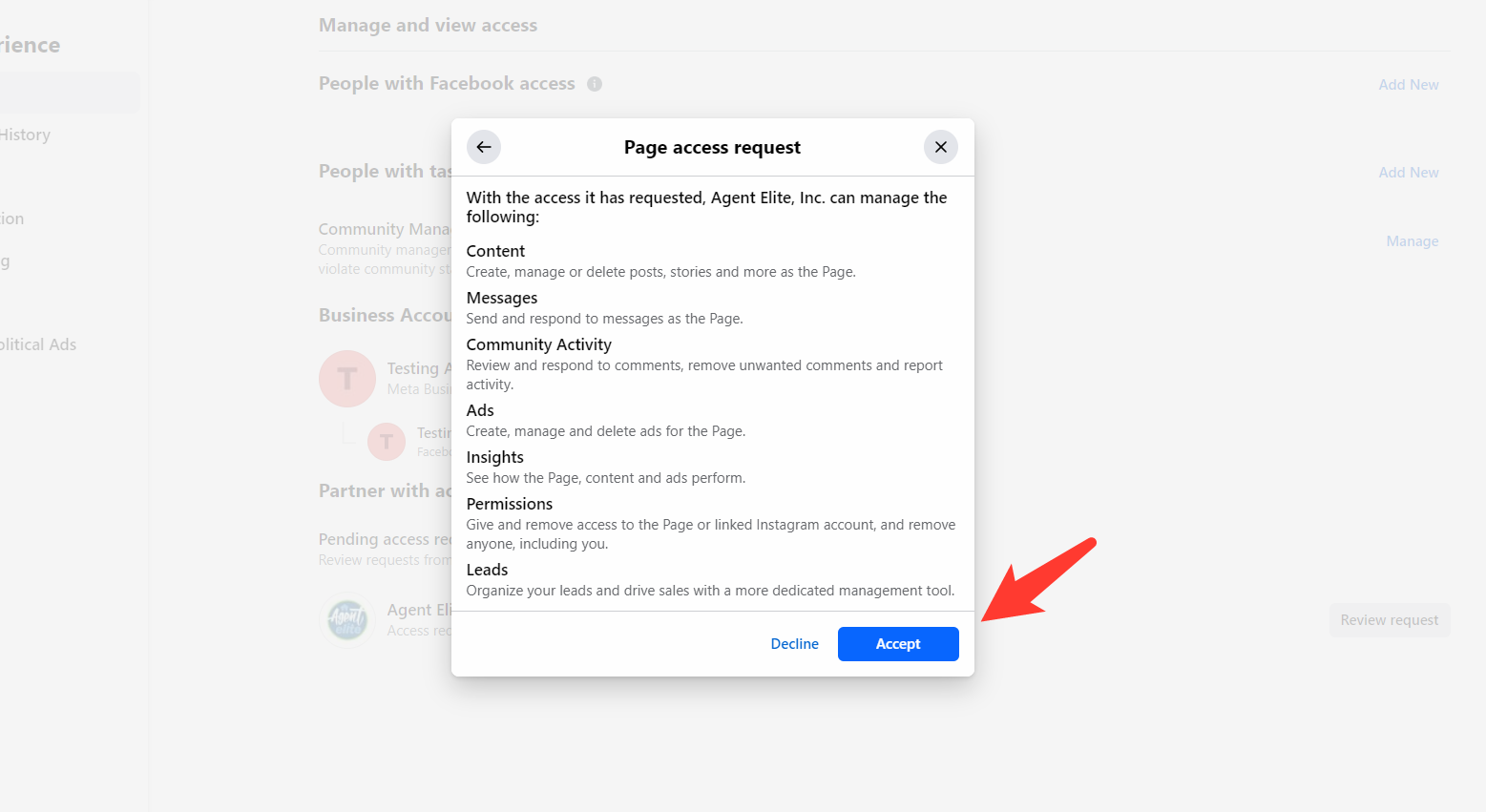
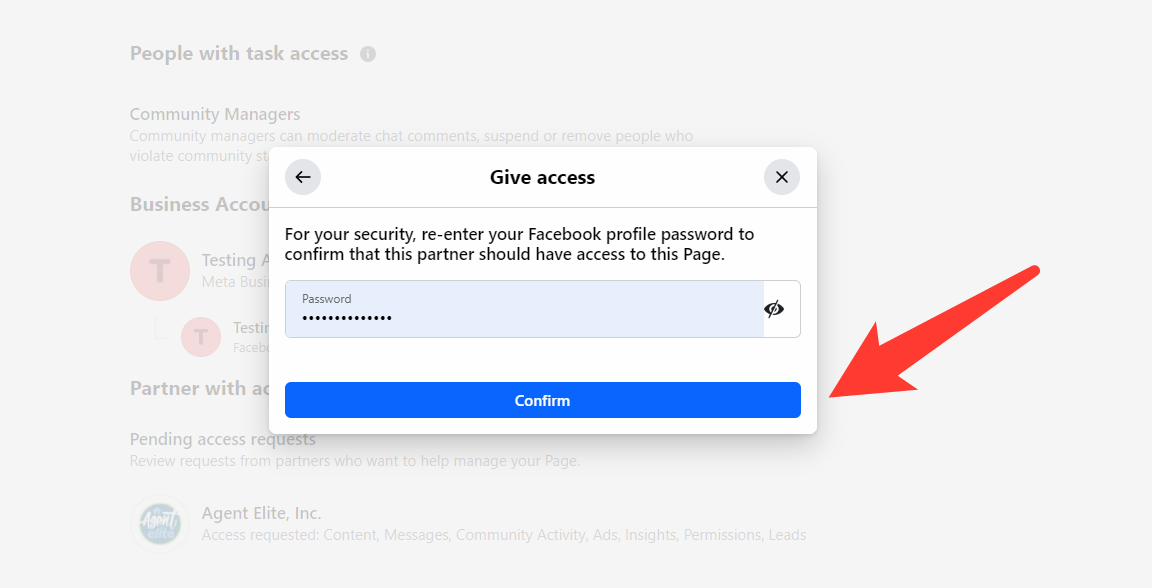
You will be prompted to enter your password to approve the access request.
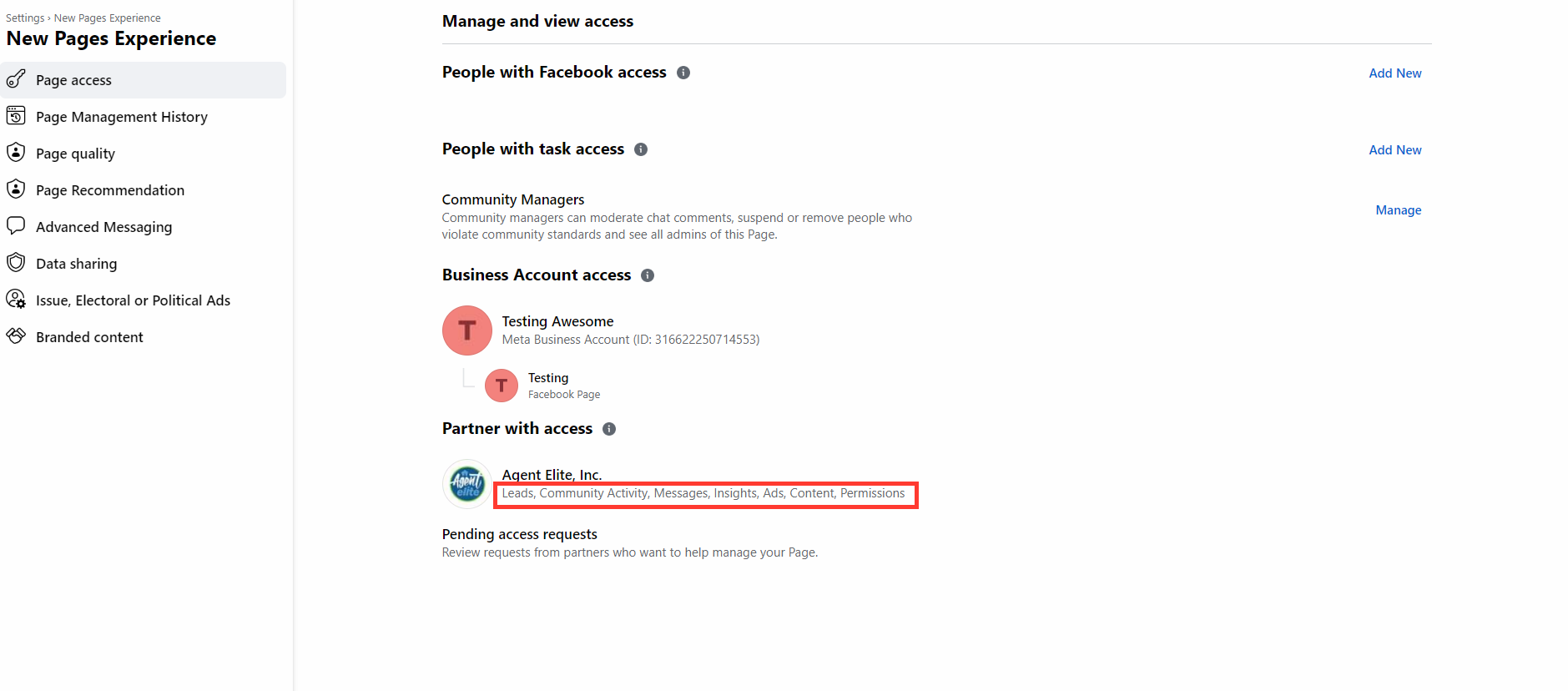
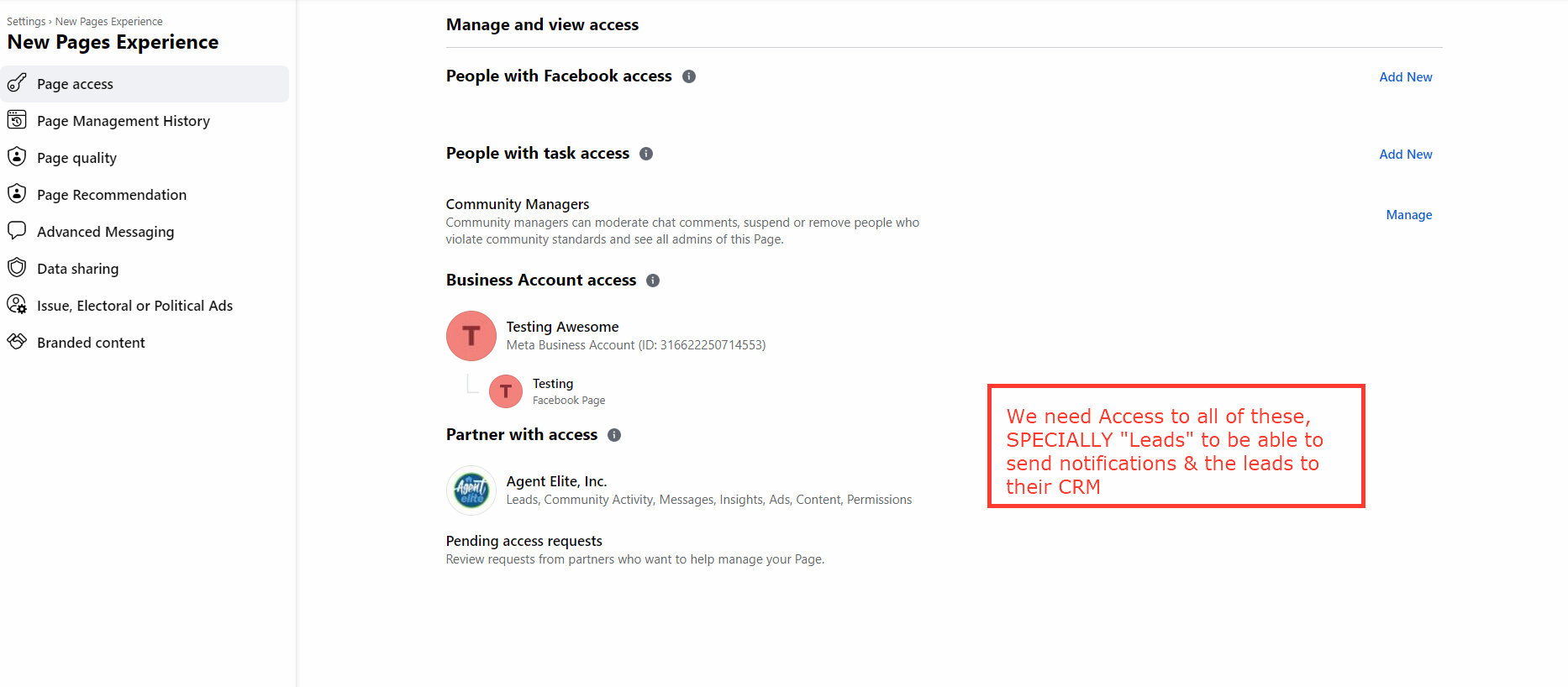
Once completed you will see that Agent Elite, Inc. is now under “Partner with access”
If you have full control of the Business Account, you can also approve partner requests in this way:
- Log into your Business Manager
- Go to Business Settings from your left sidebar. Then, click Requests.
- Click on the Received tab. You should see businesses that have requested access to your Page here. You should also see information about the user who has requested access and the business they belong to.
- Click Approve or Decline.
You have now either approved a partner request to give someone permission to access the Page or an ownership request to transfer ownership of the Page.
If you don’t know which Business Account owns the Page, you may need to dispute the ownership and apply for the Page to be detached.