Mortgage Websites
Add a Page to My Mortgage Site
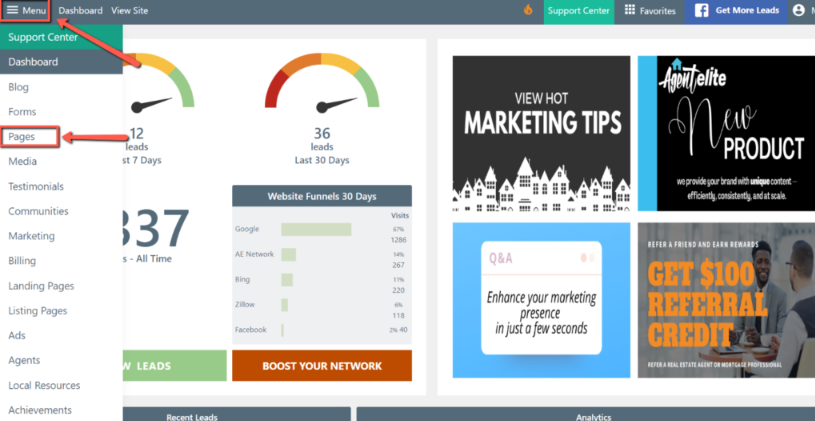
Section titled “Add a Page to My Mortgage Site”From the website dashboard, click Menu in the upper left corner and select Pages from the dropdown.
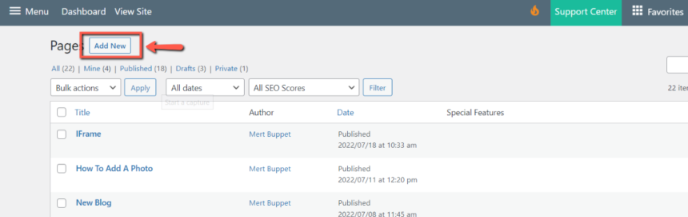
Click on Add New.
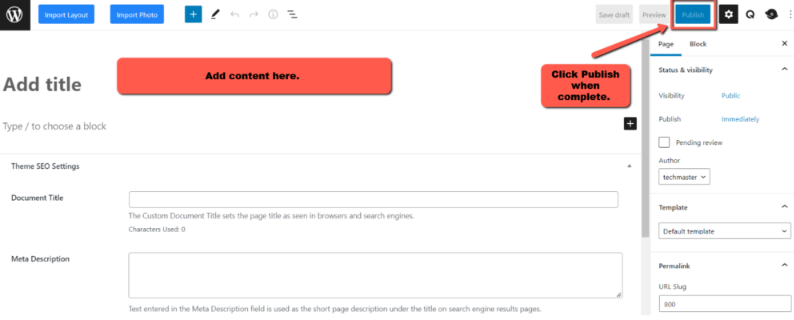
Add your content, then click on Publish.
Add New Content to the Page
Section titled “Add New Content to the Page”To add new content to the page, click on the plus sign at the top or bottom of the page. You can also click the ‘Import layout’ button at the top.
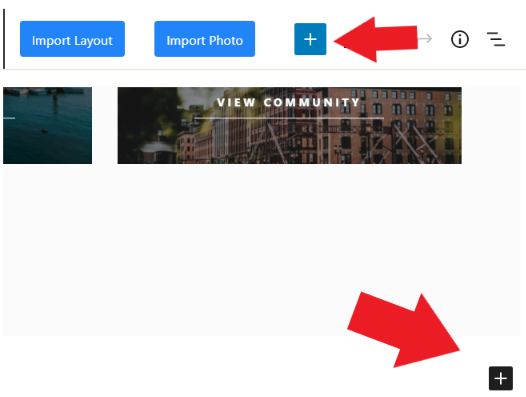
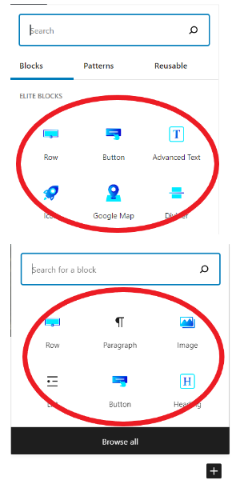
A window opens if you click on the plus sign at the top or bottom of the page. Select the block or section you wish to add to the page. Once you choose the content you want, it will be added to the page for you to edit.
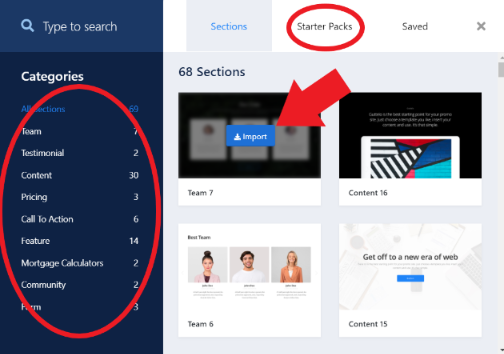
If you click the ‘Import layout’ button at the top, you can choose from various pre-built templates.
Add an Image From the Media Library to the Page
Section titled “Add an Image From the Media Library to the Page”Open the Setting Panel on the righthand side of the screen by clicking on the block you wish to edit and select ‘Media.’
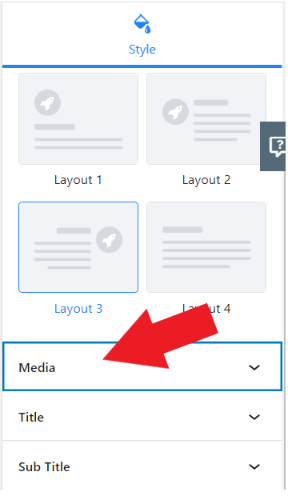
Once you open the ‘Media’ tab, a box will be titled ‘Image.’ Click on that box if it is empty, or if there is currently an image, click on the ‘Edit’ button/icon in the top right corner.
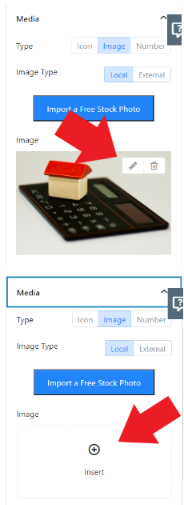
Once you click on one of those buttons, the media library will open, and clicking on any of the images there will put the image on the page.
Attribute a Link to a Button
Section titled “Attribute a Link to a Button”First, click on the button you would like to add the link to
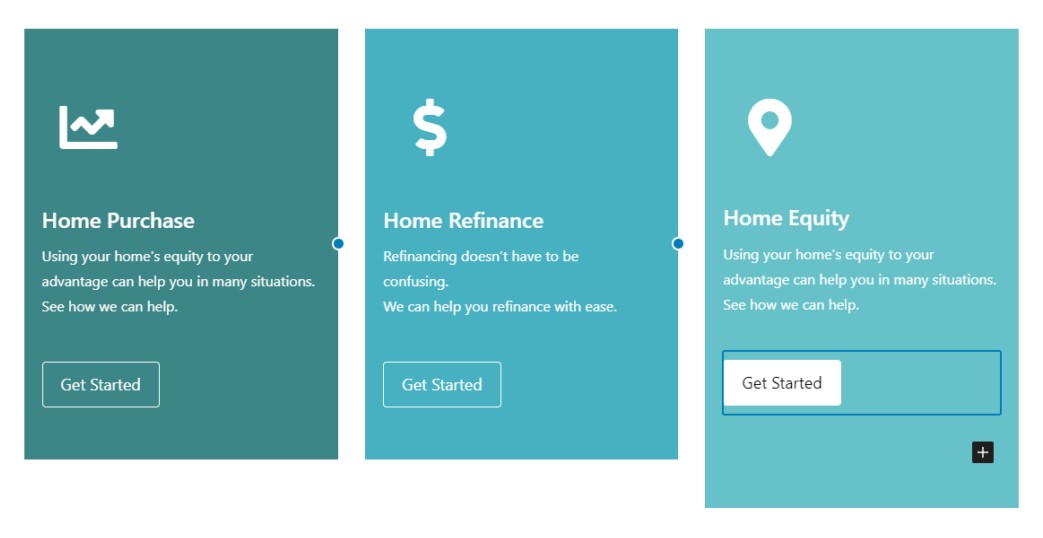
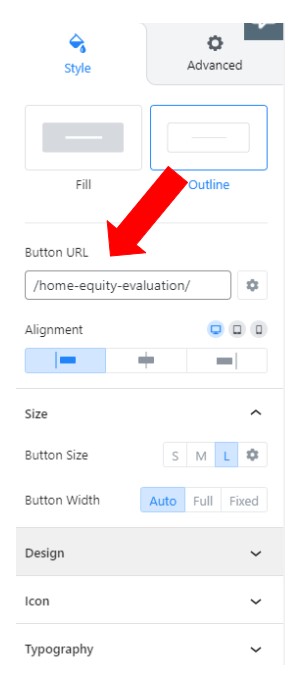
Second, type in the extension you prefer and enjoy!
STAY ON SAME SITE: Enter ‘/[your-page-slug-here]/’
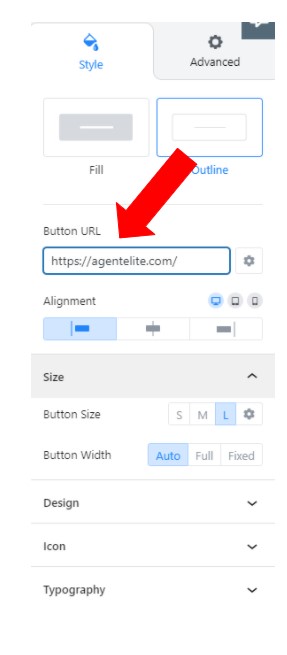
LEAVE TO EXTERNAL SITE: Enter full URL ‘https://your-site-here.com/’
Adjust the Mortgage Calculator
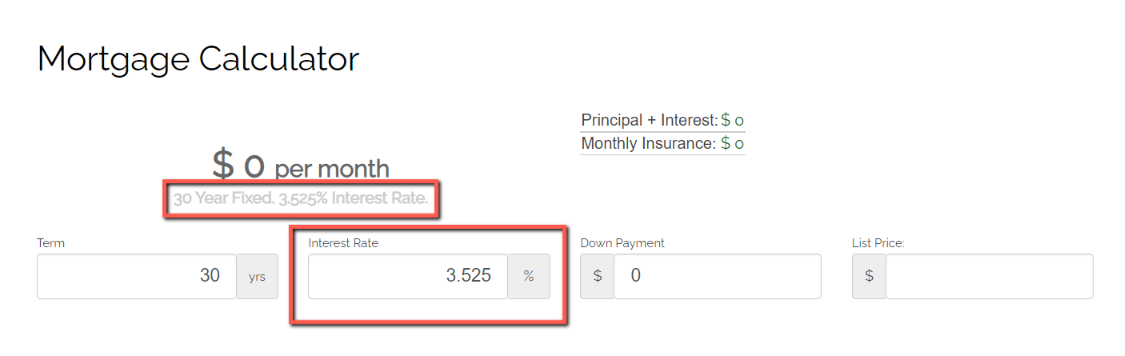
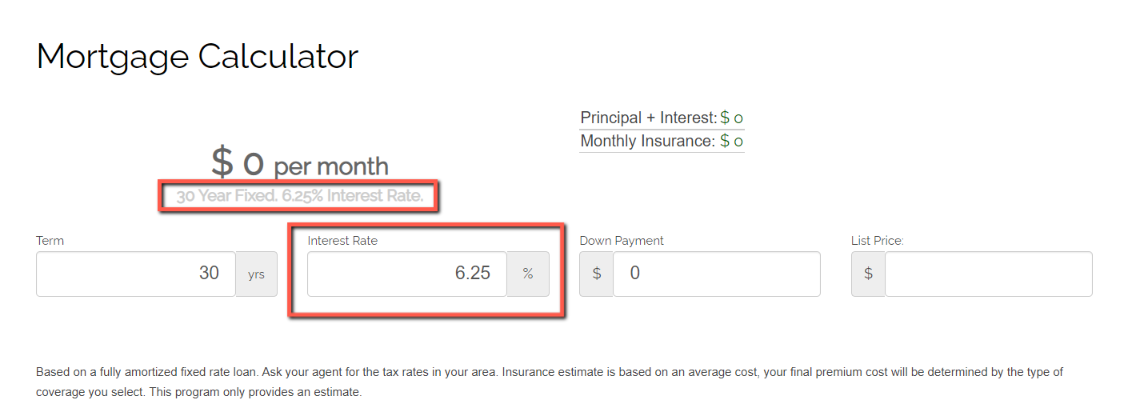
Section titled “Adjust the Mortgage Calculator”The Mortgage Calculators on your website come with a default interest rate.
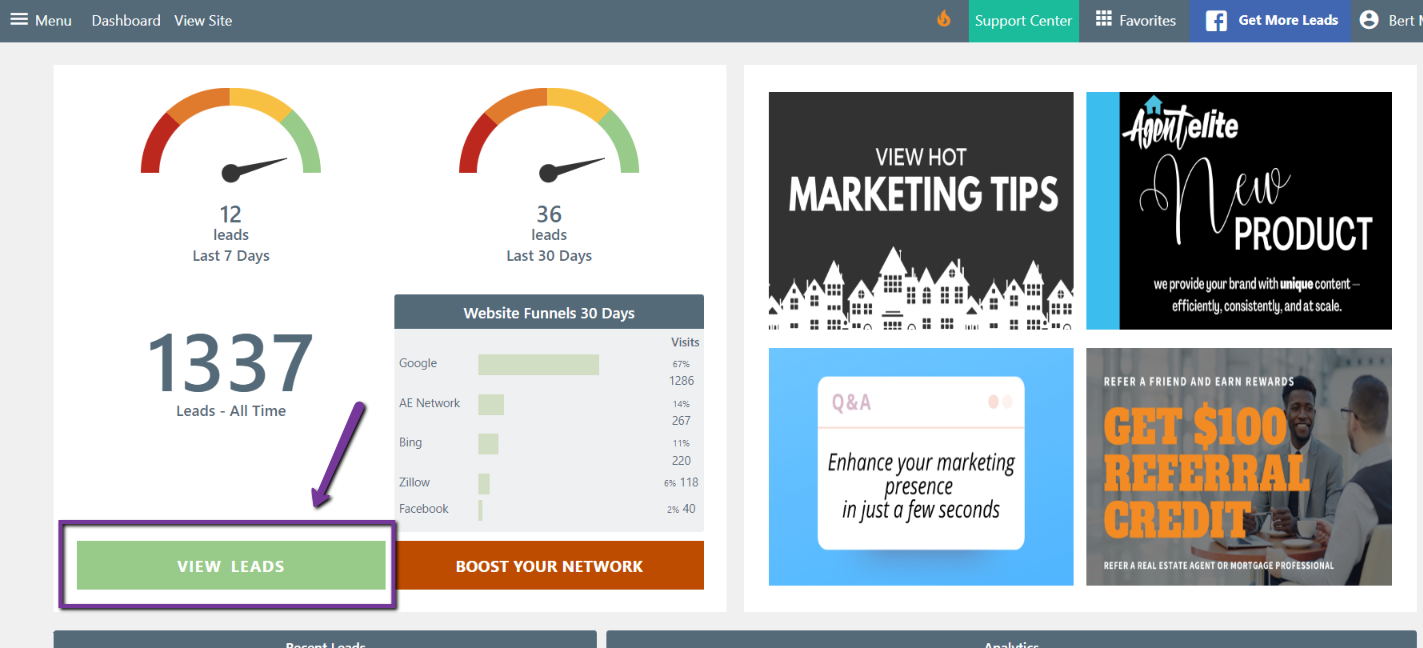
To adjust the default mortgage interest rate, go to your Agent Elite CRM by clicking on the green bar that says View Leads in your website dashboard.
Click Setup at the top and select Mortgage Calc Settings on the left under Listing Settings. From here, you can adjust the default interest rate and many other default settings.
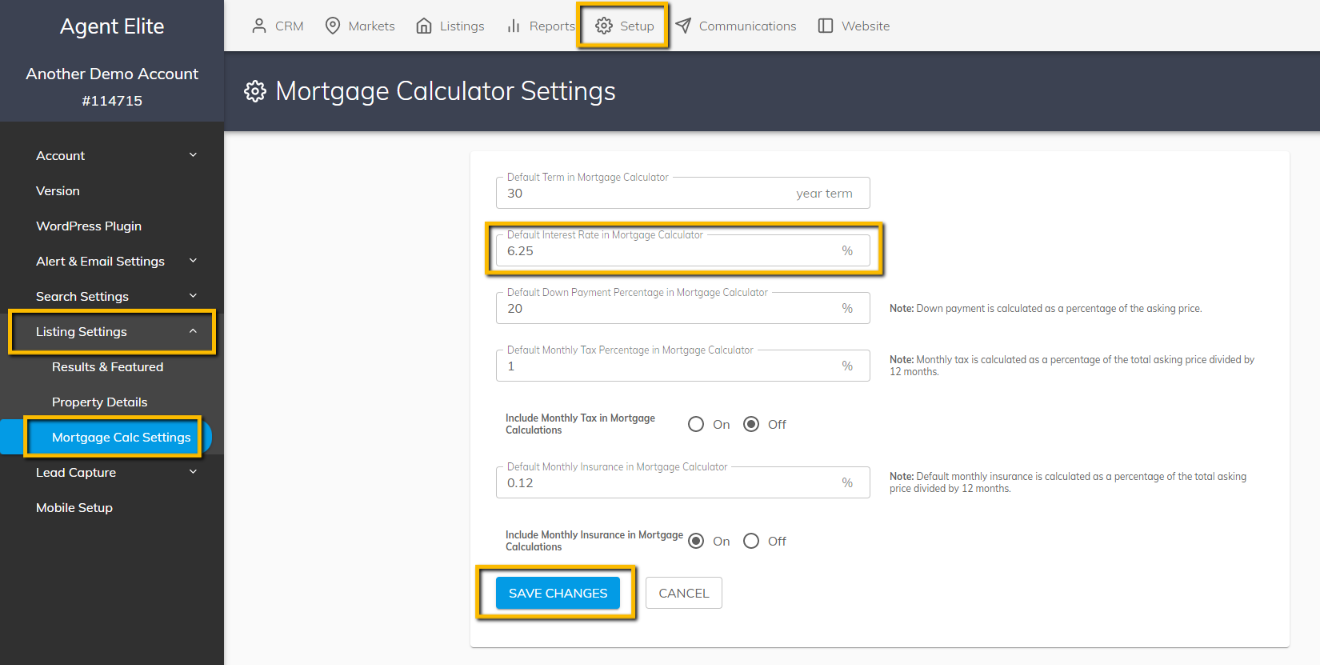
Click Save Changes to complete.
Add a Mortgage Calculator to My Site
Section titled “Add a Mortgage Calculator to My Site”A mortgage calculator can increase engagement by providing visitors with a valuable interactive tool. Visitors may spend more time on your website exploring different mortgage options and using the calculator to estimate their payments. This helps your SEO by increasing time on site and average clicks per visit.
Add a Mortgage Calculator
To add a mortgage calculator to your website, click Menu in the upper left corner of your website dashboard and select Pages from the dropdown.
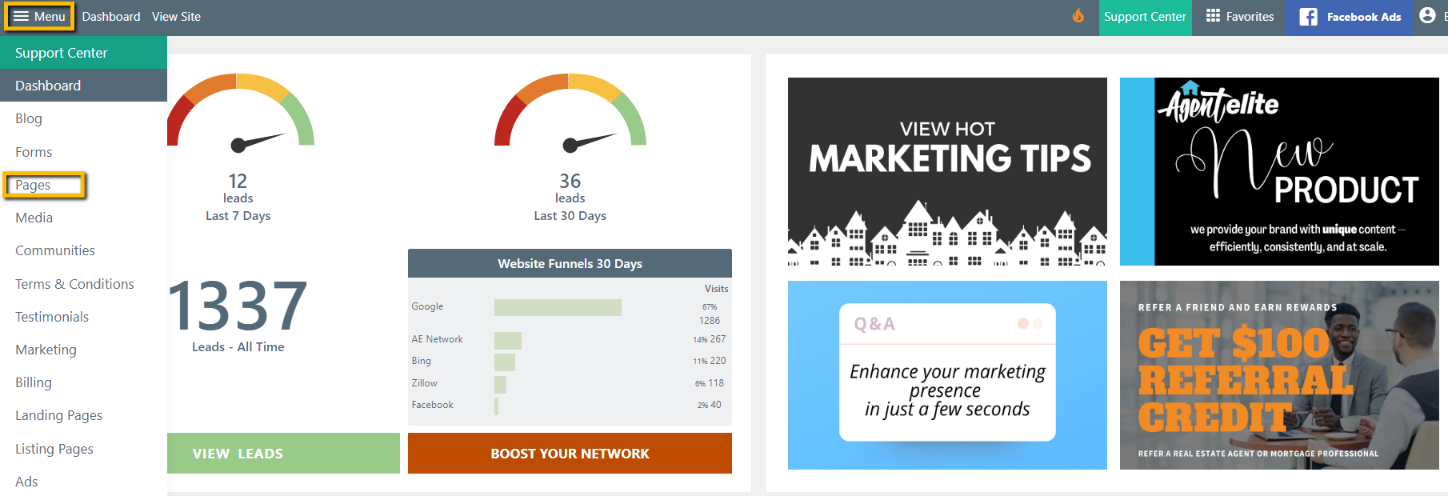
You can add the mortgage calculator to an existing page by clicking on the page name or add it to a new page by selecting Add Page.
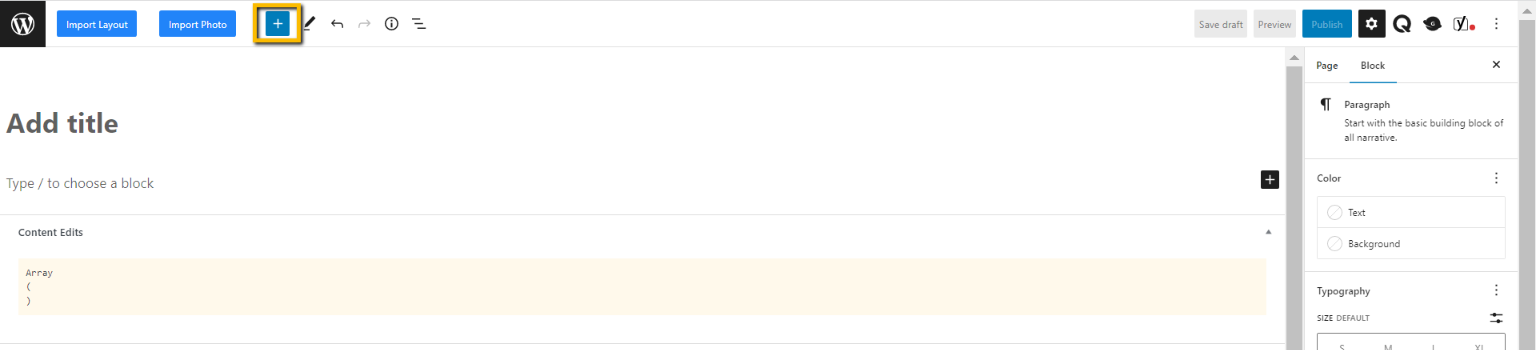
Once you are on the page, click the plus icon (+) at the top of the page.
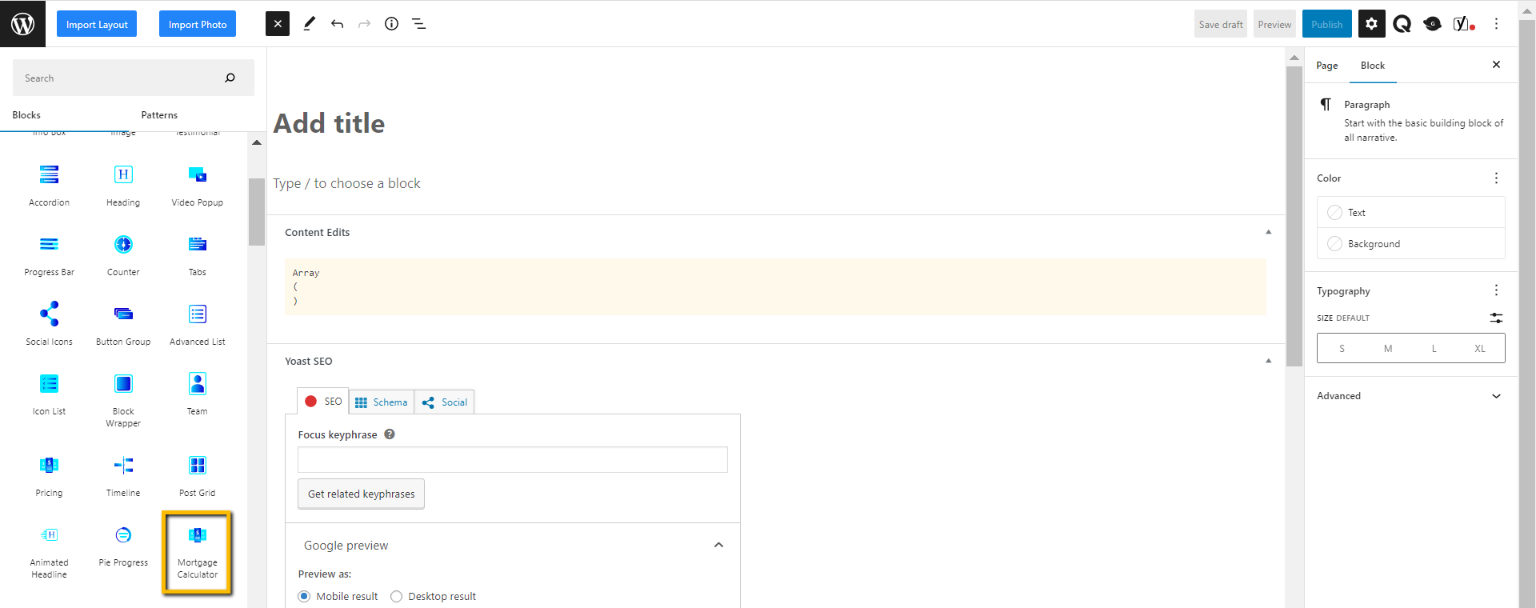
From the left panel menu, select Mortgage Calculator.
Add a title for your page. Click Publish to complete.
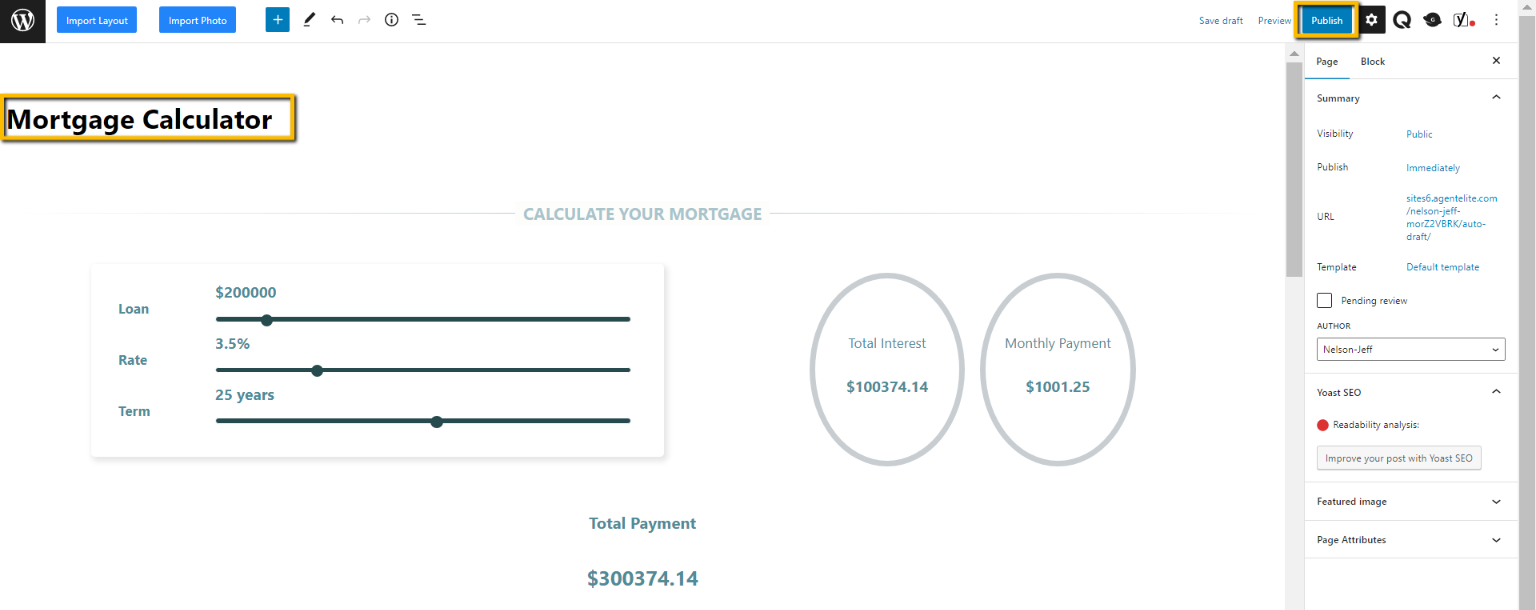
If you added the calculator to an existing page, go back to your website and refresh. Your new Mortgage Calculator is now live!
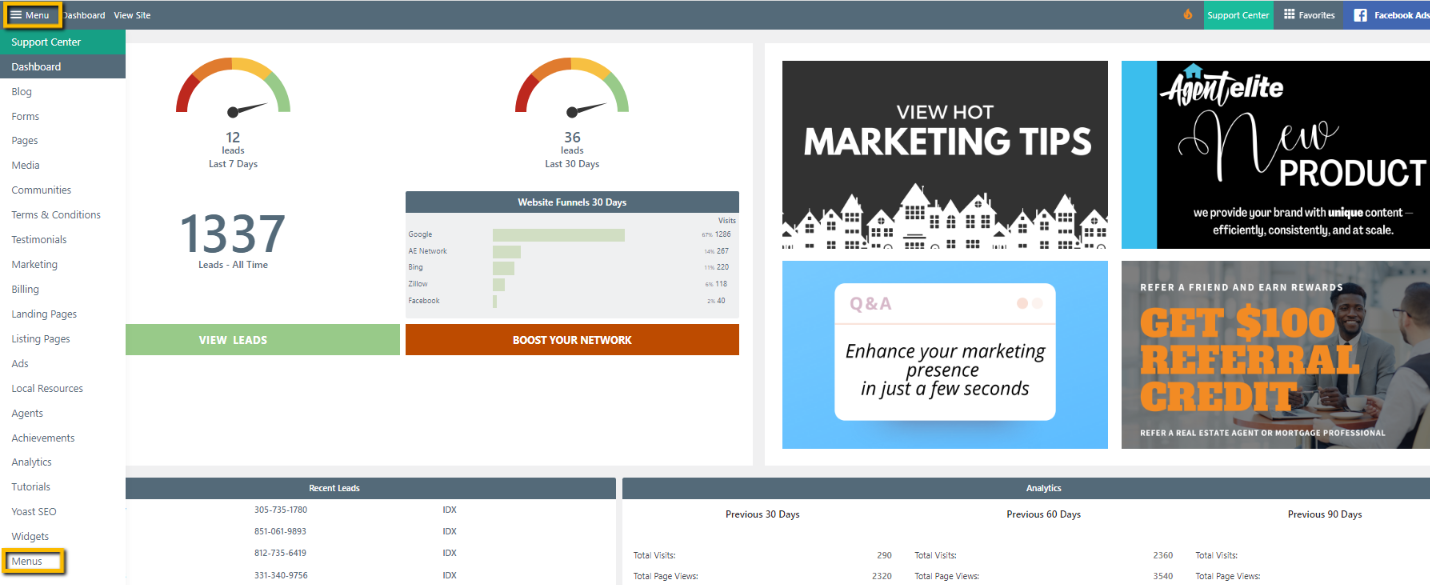
If you added the calculator to a new page, return to the website dashboard and click Menu in the upper left corner. Select Menus from the dropdown.
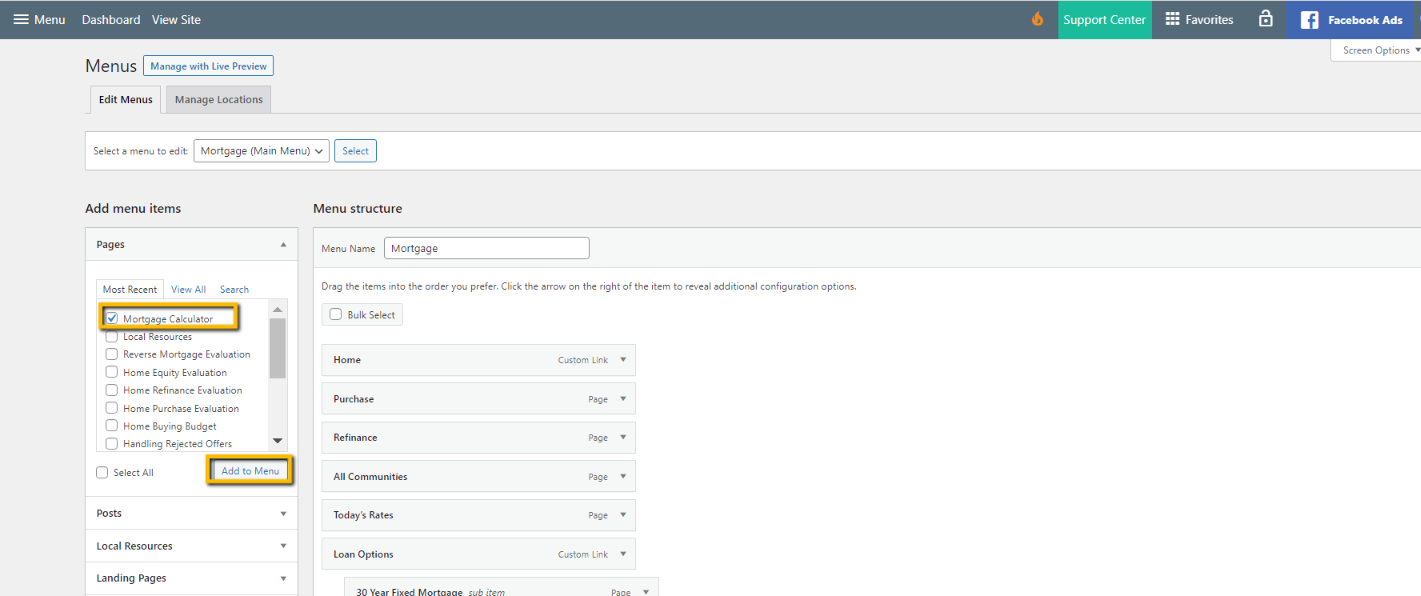
You will see the name of your new Mortgage Calculator page as the first option under Add menu items. Select the page and click Add to Menu.
By default, your new page is added to the bottom of the menu. This menu mirrors the header menu on your website. Left-aligned tabs are header menu options; indented tabs are header sub-menu options. Drag and drop your new page to the location where you would like it to appear on your header menu. In this example, we’re adding the new mortgage calculator page as a sub-menu item under the main header option, Free Tools.
Add An IFrame To My Site
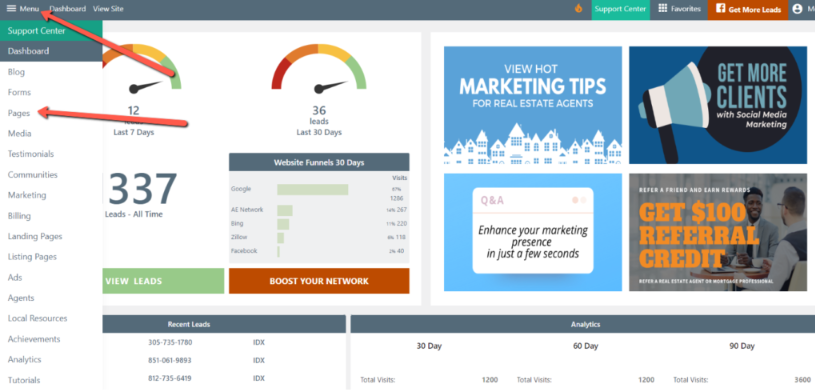
Section titled “Add An IFrame To My Site”From the Website Dashboard, navigate to the Page where you want to add the IFrame. You can find most pages by clicking on Menu in the upper left-hand corner and selecting Pages from the dropdown.
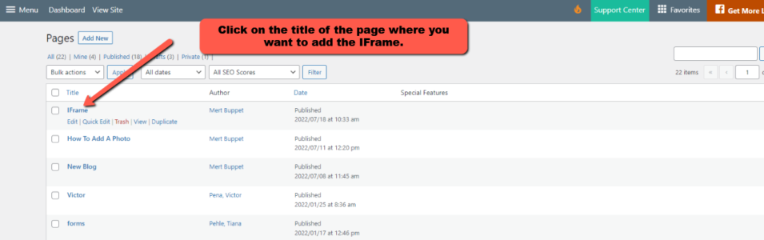
Click on the page title where you want to add the IFrame.
Click on the Add Block Icon.
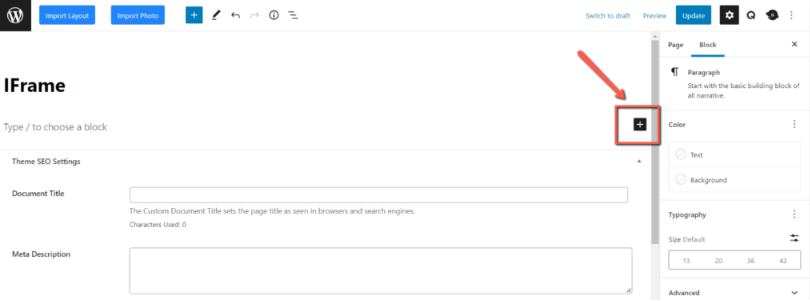
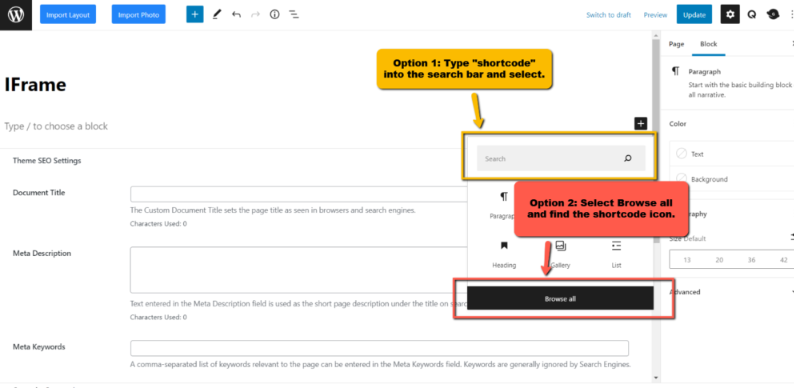
Navigate to the shortcode by typing shortcode into the search bar and selecting it. Or, click on Browse all and find the shortcode in the list.
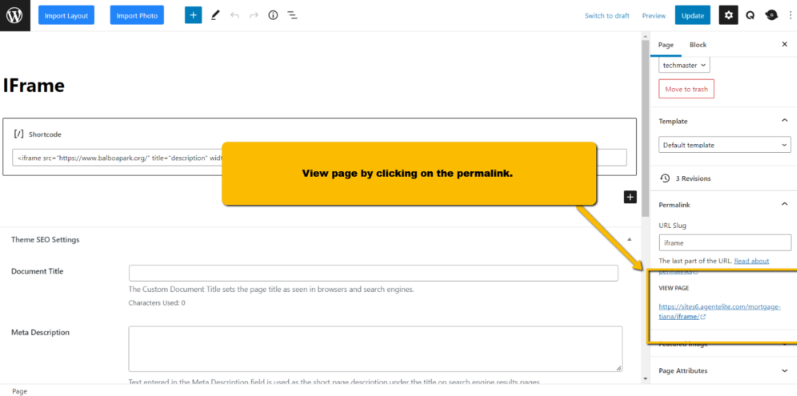
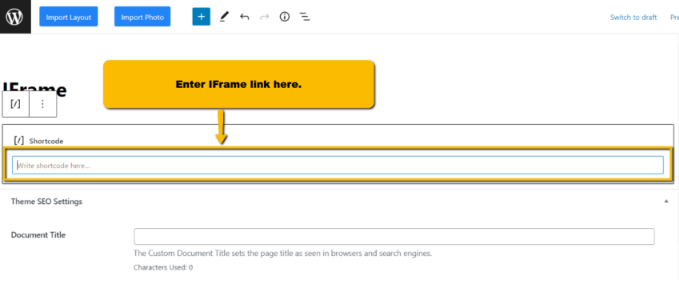
Enter the IFrame link in the space provided. Click on Publish/Update when completed.
You can view the page by clicking on the permalink.