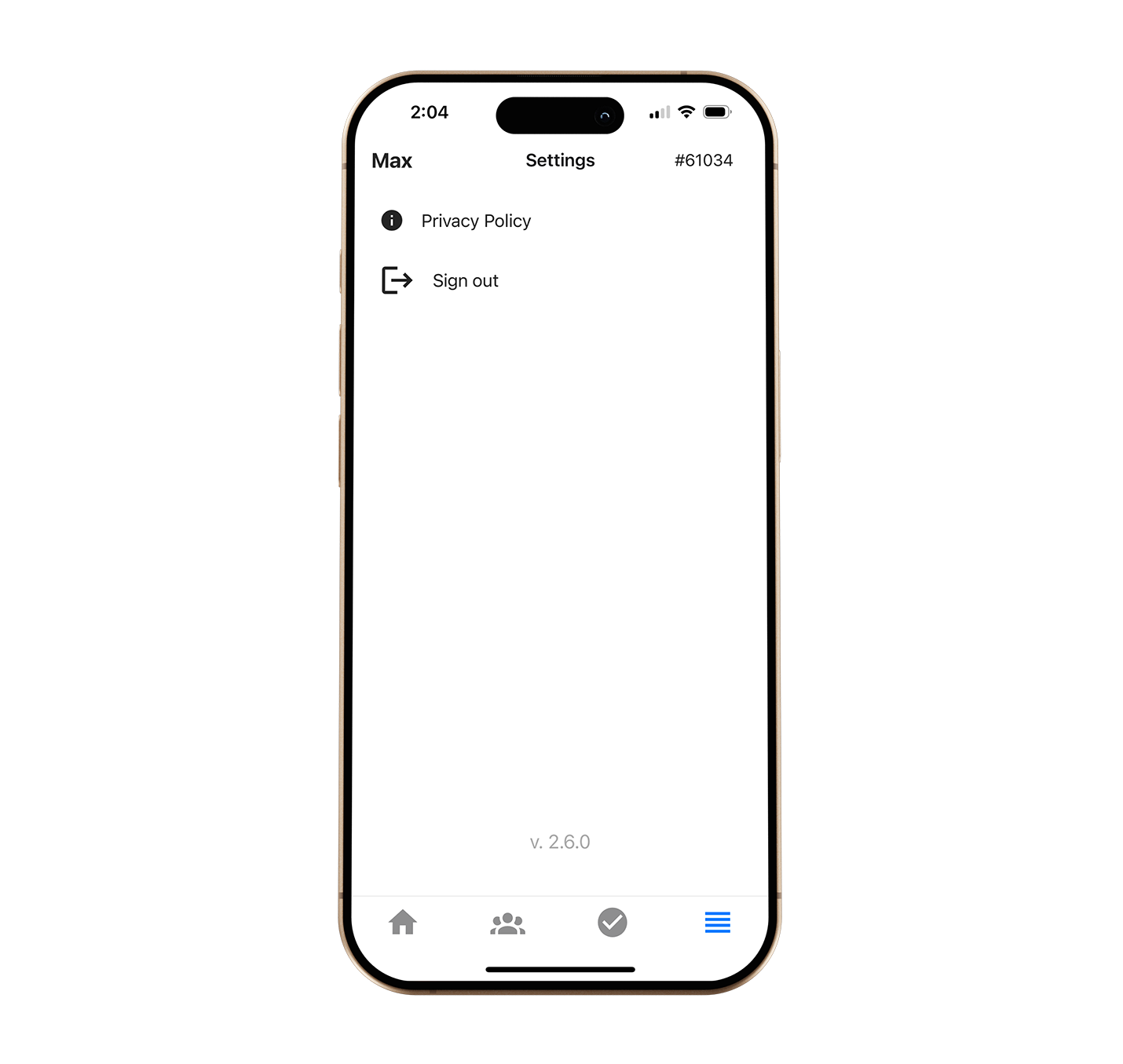
Notifications and logging out
Push Notifications
Section titled “Push Notifications”Using the Max for Real Estate app, you can have push notifications of your leads’ activities sent to your phone in real time, allowing you to follow up quickly.
Types of Push Notifications
Section titled “Types of Push Notifications”Below is a complete list of all the actions that will trigger a push notification.
- When a lead submits a contact request
- When a lead requests more info on a listing
- When a lead requests to schedule a showing
- When a lead requests a valuation
- When a lead saves a search
- When a lead saves a listing
- When a lead registers on your website
- When a lead signs up to use the Property Organizer feature
- When a lead signs up to receive Listings Reports to their email
- When a lead signs up to receive Open Home Reports to their email
- When a lead signs up to receive Market Reports to their email
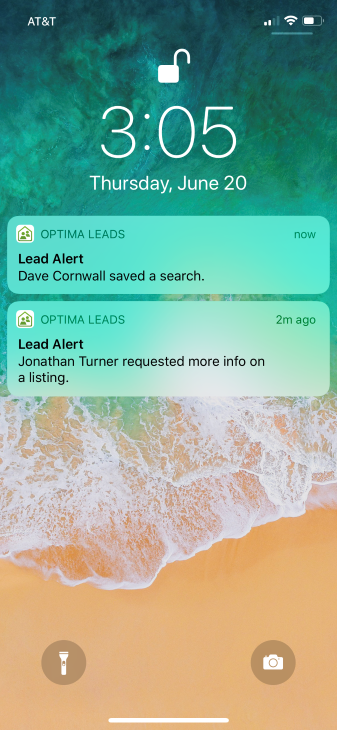
Viewing Past Push Notifications
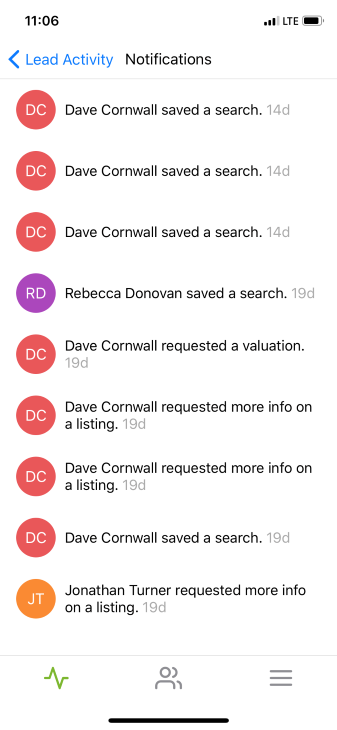
Section titled “Viewing Past Push Notifications”- On the Lead Activity screen, tap the bell icon in the upper right-hand corner.
- A list of all past push notifications sent appears in reverse chronological order.
- Tapping on a notification in the list will direct you to the specific Lead’s record screen.
Toggle On/Off Push Notifications
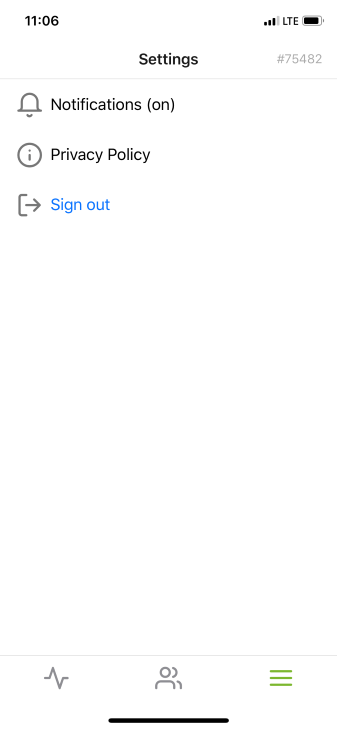
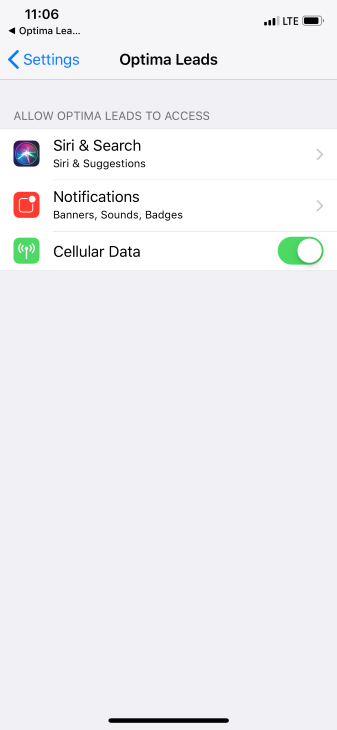
Section titled “Toggle On/Off Push Notifications”- To turn on or off your Push Notifications, navigate to the settings screen.
- Next to the bell icon, you can see whether your Push Notifications are currently on or off.
- Tap the Notifications link, and you will be directed to your settings for Push Notifications for the Max for Real Estate app. From here, you can turn off or on Push Notifications.
Log out, and Privacy Policy
Section titled “Log out, and Privacy Policy”Log Out
- To log out, tap the third icon in the app menu. The blue “Sign out” button will log you out of the app and direct you to the login screen.