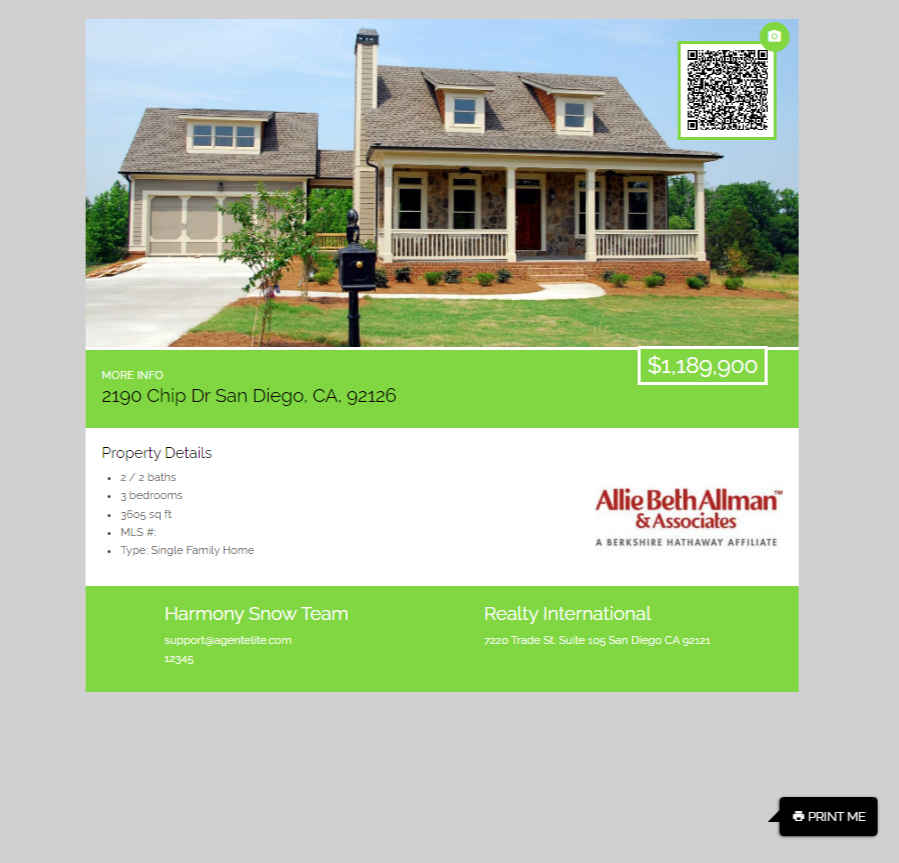
Single property websites and flyers
Single Property Website & Flyers
Section titled “Single Property Website & Flyers”Make A Single Property Listing Page
Section titled “Make A Single Property Listing Page”From the website dashboard, click on Menu in the upper left corner and then click on Listing Pages (Real Estate Only).
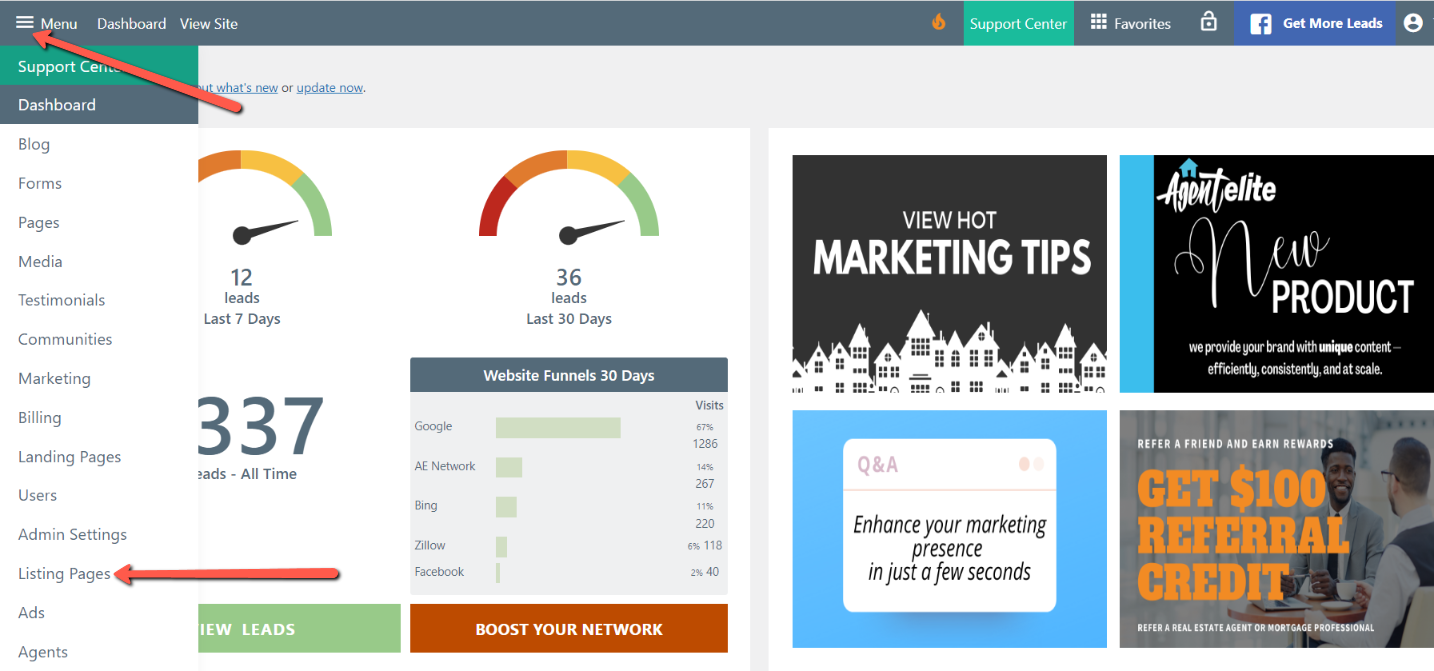
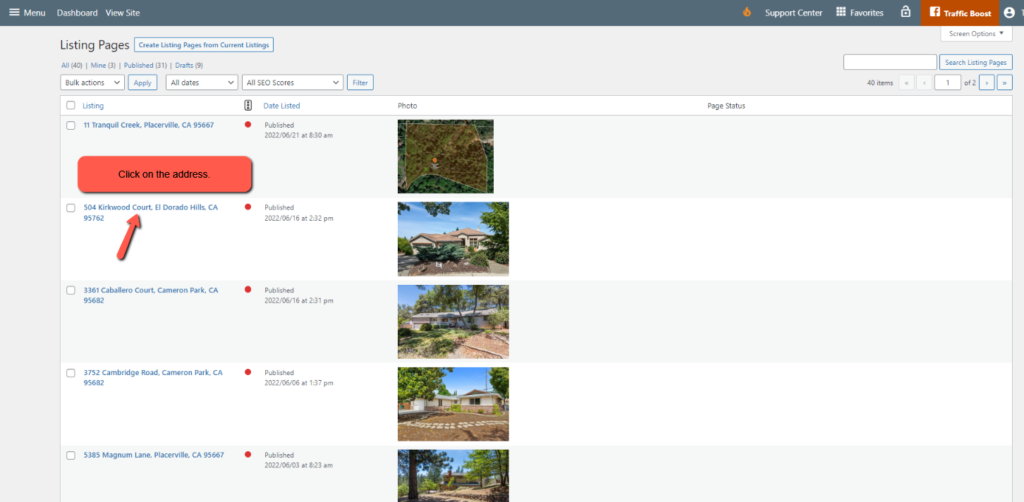
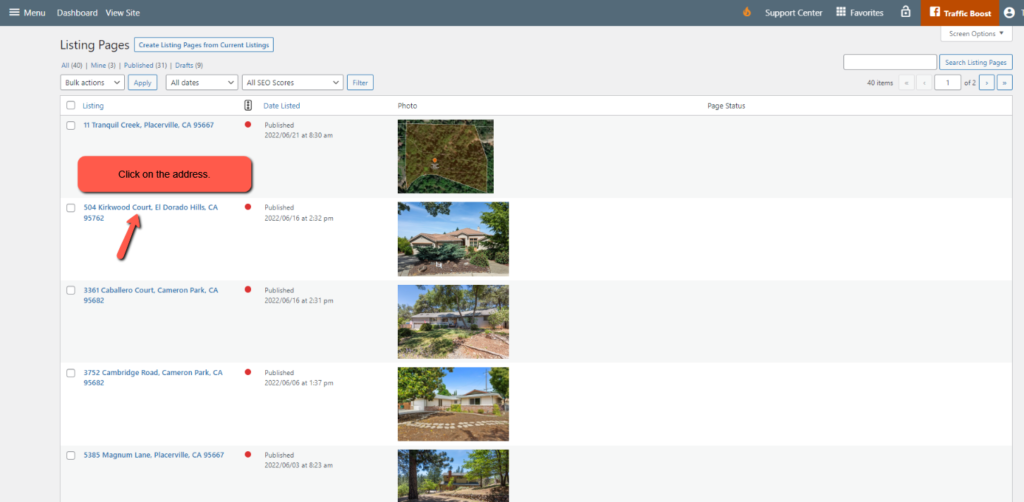
You will see a list of your current featured listings. Select the one you’d like to use for a listing page.
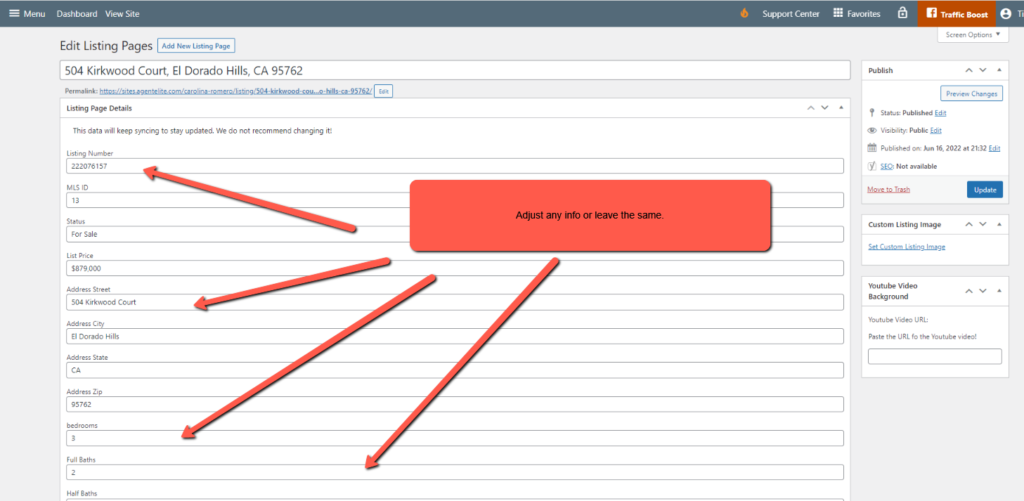
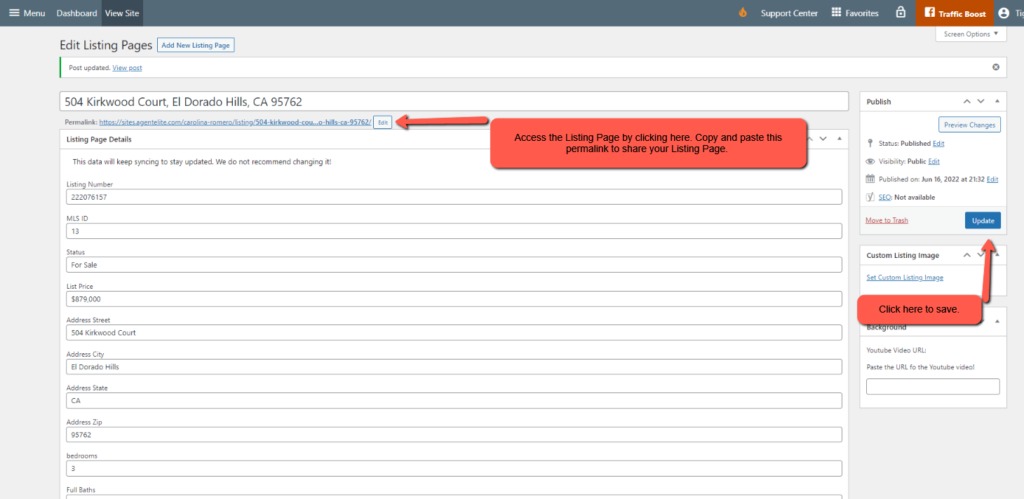
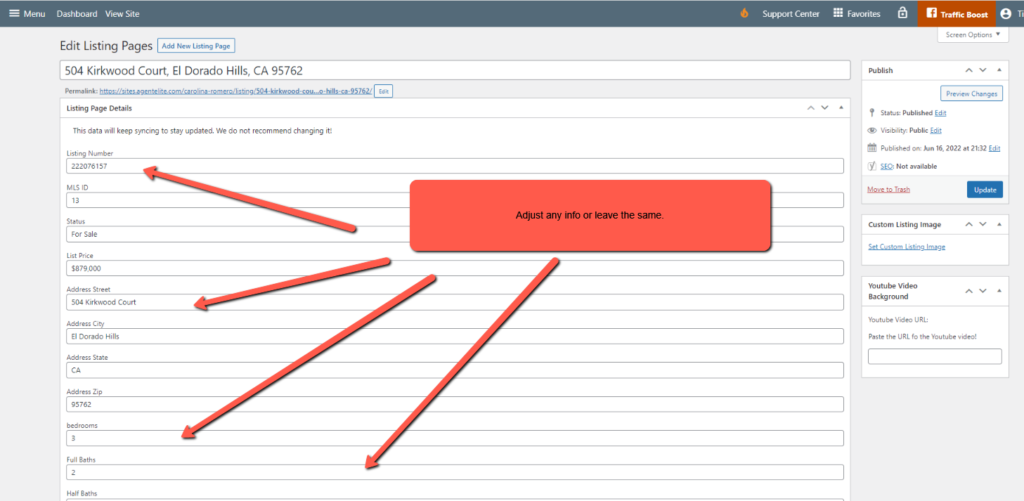
Adjust any info you need to, or leave it as is:
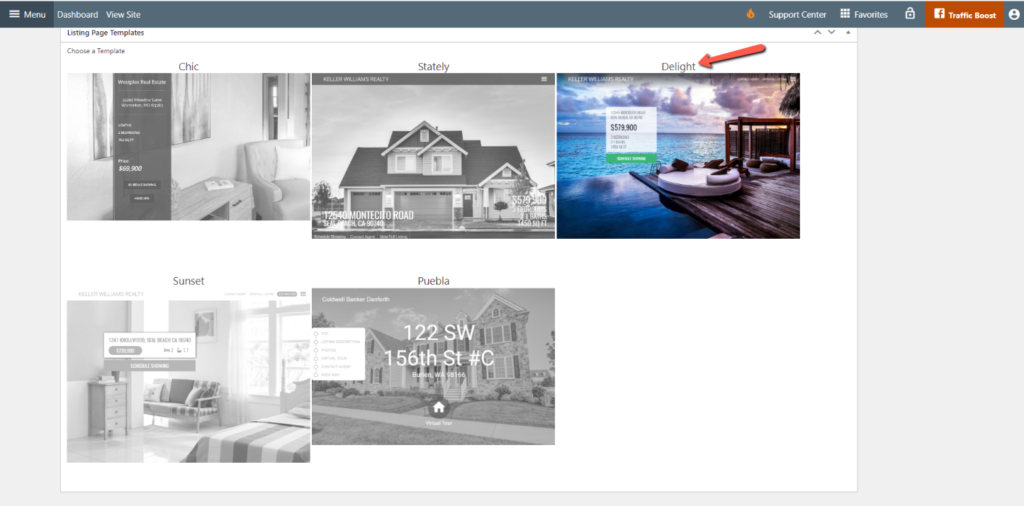
Then scroll down and pick the design template you’d like to use. For this example, we are using Delight.
Scroll back up and click on Update. You can then access the permalink.
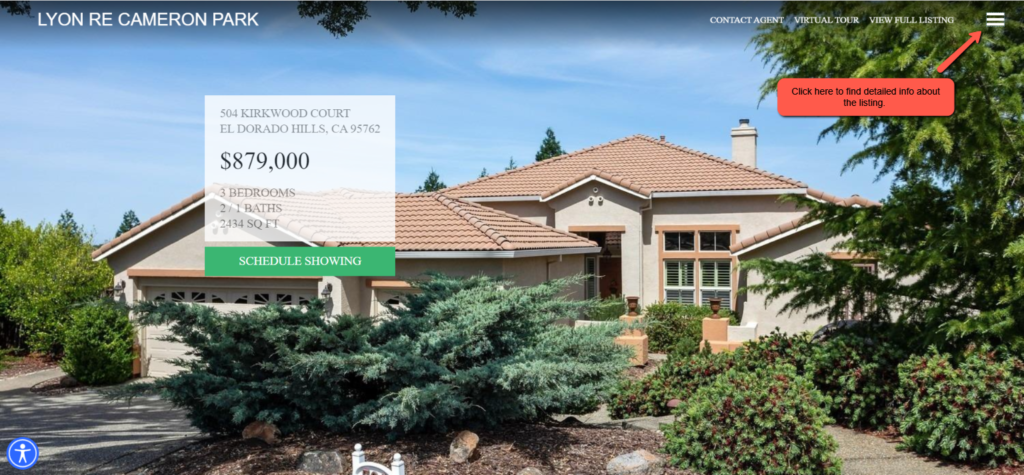
Your Listing Page is now complete.
Make a Listing Flyer
Section titled “Make a Listing Flyer”Listing flyers are tangible marketing materials you can distribute to potential buyers, neighbors, or local businesses. They allow you to promote properties outside the digital realm, reaching a wider audience.
From the website dashboard, click on Menu in the upper left corner and then click on Listing Pages (Real Estate Only).
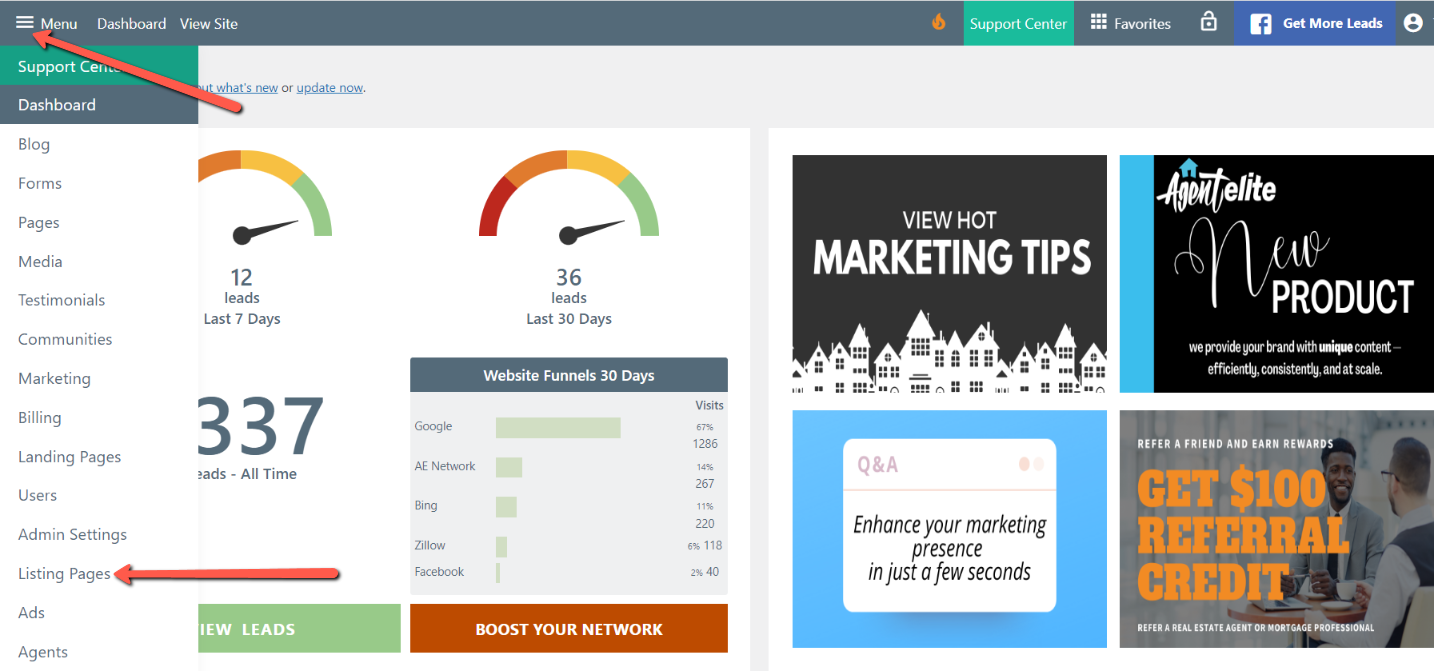
You will see a list of your current featured listings. Select the one you’d like to use for your flyer.
Adjust any info you need to, or leave it as is.
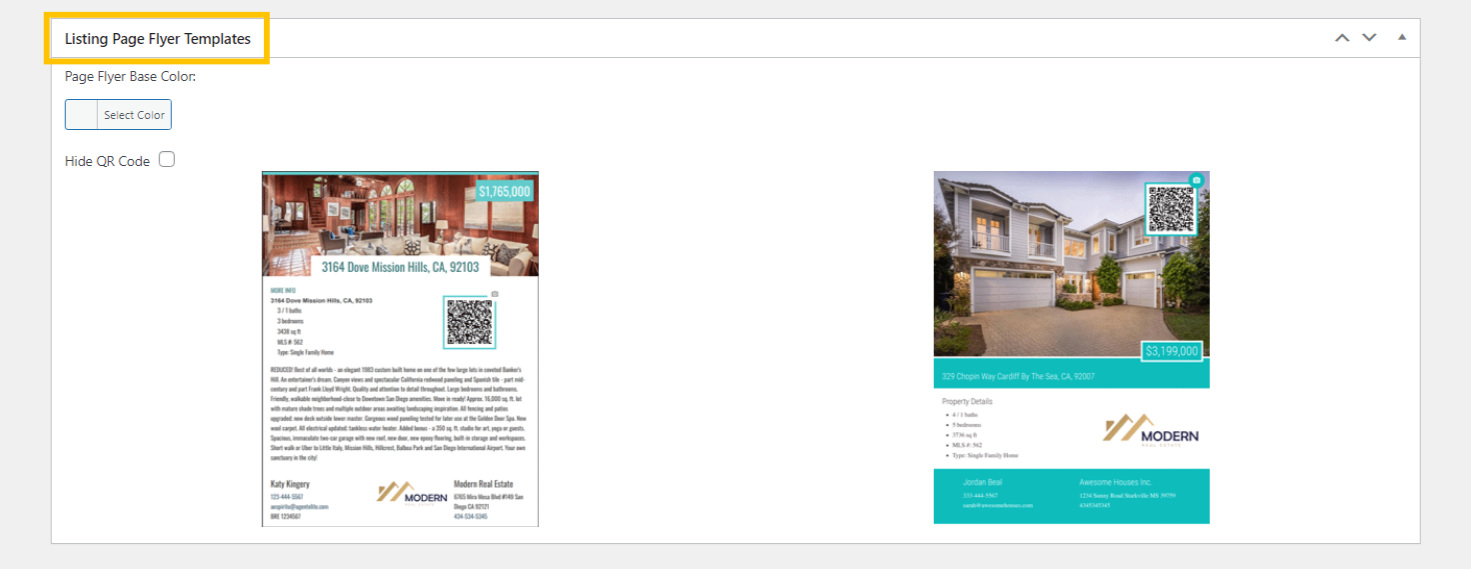
Scroll down to the Listing Page Flyer Templates section.
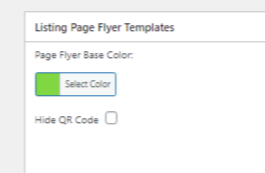
You can change the flyer base color or hide the QR code from here. The QR code takes you to the listing page on your site.
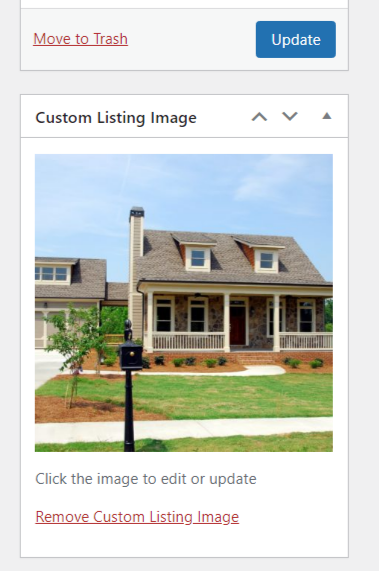
Choose the image you want to use in the flyer by scrolling up to the Custom Listing Image widget near the top right of the page.
Click Update/Publish after you have made any of these changes.
Scroll back down to the Listing Page Flyer Templates section and click on the flyer you want to use. The flyer will open up in a new window for you to print and distribute!