Blogs, RSS feeds and video
Create a Blog
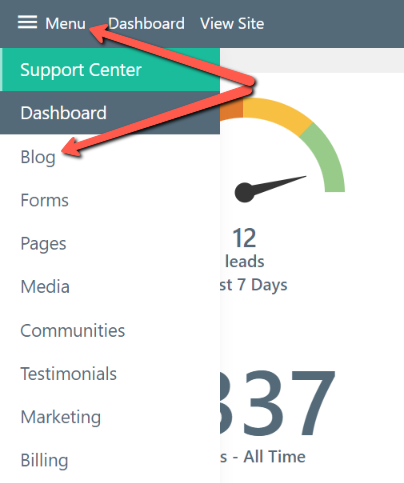
Section titled “Create a Blog”From the website dashboard, click on Menu in the upper-left corner and select Blog from the dropdown.
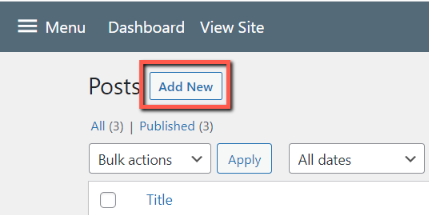
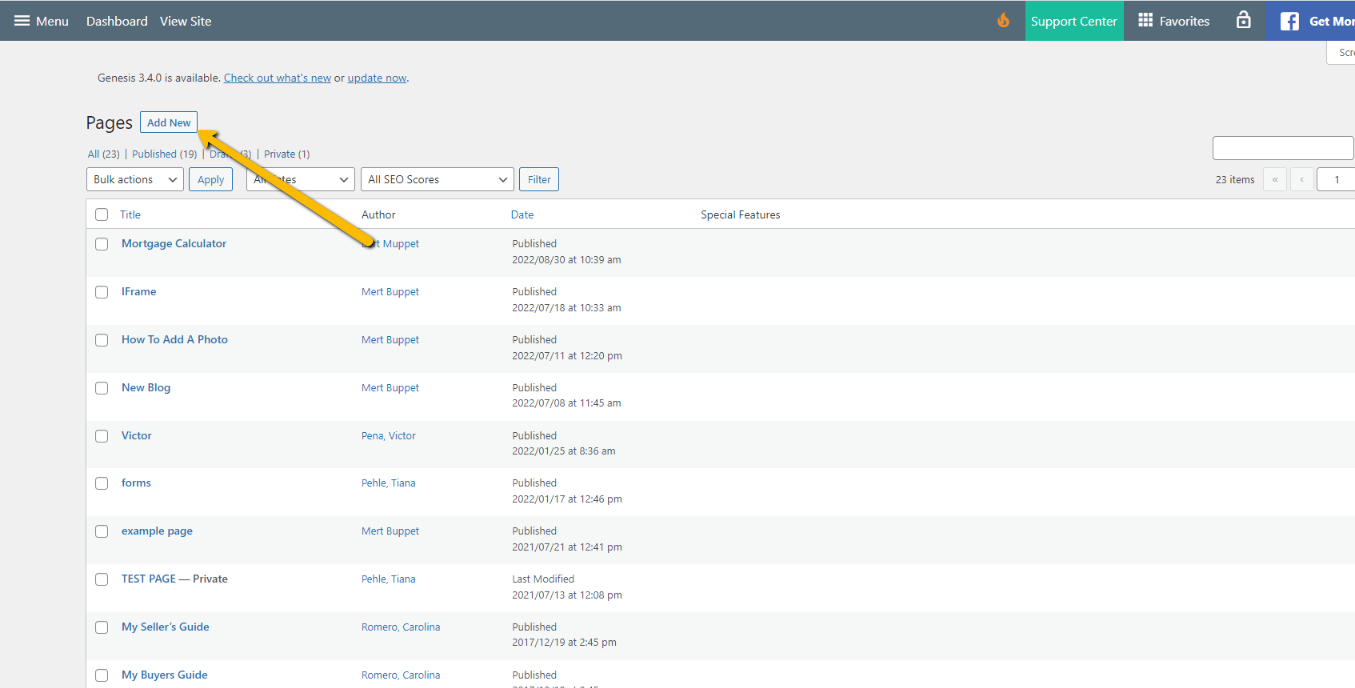
Click on Add New.
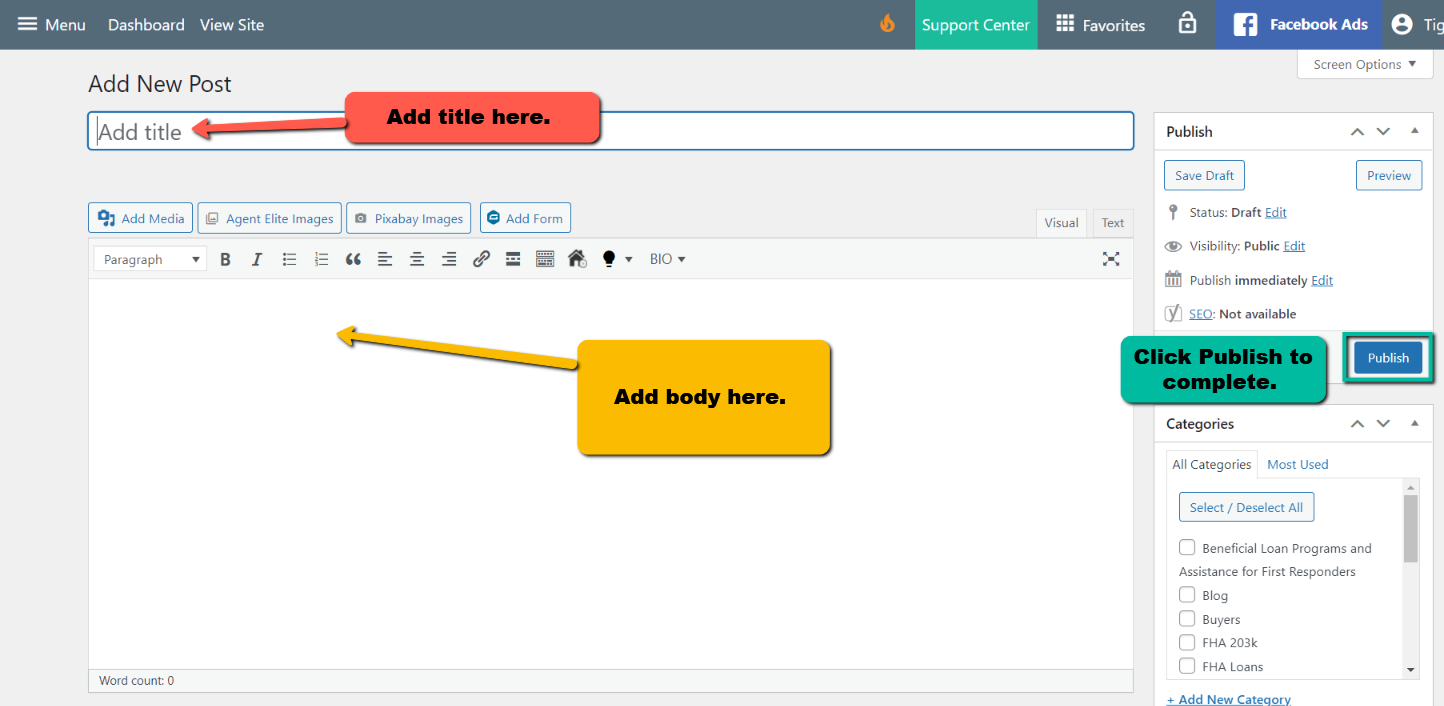
Add your blog title and body, and then click on Publish to complete.
Schedule your blog post for later
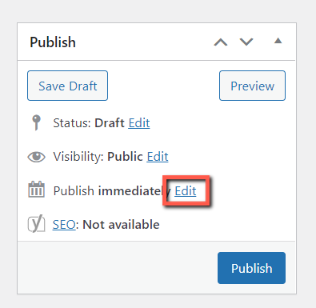
If you want to wait to publish your post, you can schedule it for later. Navigate to the Publish widget and click on Edit next to Publish immediately.
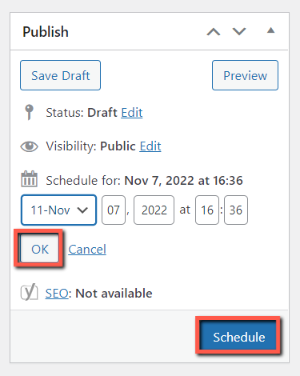
From here, you can schedule the date and time you want your post to be published. Click Okay and then click Schedule.
Optimize your blog post with Yoast SEO
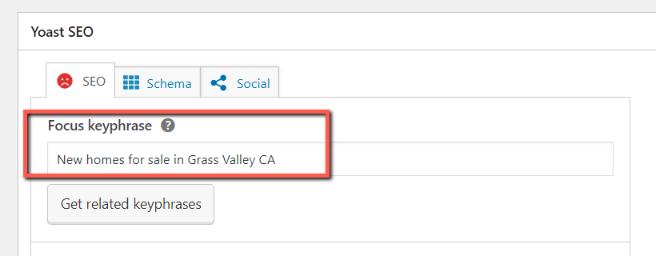
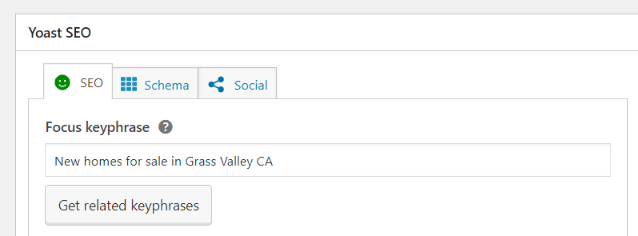
If you’d like to optimize your blog post for a specific keyword or keyphrase, scroll down to the Yoast SEO section at the bottom of the page. Enter your keyword or keyphrase in the Focus keyphrase box.
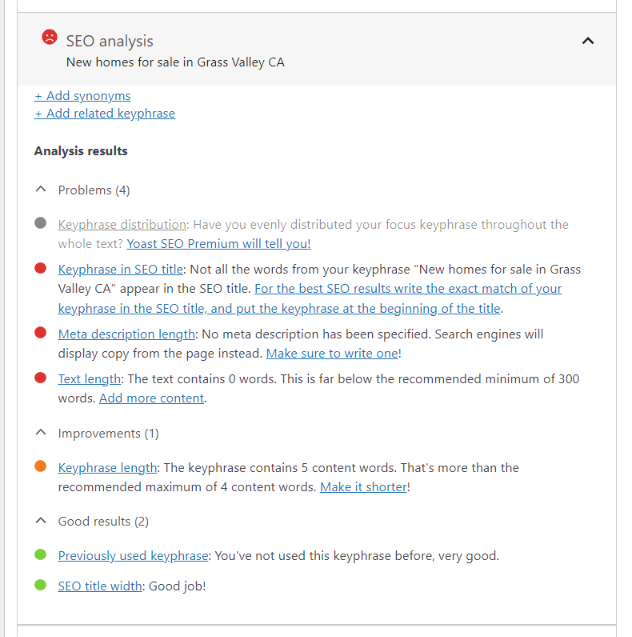
Continue to scroll down to the SEO analysis box. Follow the suggestions provided. As you do, the smiley faces will turn from red to green.
Once you have implemented enough suggestions to optimize your page, the smiley face by the Focus keyphrase box will turn green.
Add an RSS Feed
Section titled “Add an RSS Feed”An RSS (Really Simple Syndication) Feed is a code you get from the blog source and then add to your website. Once added, your blog will automatically update with a new post every time the blog source publishes one.
You can add a free RSS feed from one of the sources listed below, or you can add a feed from your Keeping Current Matters subscription.
To add an RSS Feed to your website, follow the steps below:
Entering the RSS Feed:
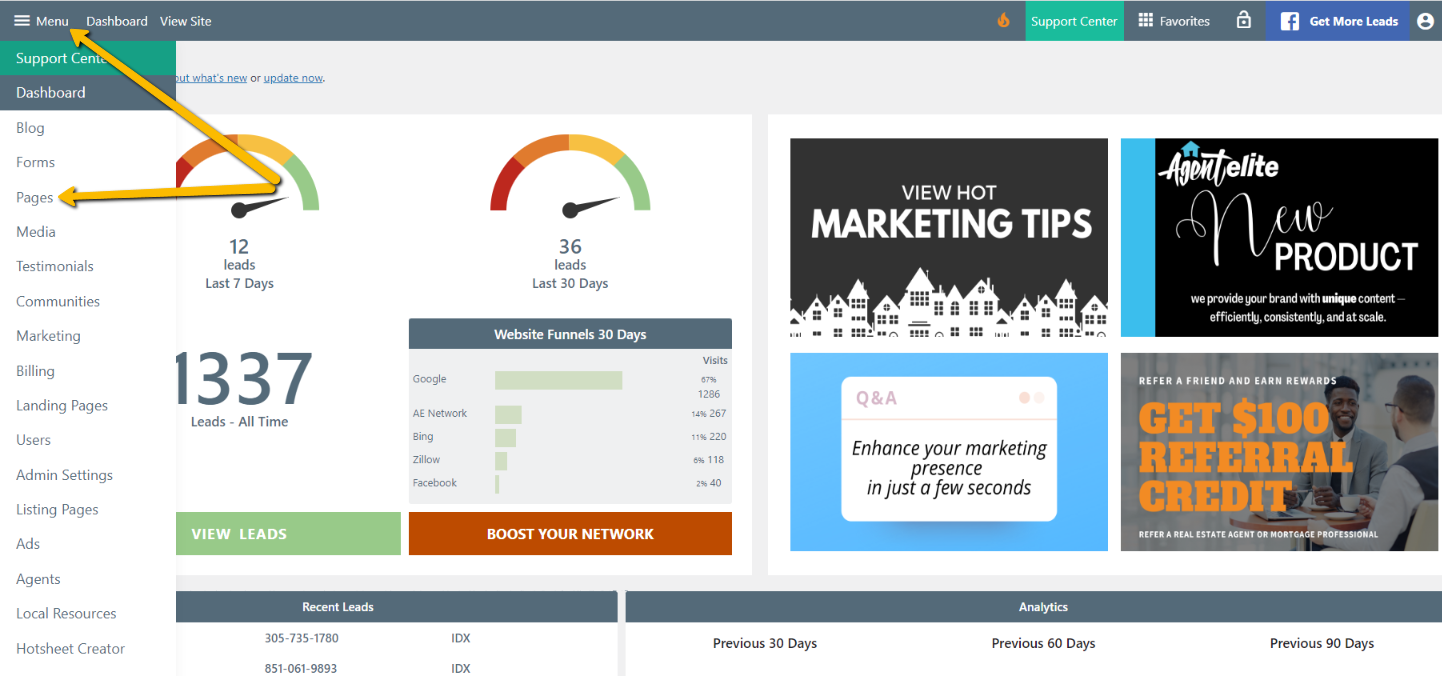
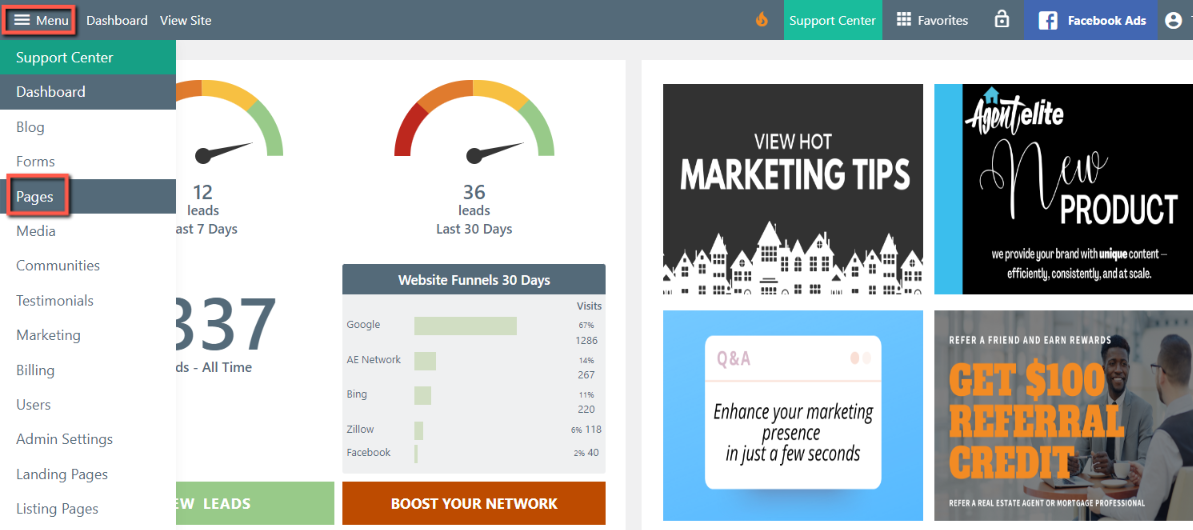
To enter the RSS Feed, go to your Website Dashboard, click on Menu in the upper left-hand corner, and click on Pages.
Click on Add New.
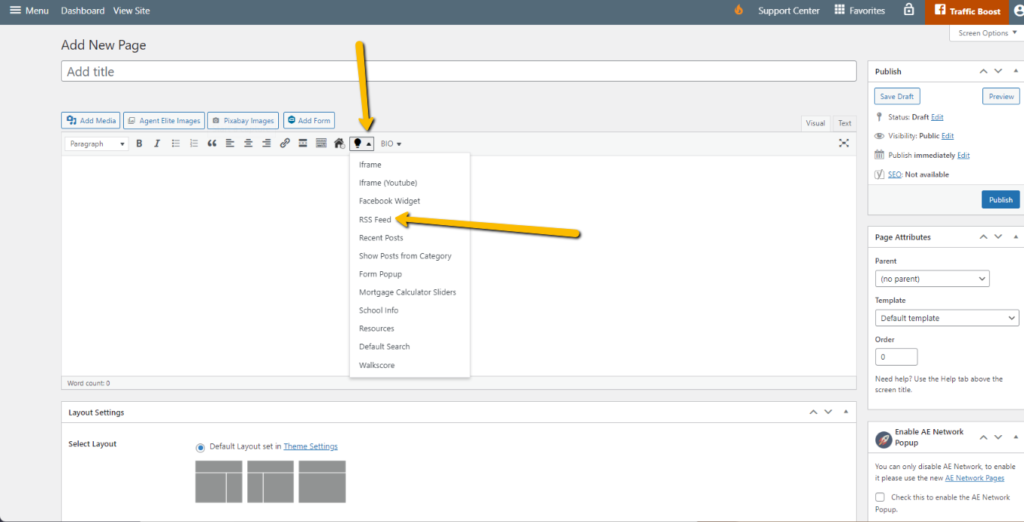
Click the arrow next to the icon that looks like a light bulb, and from the dropdown, select RSS Feed.
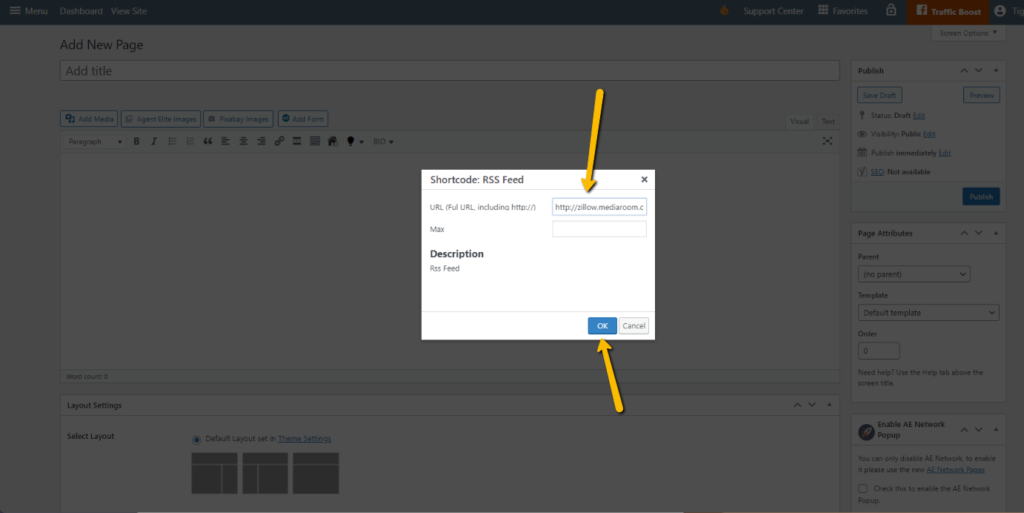
Enter the RSS Feed, then click Okay.
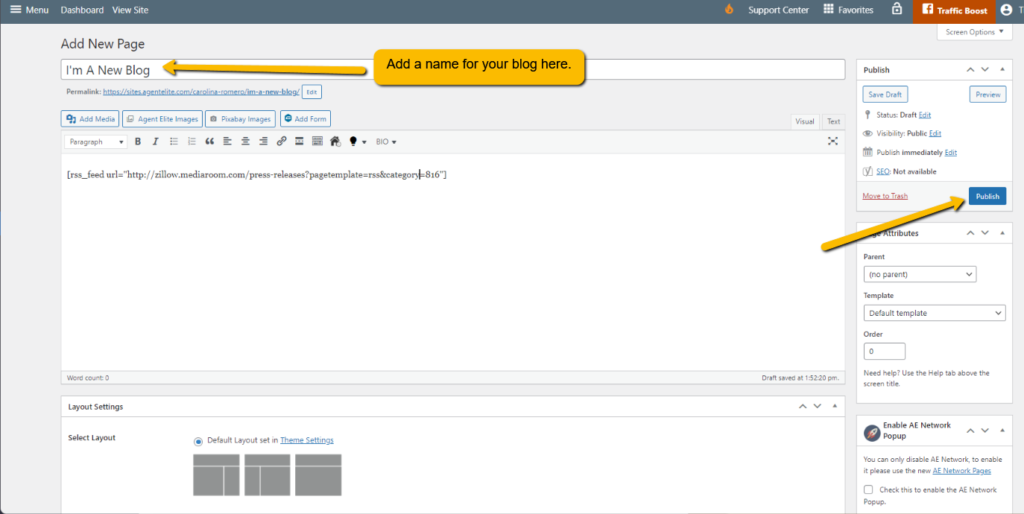
Add a name for your blog in the title section, and then press Publish.
Popular Real Estate RSS Feeds
Section titled “Popular Real Estate RSS Feeds”Agent Elite, Inc. does not endorse or support the sites listed below. These links are provided for information purposes only.
Right click on desired link and select “copy link address”. Paste the link into the RSS reader.
- General Buyers/Sellers
- https://www.zillow.com/blog/feed/
- http://rss.cnn.com/rss/money_realestate.rss
- http://feeds.feedburner.com/real-estate-story-ideas
- https://feeds.feedburner.com/resort-second-home
- https://feeds2.feedburner.com/StyledStagedSold
- http://feeds2.feedburner.com/RismediaConsumerNewsAndAdvice
- http://feeds2.feedburner.com/RismediaTodaysTopStory-Consumer
- Luxury
- https://www.luxurydaily.com/category/sectors/real-estate/feed/
- States
- Alaska
- https://www.akhomeshow.com/blog/rss
- Arizona
- http://tucson.com/search/?f=rss&t=article&c=real-estate&l=25&s=start_time&sd=desc
- http://blog.aaronline.com/feed/
- Arkansas
- http://www.arkansasbusiness.com/rss/real-estate
- California
- http://www.latimes.com/business/realestate/rss2.0.xml
- Florida
- https://feeds.feedburner.com/floridarealtors
- Texas
- https://www.houstonproperties.com/feed
- Washington
- https://www.seattletimes.com/business/real-estate/feed/
- For Agents
- https://www.century21.com/real-estate-blog/feed/
- https://feeds.feedburner.com/inmannews
- https://www.sothebysrealty.com/extraordinary-living-blog/feed/
- https://chicagorealtor.com/category/chicago-realtor-magazine/feed/
- https://www.sacrealtor.org/blog/feed/
- NAR
- https://feeds.feedburner.com/appraisal-valuation
- https://feeds.feedburner.com/association-executives
- https://feeds.feedburner.com/nar-commercial
- http://feeds.feedburner.com/data-privacy-security
- http://feeds.feedburner.com/nar-education
- http://feeds.feedburner.com/fair-housing
- http://feeds.feedburner.com/nar-legal
- http://feeds.feedburner.com/nar-leadership
- http://feeds.feedburner.com/nar-newsroom
- http://feeds.feedburner.com/nar-advocacy
- http://feeds.feedburner.com/real-estate-story-ideas
- http://feeds.feedburner.com/nar-research
- https://feeds.feedburner.com/resort-second-home
- https://feeds.feedburner.com/nar-safety
- https://feeds.feedburner.com/tax-reform
- https://feeds.feedburner.com/washington-report
- https://feeds.feedburner.com/EconomistsOutlook
- https://feeds.feedburner.com/narnewsline
- https://feeds.feedburner.com/ypnlounge
- Housing Wire
- https://www.housingwire.com/feed/
- RIS Media
- http://feeds2.feedburner.com/RismediaBusinessDevelopment
- http://feeds2.feedburner.com/RismediaCoaching
- http://feeds.feedburner.com/RismediaFinanceAndEconomy
- http://feeds.feedburner.com/RISMedia
- http://feeds2.feedburner.com/rismedia/lgnb
- http://feeds2.feedburner.com/RismediaMarketing
- http://feeds2.feedburner.com/RismediaTechnology
- http://feeds2.feedburner.com/RismediaTodaysMarketplace
- http://feeds2.feedburner.com/RismediaTodaysTopStory
Add a YouTube Video to Your Page
Section titled “Add a YouTube Video to Your Page”- From the Website Dashboard, click on Menu and then Pages.
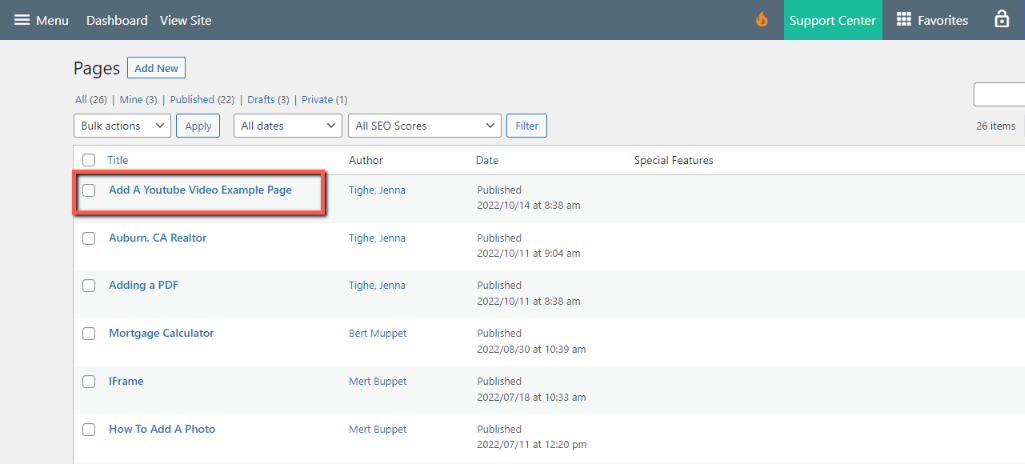
- Select the Page where you want to add the YouTube video.
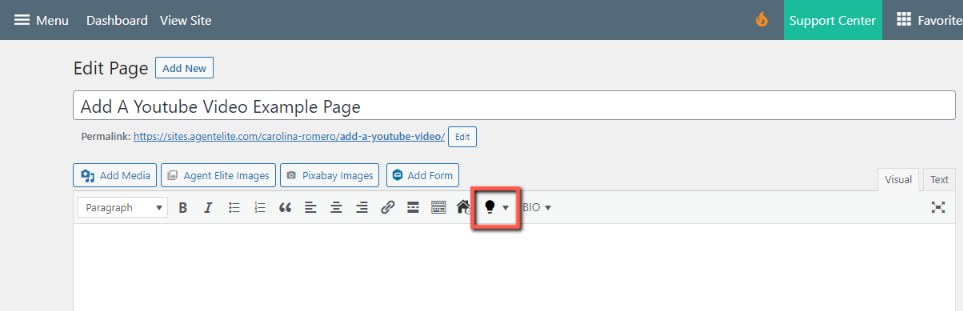
- Click on the Light Bulb icon to access the shortcodes
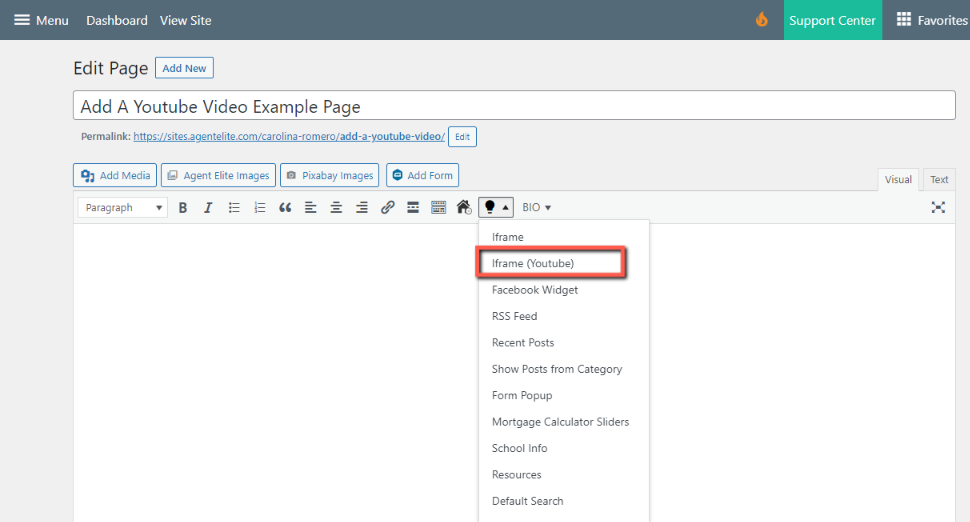
- Click on Iframe(Youtube)
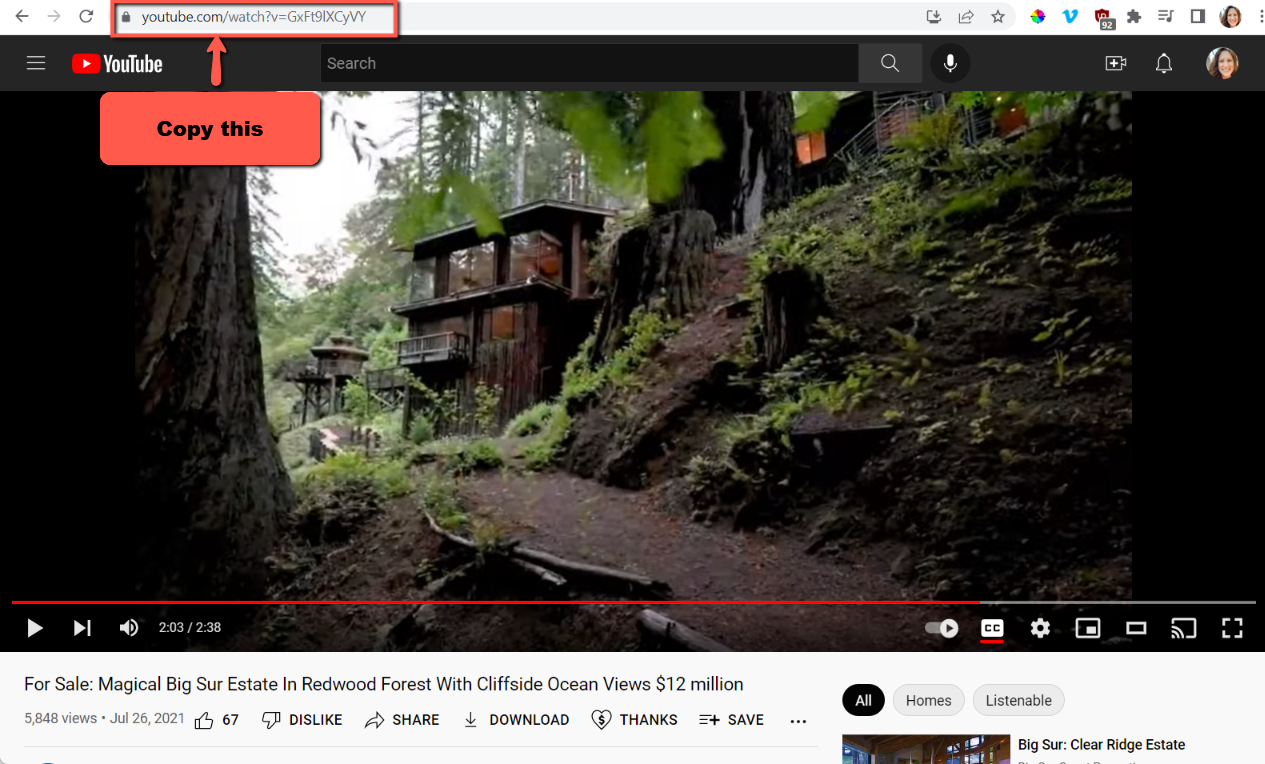
- Go to the YouTube video and copy the URL
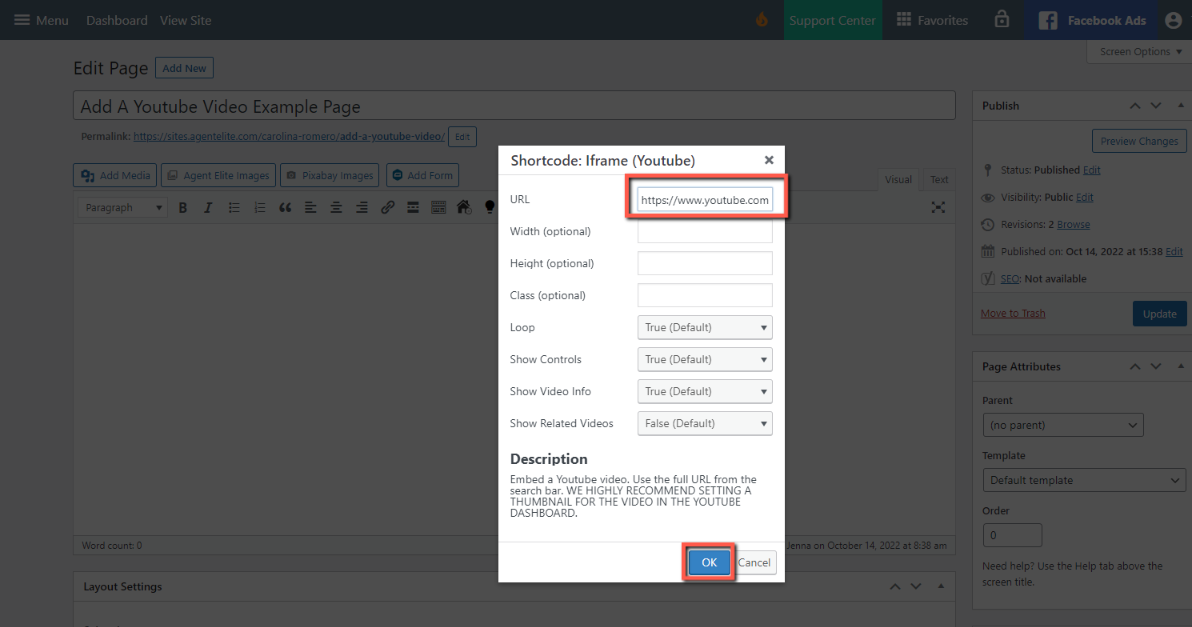
- Paste the URL in the URL box from the short code pop up for Iframe (Youtube). All other settings are optional. Click OK when finished.
- Click Update to save changes
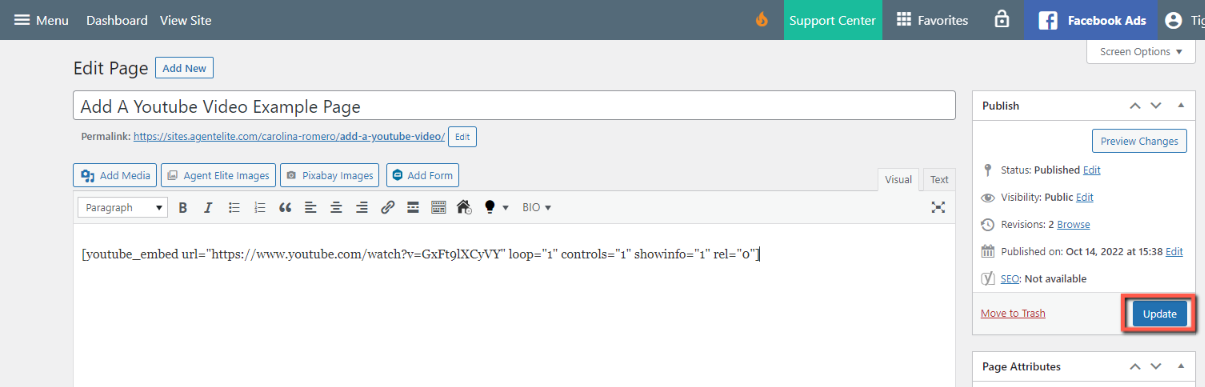
- Example page below
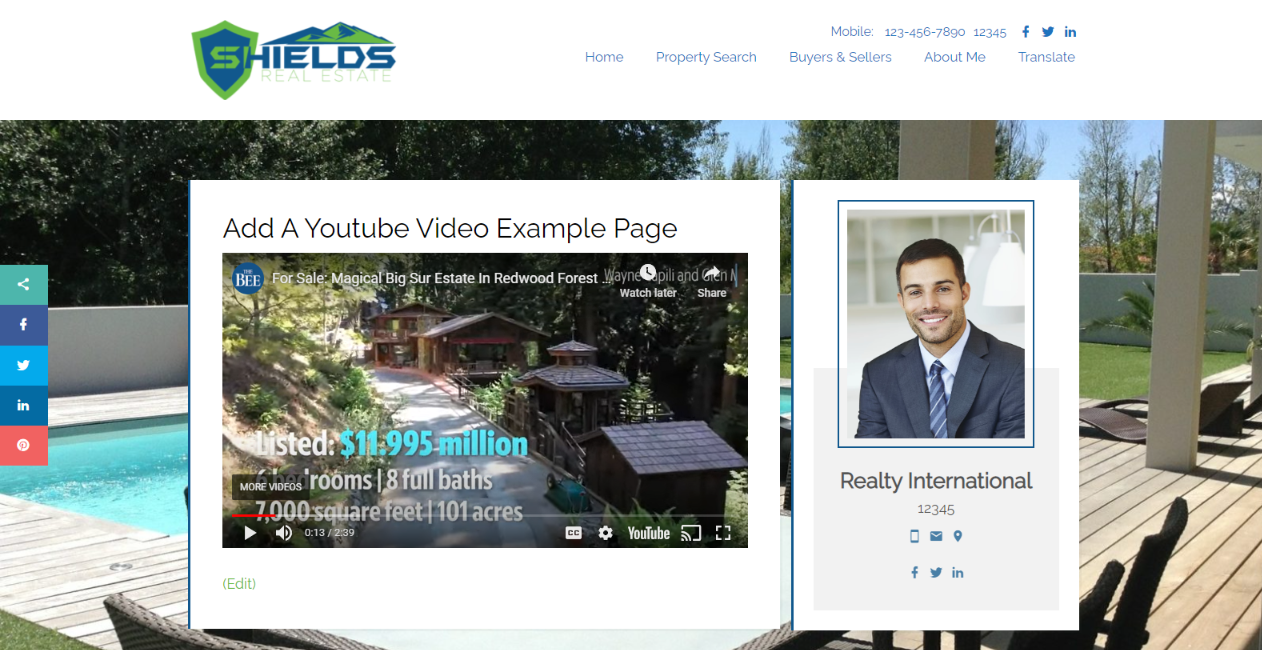
When using a YouTube video that is not your own, please ensure you are legally authorized to use it.
To search for free videos, you can use the following steps:
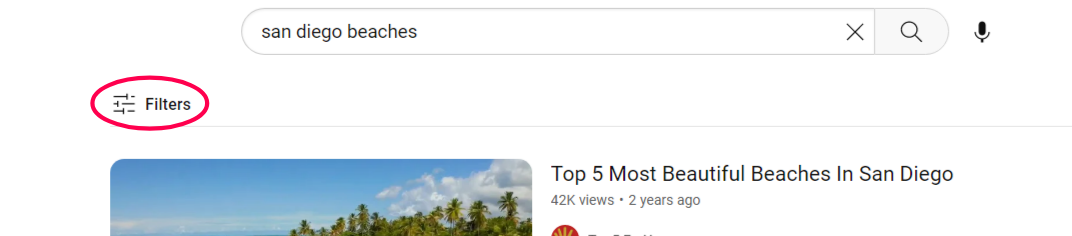
- Search your keyphrase and then click on Filters.
- Select Creative Commons.
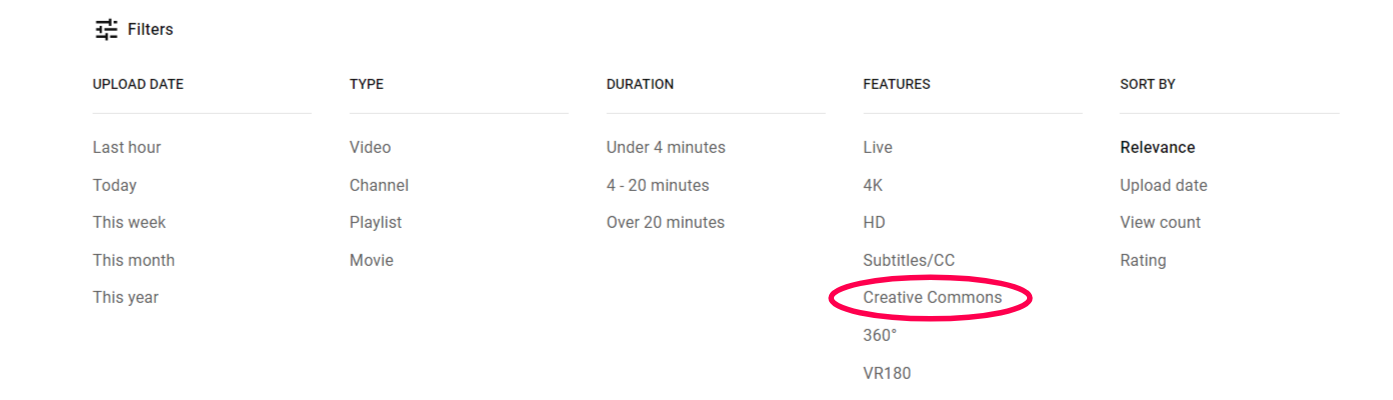
- The videos appearing in a Creative Commons filter search are free to use legally.
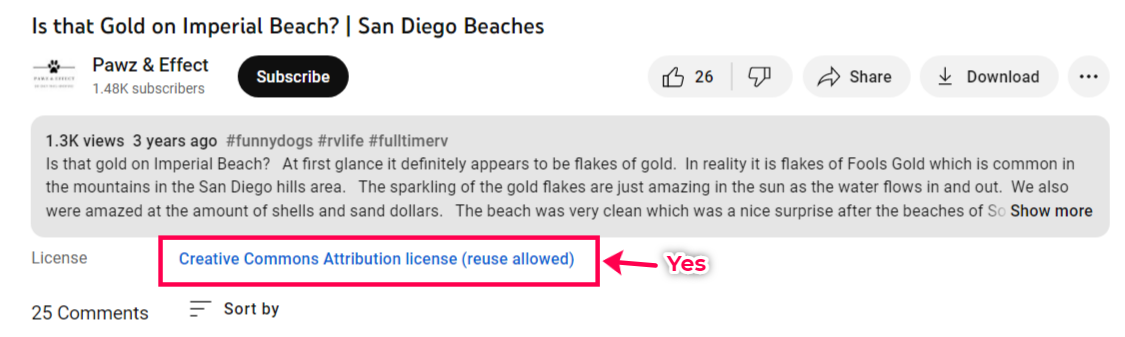
To see if a video you’ve already picked out is Creative Commons/free-to-use, check the License section under the video. If nothing is there, then it is not a Creative Commons video.