
Adding a New Page (2.0 Websites)
Use a page for content that stays put, such as an About page, a Sellers or Buyers guide, or a page about your services. For news, market updates and articles, write a blog post instead. See Adding a New Blog Post.
Before you start
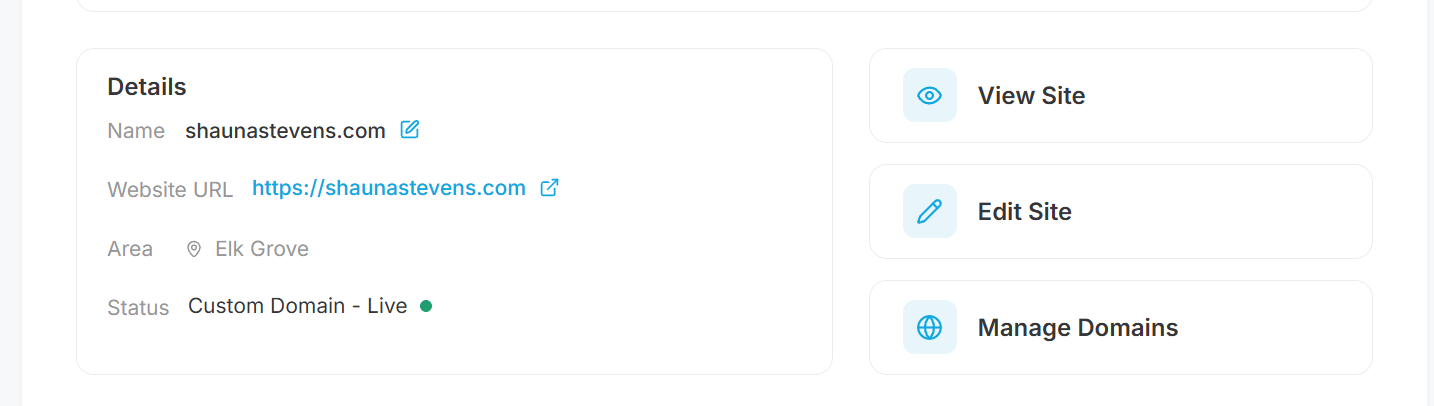
Section titled “Before you start”Log in to your website through your Agent Elite User Portal. Navigate to Website in your left menu, and use the Edit Site button to log into your website.
Step 1: Create the page
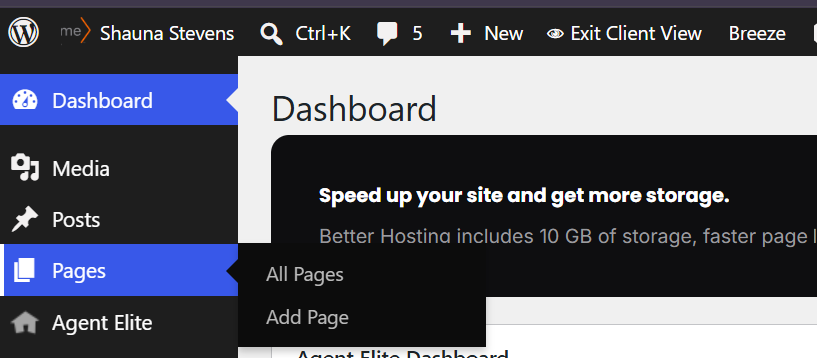
Section titled “Step 1: Create the page”- In the WordPress dashboard, go to Pages > Add New Page.
- Type the page title at the top of the editor, for example “Selling Your Home”.
Step 2: Choose a page template
Section titled “Step 2: Choose a page template”The template controls the page’s layout around your content. In the settings sidebar on the right, open the Page tab and click the template name next to Template to change it.
| Template | What it looks like | Use it for |
|---|---|---|
| Default template | The page title centered at the top, with your content below. No banner image. | Simple text pages, such as a privacy policy |
| Default template with Hero | A full-width banner at the top showing your featured image, with the page title over it. Your content sits in a narrower column below. | Most pages. It matches the look of your Blog, Communities and Testimonials pages |
| Full Width Block Page | No title or banner. The page is only the blocks you add, edge to edge. | Pages you want to design yourself, like your homepage |
| Landing Page | Your content with no header (menu) or footer, so visitors aren’t distracted. | Ad campaigns and single-offer pages, such as a free home valuation |
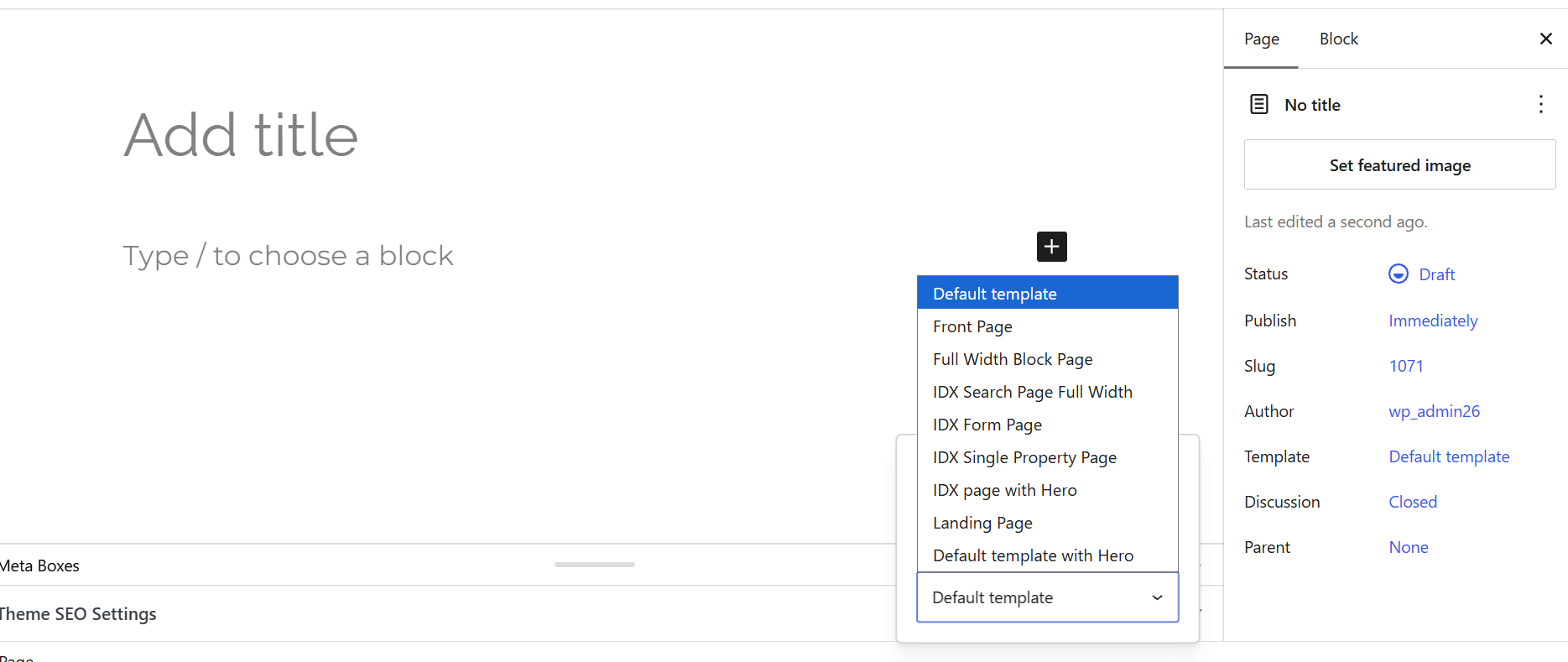
You’ll also see Front Page and several IDX templates in the list. These are used by your homepage and your property search pages, so don’t choose them for a new page.
Setting the banner image
Section titled “Setting the banner image”On the Default template with Hero, the banner uses the page’s featured image. In the Page tab of the sidebar, click Set featured image and choose or upload a photo. A wide, landscape photo works best. If you don’t set one, a stock photo is used.
The banner has a dark overlay so the title is easy to read. You can make it lighter or darker for the whole site under Agent Elite > Theme, in the Page Hero Overlay settings.
Using the Full Width Block Page template
Section titled “Using the Full Width Block Page template”On this template your site’s menu sits on top of the first thing on the page, the same way it does on your homepage. Start the page with an AE Hero Section block so the menu sits over an image. If you start with text instead, the menu covers it.
Hiding the header or footer on any page
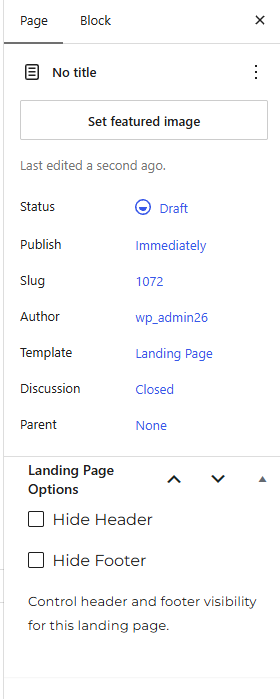
Section titled “Hiding the header or footer on any page”Every page has a Landing Page Options box in the sidebar with Hide Header and Hide Footer checkboxes. Use them to hide the menu or footer on one page without changing its template. The Landing Page template hides both for you.
Step 3: Add your content
Section titled “Step 3: Add your content”Pages are built from blocks. Click the + button (top left of the editor, or between blocks) to add one. You can search by name or browse by category.
For everyday content, use the standard WordPress blocks: Paragraph, Heading, Image, List, Buttons and YouTube (or Embed) for videos. Your page title is already the main heading, so use Heading blocks at the H2 and H3 levels for sections.
Your site also has its own set of blocks, under Agent Elite Blocks in the inserter:
| Block | What it adds |
|---|---|
| AE Hero Section | A full-width banner with a background image or video, text and buttons |
| AE About Section | A section about you or your company, with a photo |
| AE Contact Form | A contact form that sends leads to your CRM |
| Featured Listings | A grid or slider of your listings |
| AE Featured Listing | One listing |
| AE Community Grid | Cards linking to your community pages |
| AE Testimonials Slider | Rotating reviews from your Testimonials |
| AE Latest Posts | Your newest blog posts |
| AE Places | Nearby businesses and places for an area, such as restaurants and schools |
| AE Social Icons | Links to your social media profiles, taken from your Agent Elite settings |
After you add a block, click it and use the settings sidebar on the right to change its options.
Step 4: Check the SEO settings
Section titled “Step 4: Check the SEO settings”Scroll below the editor to the Theme SEO Settings box. It controls how the page appears in Google and other search engines:
- Custom Document Title: the title shown in search results and on the browser tab
- Meta Description: the short summary shown under the title in search results
- Meta Keywords: a list of keywords (search engines mostly ignore these)
The first time you save, these are filled in for you:
- Title: “Page title | Your company name”
- Description: “Learn more about Page title on the Your company name website.”
They’re only filled in when they’re empty, so they never overwrite anything you’ve written. They’re also not updated if you change the page title later, so update them yourself if you do.
The automatic description is generic. For important pages, replace it with one or two sentences about what’s on the page, for example “Thinking of selling in Eugene? Learn how we price, market and sell your home.”
Step 5: Publish
Section titled “Step 5: Publish”- Click Preview at the top right to see the page as visitors will.
- Optional: check the page address. WordPress makes it from the title (for example,
yourwebsite.com/selling-your-home/). To change it, click the address next to URL in the Page tab. - Click Publish, then Publish again to confirm. To come back to it later instead, click Save draft. Drafts aren’t visible to the public.
Troubleshooting
Section titled “Troubleshooting”The banner shows a photo I didn’t choose
Section titled “The banner shows a photo I didn’t choose”The page is on the Default template with Hero and has no featured image, so a stock photo is used. Set a featured image (see Setting the banner image).
The menu covers the top of my page
Section titled “The menu covers the top of my page”The page is on the Full Width Block Page template and doesn’t start with a banner. Add an AE Hero Section block at the top, or switch to the Default template with Hero.