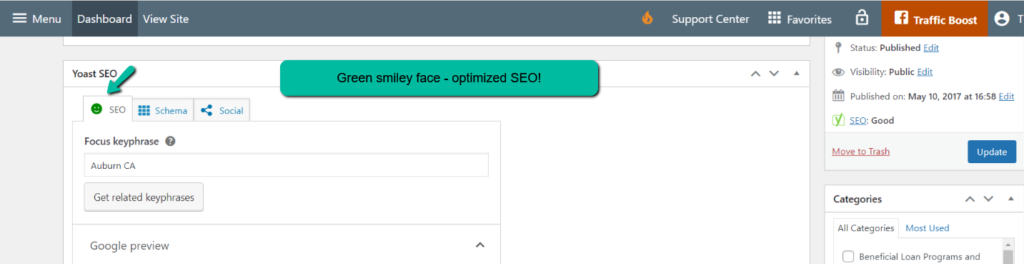
The Yoast SEO Widget
The Focus Keyphrase
Section titled “The Focus Keyphrase”Once you open the page, scroll to the bottom of the Yoast SEO section. The first step is to enter a Focus Keyphrase. A Focus Keyphrase is the word or phrase you want to rank for in SERPs (search engine results pages). For example, if you’re a realtor in Auburn, CA, and you want your website found when people search “Auburn, CA Homes for Sale,” then your Focus Keyphrase will be “Auburn, CA Homes for Sale.”
To help generate keyword ideas, check out this free tool from ahrefs.
For this example, we will use the Focus Keyphrase of “Auburn, CA.”
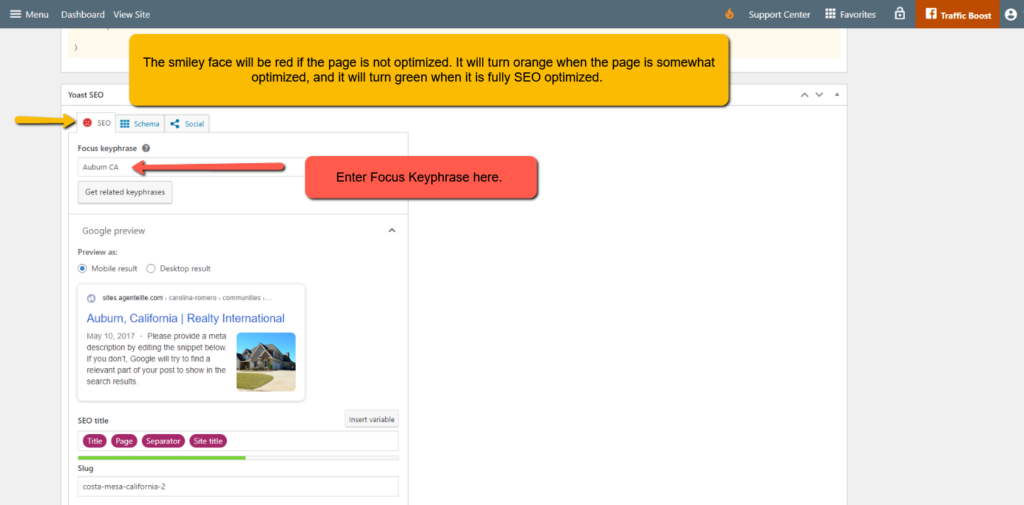
Enter your Focus Keyphrase in the Yoast SEO Focus Keyphrase box.
Please note – Yoast SEO will not allow special characters in the Focus Keyphrase, including punctuation.
Once you enter your Focus Keyphrase, you’ll see a little smiley face in the above tab. The smiley face will be red if the page is not optimized, orange if it is somewhat optimized, and green if it is fully optimized for SEO.
Optimizing the Page
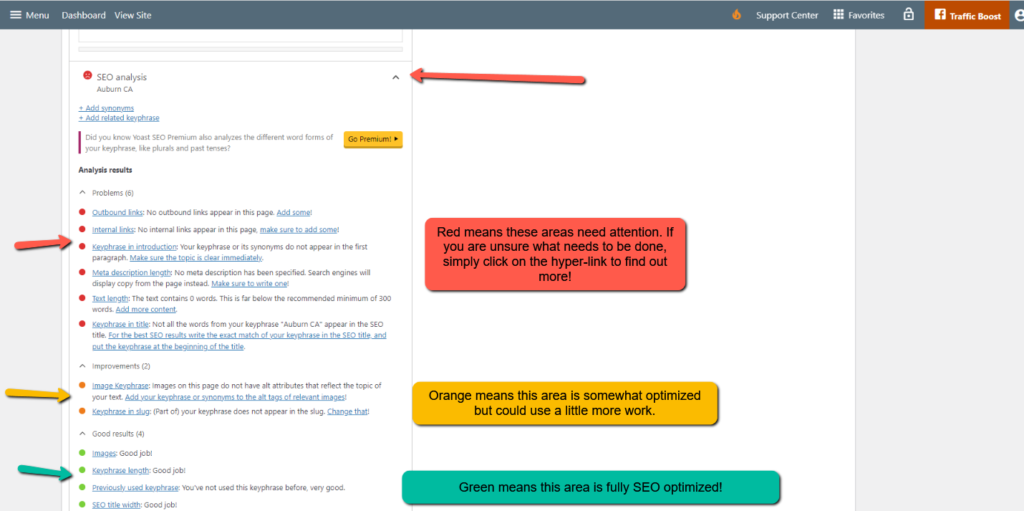
Section titled “Optimizing the Page”To find out what you need to do to optimize the page for SEO (turning the smiley face green), scroll down and open the dropdown for the SEO Analysis box.
You will see a list of analysis results that are color coded. Red means action is needed here. Orange means it is somewhat healthy. Green means this aspect is fully optimized.
If you need help making the necessary changes, click on the hyperlinks to see explanations for adjusting each area.
You don’t have to change all the suggestions to green, just enough to optimize the page. When you have done this sufficiently, your main smiley face will turn green, and you’ll know your page is SEO optimized.
For the remainder of the article, we’ll go over some of the top areas that are easily optimized.
Hyperlinks
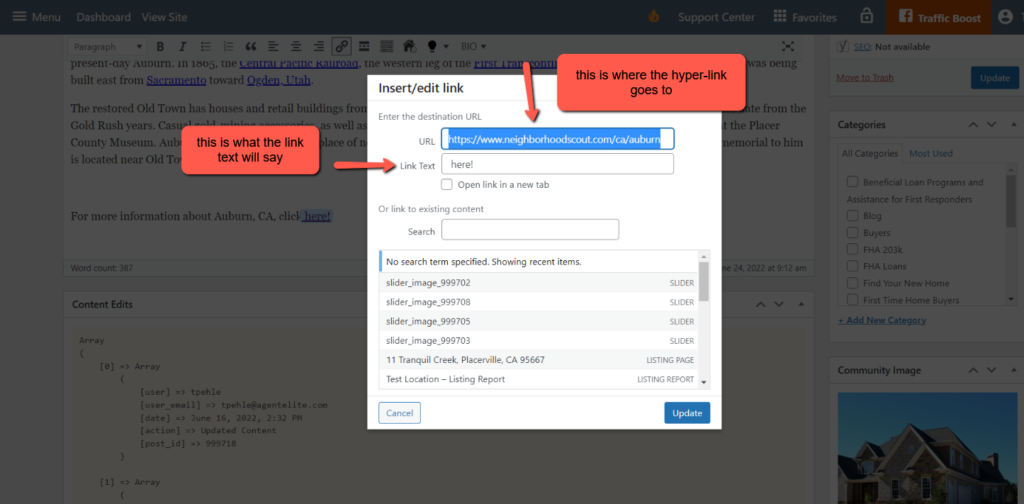
Section titled “Hyperlinks”Adding hyperlinks is one of the easiest ways to optimize a page. To add a hyperlink, click the hyperlink icon and then the gear icon.
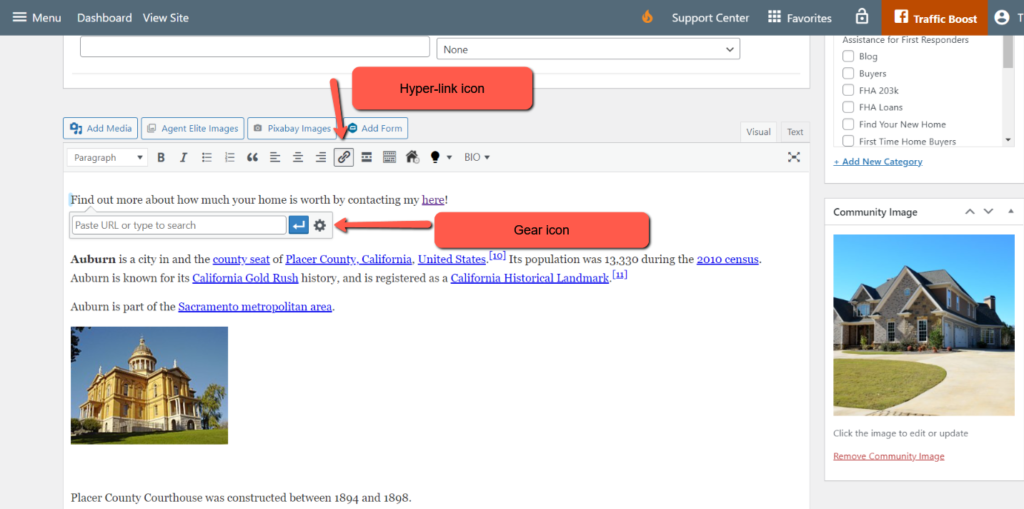
You will see a box to insert or edit a hyperlink. Input the desired URL and the text you want displayed for the hyperlink. Click Update to save.
Outbound and Internal Links
Section titled “Outbound and Internal Links”There are two kinds of links you could add, outbound and internal. It’s a best practice to add both.
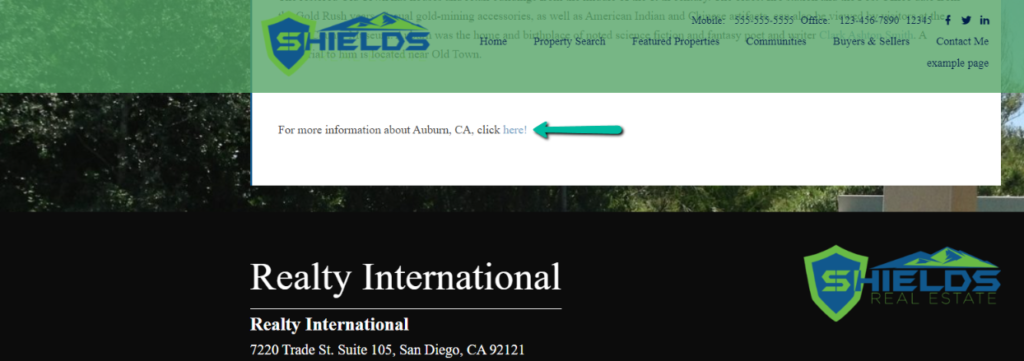
Outbound Links: A fully optimized page contains links to an outside source. Consider linking to a website that shows your town’s history or culture.
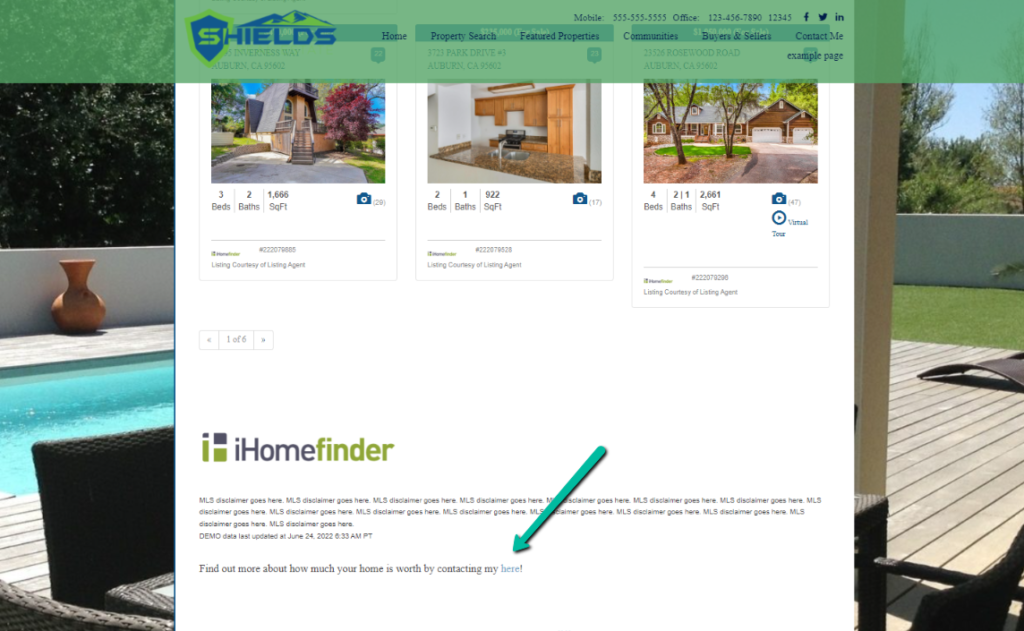
Internal links: A fully optimized page has a hyperlink to another page within your website. Consider adding a hyperlink to your contact me page.
Meta Description
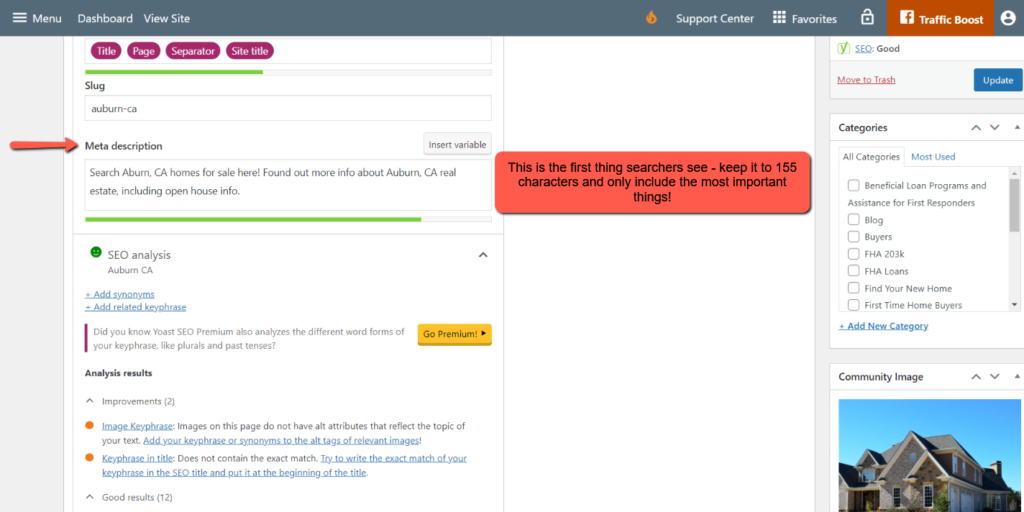
Section titled “Meta Description”A meta description is a brief synopsis of your page. It’s what searchers will first see on the search engine results page (SERP). This is when they decide whether to click on your page or another page. You’re more likely to get someone to click on your page if your meta description is enticing. A best practice is to keep your meta description under 155 characters.
A slug is the part of the URL address that comes after the domain name (www.mydomain.com/slug). Make sure your slug is relevant to your page’s content. When entering your slug in the slug box, always use hyphens to separate words instead of underscores or periods.
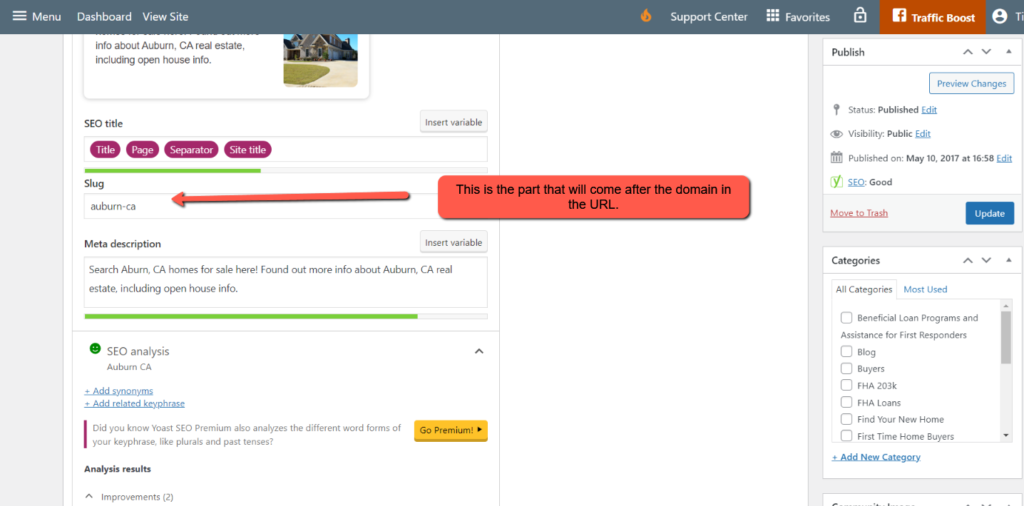
Images
Section titled “Images”Adding a photo to your page is a quick and easy way to boost the site’s SEO. You can add an image by clicking the Add Media button and uploading it from your computer or picking an image from your media library.
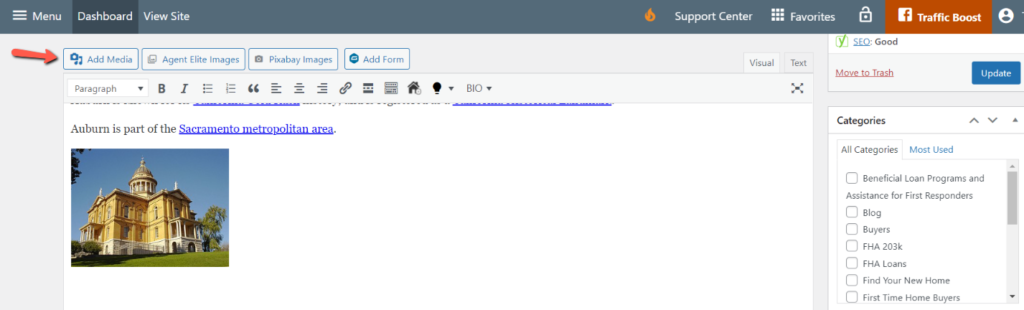
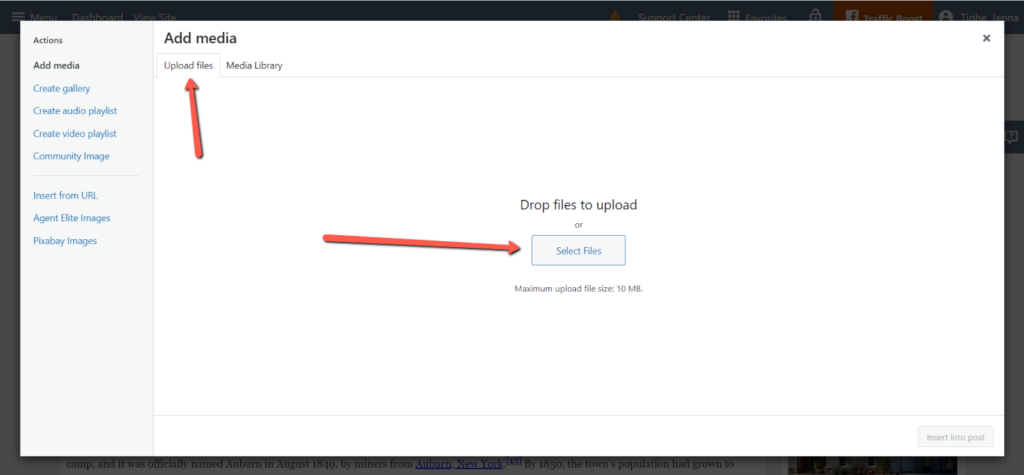
To add an image from your computer:
- Click on the Add Media button above the formatting toolbar.

- Click on Select Files, which is under the Upload Files tab.
- Select the photo from your computer that you’d like added. This will upload the image into the media library.
- Click Insert into page in the bottom right to add the image to your page.
- Click Update to save.

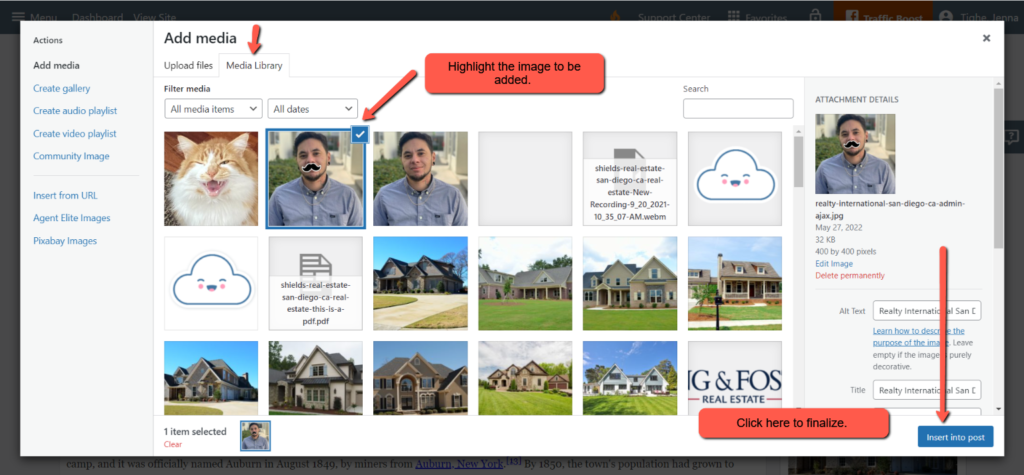
To add an image from your media library:
- Click on the Add Media button above the formatting toolbar.

- Click on the image you want to add.
- Click on Insert into page.
- Click Update to save.
Once you have made sufficient adjustments, your Yoast SEO smiley face will turn green, and you’ll know your page is now fully Yoast optimized!