Leads and contacts
Contact/Lead List
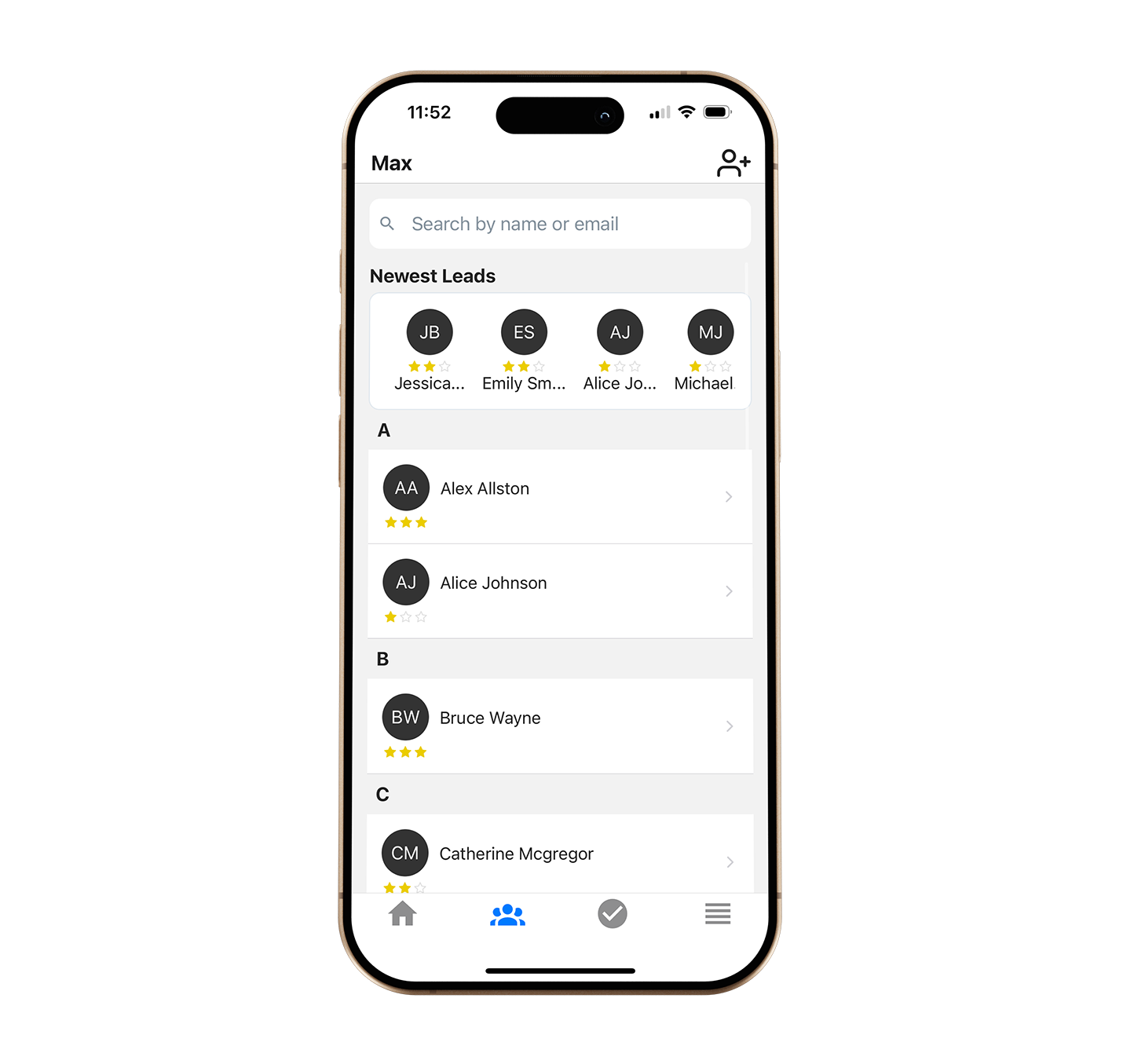
Section titled “Contact/Lead List”The second icon in the bottom navigation of the Max for Real Estate app allows you to review and search all of your lead contacts. Tapping on a contact’s name will show you specific information on that contact.
Searching Contacts
Section titled “Searching Contacts”All leads are listed in alphabetical order by their first name. The stars associated with each lead indicate their lead rating.
To search for a contact, tap the field next to the magnifying glass to enter your search term. Contacts can be searched by their name or email address.
Directly underneath the Search Bar, your four newest leads will appear as an icon with their name. You can tap on their icon to open up their individual details.
Adding a new Contact
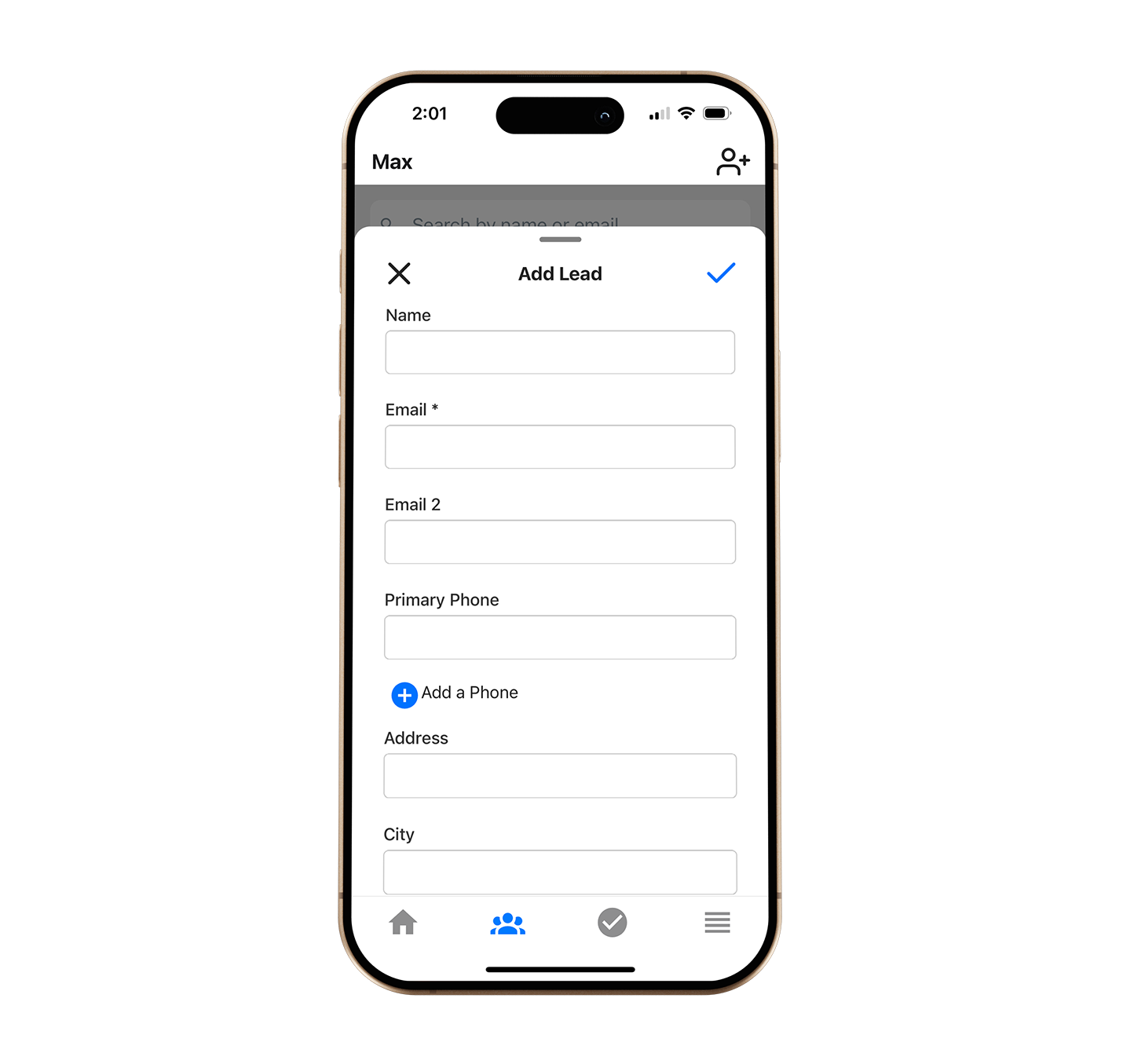
Section titled “Adding a new Contact”- To add a new contact, tap the “Add lead” icon in the upper right of the Lead List screen.
- On the next screen, enter in your contact’s name, email, and address information.
- When you are finished, save the new contact by tapping the blue checkmark in the upper right-hand corner.
Reviewing Individual Leads
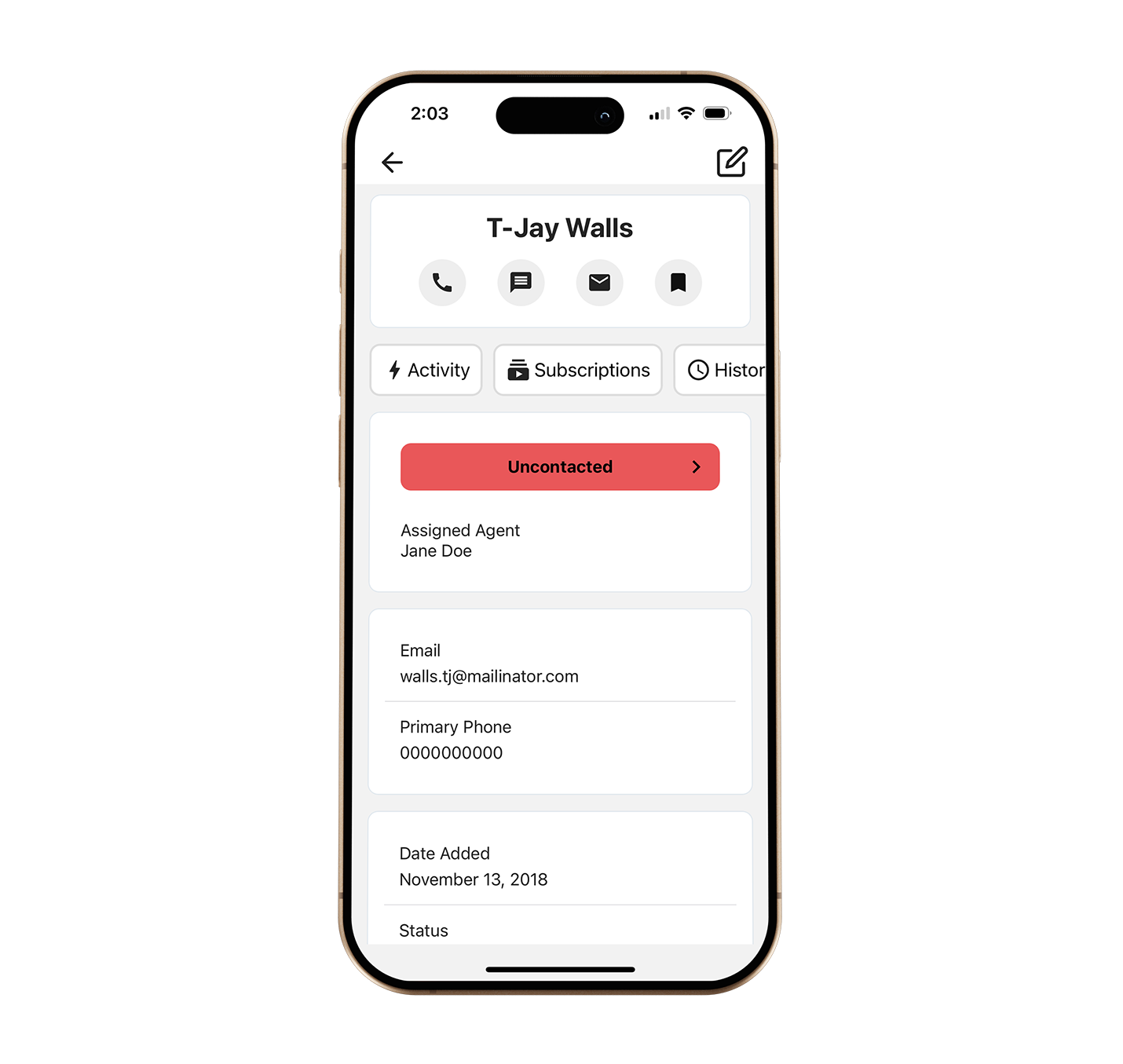
Section titled “Reviewing Individual Leads”When you tap on a lead’s name from the Lead Activity screen or from the Lead List you will be directed to their individual contact details.
Contacting a Lead
Section titled “Contacting a Lead”- You can call or text them directly if you have a lead’s phone number recorded in the app.
- To call, you can tap their phone number in the Details tab or the phone icon under their name.
- To open up a text to their number, tap the “word balloon” icon under their name or to the right of their phone number.
- To email a lead, tap their email address in the Details tab or the mail icon under their name.
Editing a Contact’s details
Section titled “Editing a Contact’s details”- To edit an existing lead’s details, navigate to their detail page and tap the blue ‘edit’ icon in the upper right.
- Save your changes by tapping the blue checkbox in the upper right. Tap the “x” icon in the upper left to revert your changes.
Viewing a Lead’s activity
Section titled “Viewing a Lead’s activity”To view an individual contact’s lead activity, navigate to their Contact details page, and tap the “Activity” tab on the right. This will reveal the contact’s lead activity in chronological order.