Getting started and app tabs
Downloading the App
Section titled “Downloading the App”Search “MAX for Real Estate App” in the Google Play store if you are an Android user or in the Apple store for use on Apple devices.


Not available for use by members of REIN and Maine MLSs
Logging in to the App
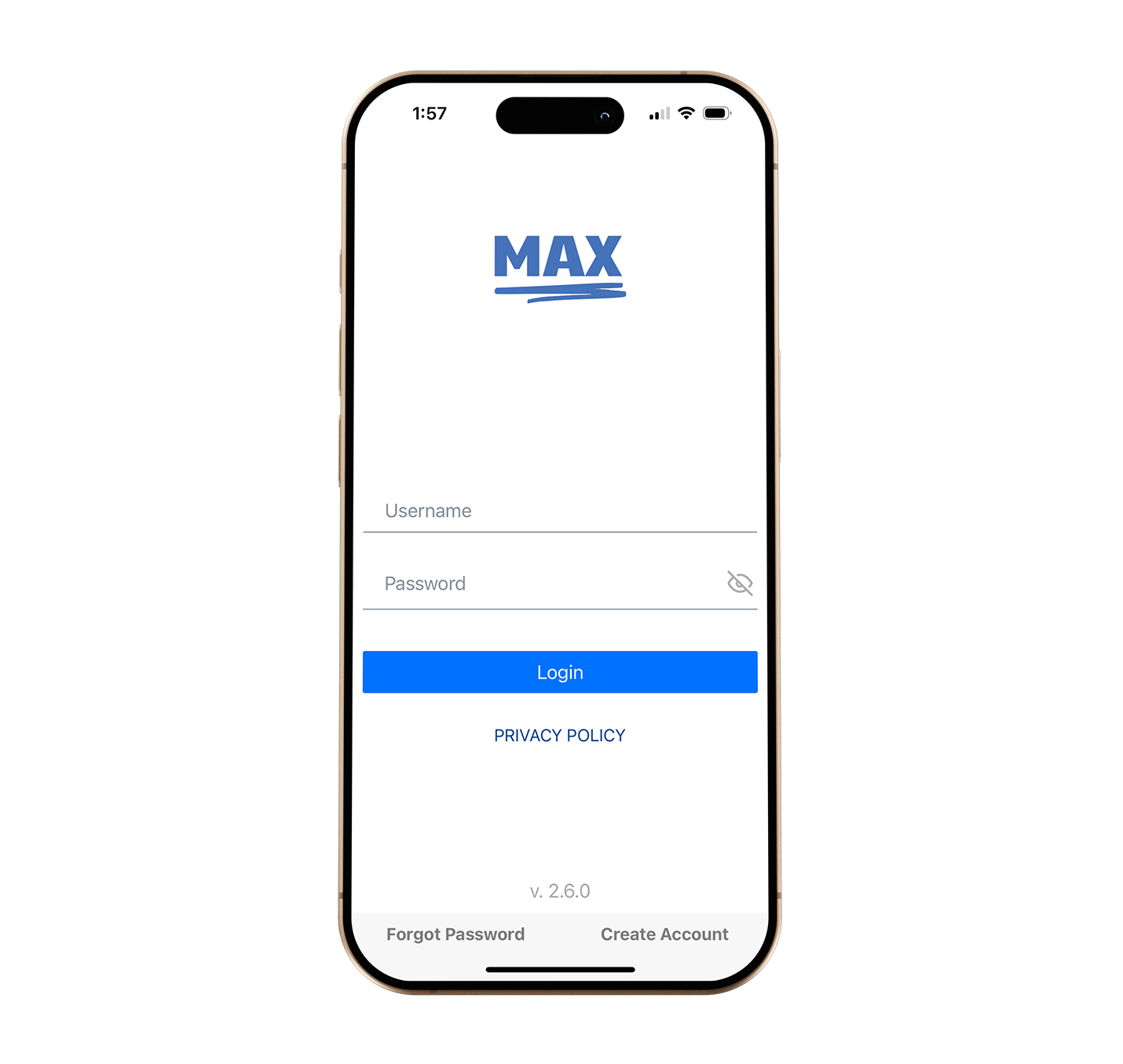
Section titled “Logging in to the App”- When you first open the app, it will direct you to log in.
- Enter your user portal username and password (what you use to access the Control Panel) in each field and press the login button to be directed to your account.
Note(s):
- You can tap the eye icon in the password field to reveal your password if needed.
- Tapping “Forget Password” in the bottom left will direct you to an account password recovery form.
Activity Tab
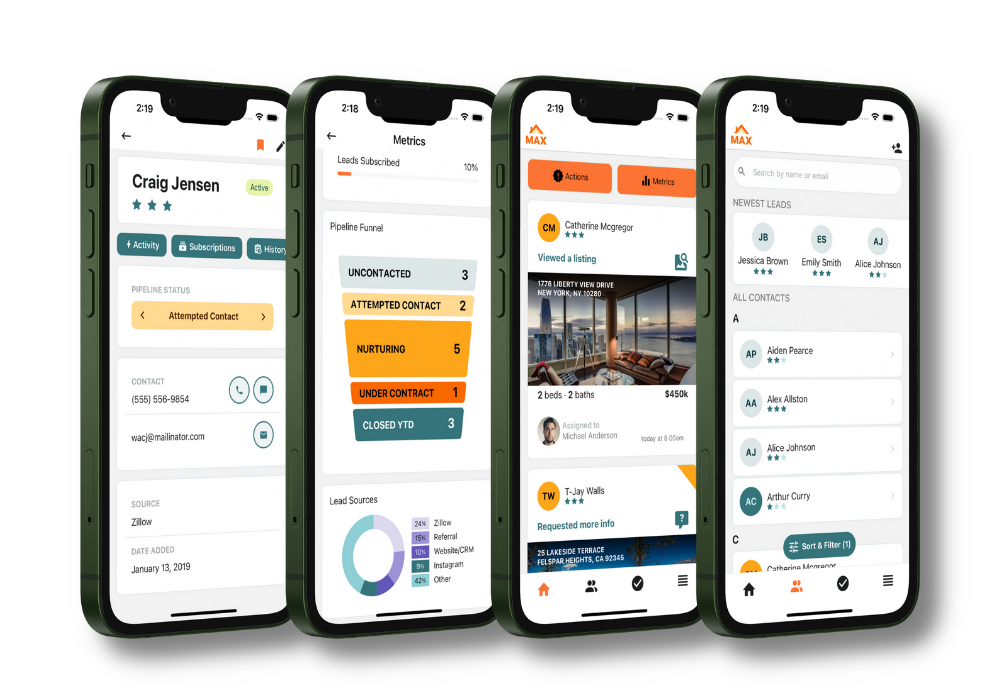
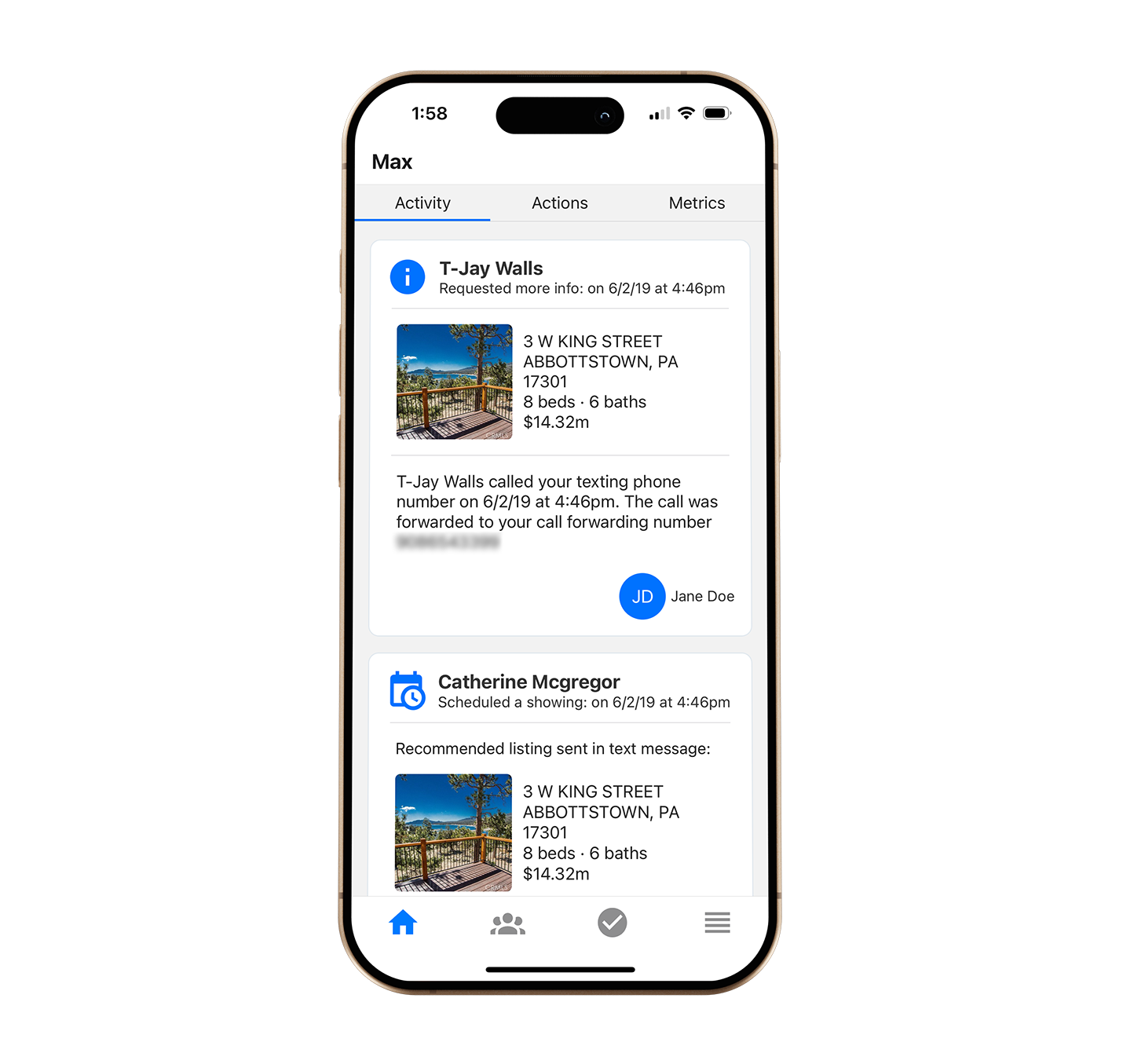
Section titled “Activity Tab”The first icon tab in the MAX for Real Estate App will show you all activity from all of your leads in chronological order. You can scroll down to see the latest activities of your leads, including viewing listings on your site, clicking email links, creating accounts, and signing up for listing reports.
- Tapping the lead’s name will open up their details in the app.
- Tapping on the listing address or photo will open the URL to the listing in your browser app.
Actions Tab
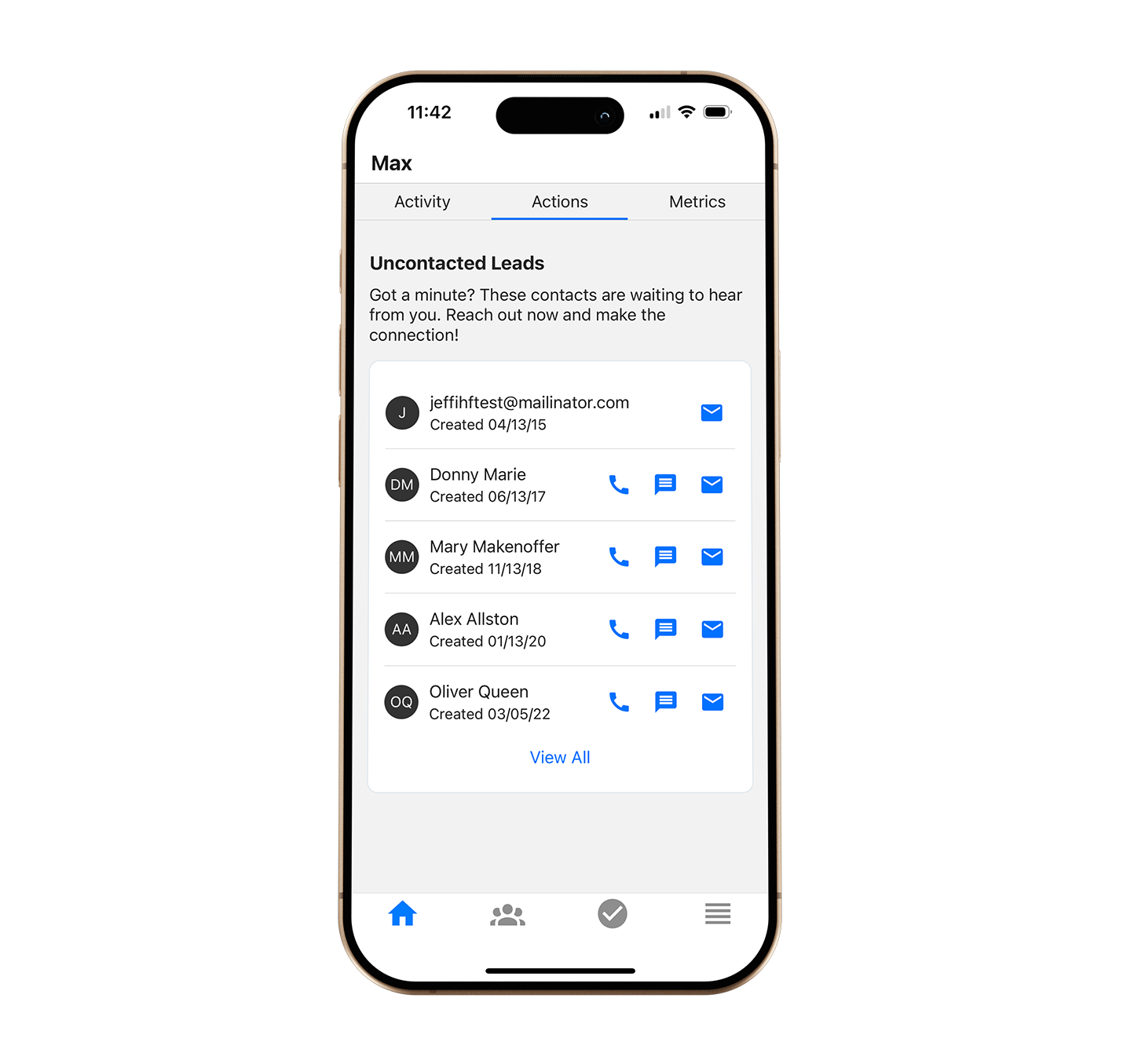
Section titled “Actions Tab”The second tab at the top of the Dashboard screen is the Actions tab. This tab will display all leads in the “Uncontacted” stage. Call, text and email icons appear next to each lead making it easier to contact this group of leads directly from your phone.
Metrics Tab
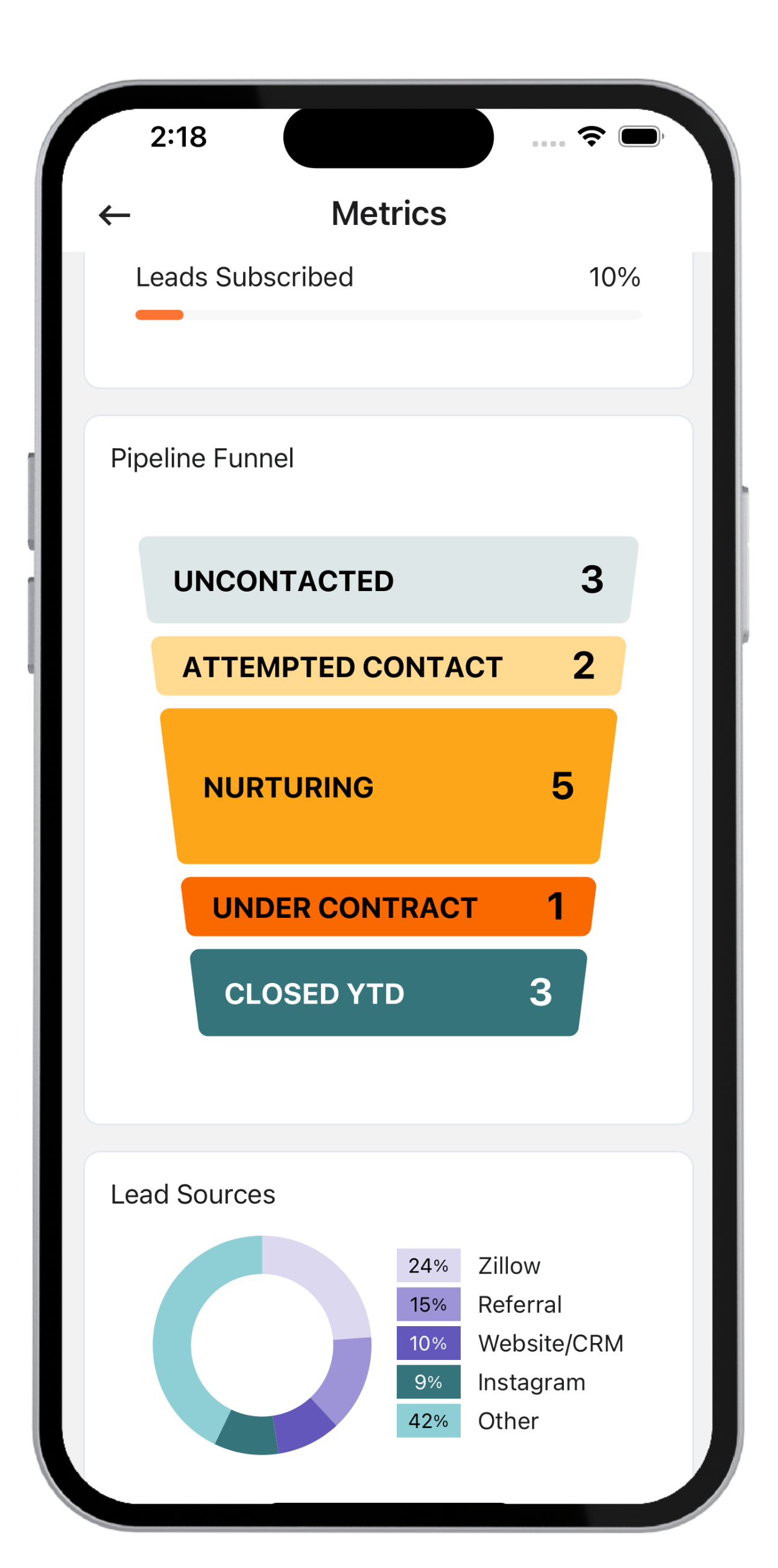
Section titled “Metrics Tab”The third tab at the top of the Dashboard screen is the Metrics tab. This tab will display basic infographics of lead behavior on your site. Metrics included are: percent of leads with activity in the past 30 days, percent of leads subscribed to a campaign/email, your distribution of leads by pipeline stage, and your lead source distribution.