Facebook Ad FAQs Real Estate
What are the different types of Facebook ads I can get?
- General Buyers
- General Sellers
- Listing Ad
- New Construction Listing Ad
- Open House
- Relocation
- Branded Ads
- Custom Ads
Where Do the Facebook Ads Link the User Back to Once a Lead Has Completed the Form?
Buyer Ads : When the user clicks the “Learn more” button, it will prompt them to enter their contact information. After they submit, they land on the appropriate Community page.
From there, the user will be able to search listings within that community or navigate away to any other page on the website.
Listing Ads : When the user clicks the “Learn more” button, it will prompt them to enter their contact information. After they submit, they land on the “Featured Properties” page.
From there, the user will be able to browse through the featured listing or navigate away to any other page.
New Construction Listing Ad : When the user clicks the “Learn more” button, it will prompt them to enter their contact information. After they submit, they land on the “Featured Properties” page.
From there, the user will be able to browse through the featured listing or navigate away to any other page.
Seller Ads : When the user clicks the “Learn more” button, it will prompt them to enter their contact information. After they submit, they land on the “What’s my home worth?” page.
From there, the user enters their info onto the form to request a home evaluation.
Buyer/Sellers Ads : When the user clicks the “Learn more” button, it will prompt them to enter their contact information. After they submit, they land on the Home page of the site.
From there, the user decides what page to explore further based on their specific needs.
Open House Ads : When the user clicks the “Learn more” button, it will prompt them to enter their contact information. After they submit, they land on the “Featured Properties” page.
From there, the user will be able to browse through the featured listing or navigate away to any other page.
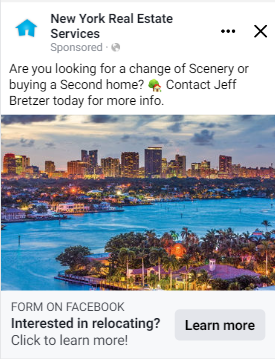
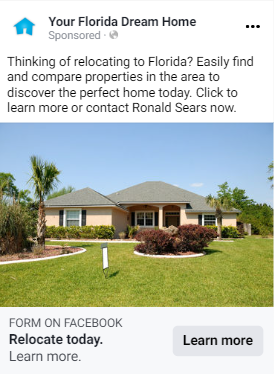
Relocation Ads : When the user clicks the “Learn more” button, it will prompt them to enter their contact information. After they submit, they land on the appropriate Community page or featured listing page.
From there, the user will be able to search listings within that community or navigate away to any other page on the website.
I Just Got An Email Preview of My Facebook Ad - What Does This Mean?
When your Facebook Ad starts running, you will get an email with a preview link that allows you to view the ad and how it will appear on different platforms.
Please note that when you receive this email, your ad has already started running.
This email is to show you what the ad looks like, not to approve or reject the ad.
Your email notification will look something like this: 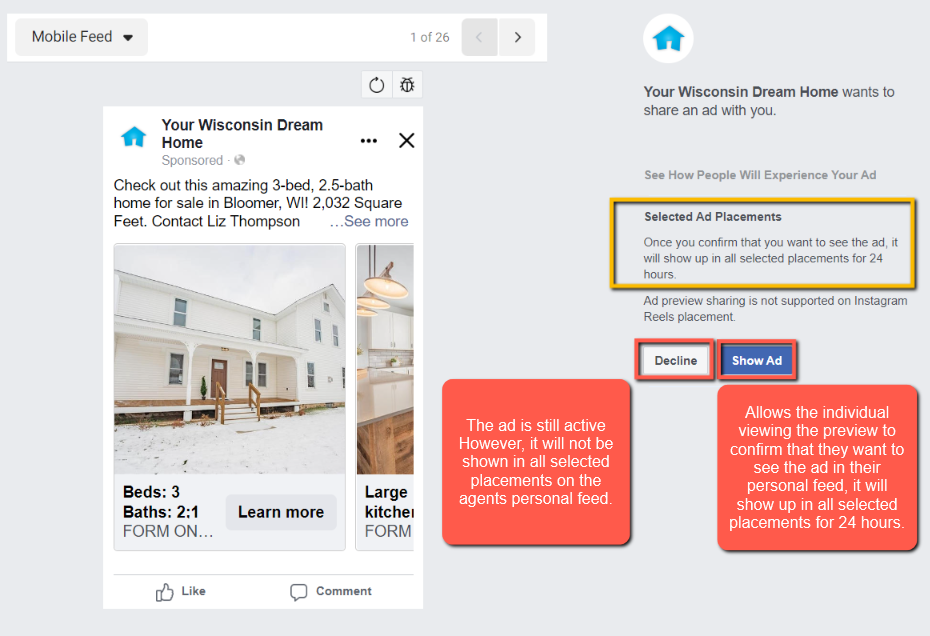
*The ad is active whether or not you click the “Show Ad” Button.
*The “Show Ad” button allows you to preview the ad and confirm that you want to see the ad in your personal feed. It will show up in all selected placements for 24 hours.
*If you click “Decline,” the ad is still active. However, you will not see the ad in your personal feed.
*Best viewed in the most up-to-date version of Chrome.
You will see a clear and accurate preview of your ad. If your ad has multiple images, you can see all of them. This image/these images are your entire ad.
Please email us at support@agentelite.com for more info.
How Will I Be Notified When I Get A New Facebook Lead?
When you receive a new lead email notification, the email will say, “You received a new lead from your ad.” (see picture below)
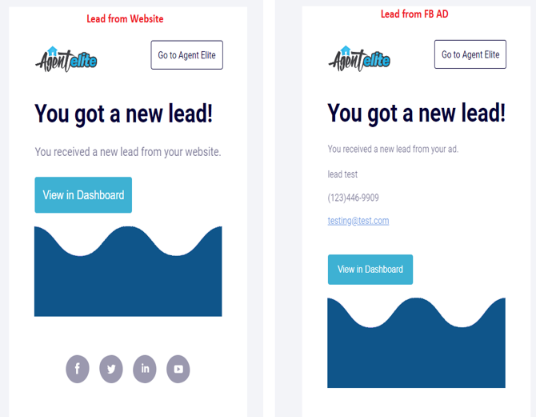
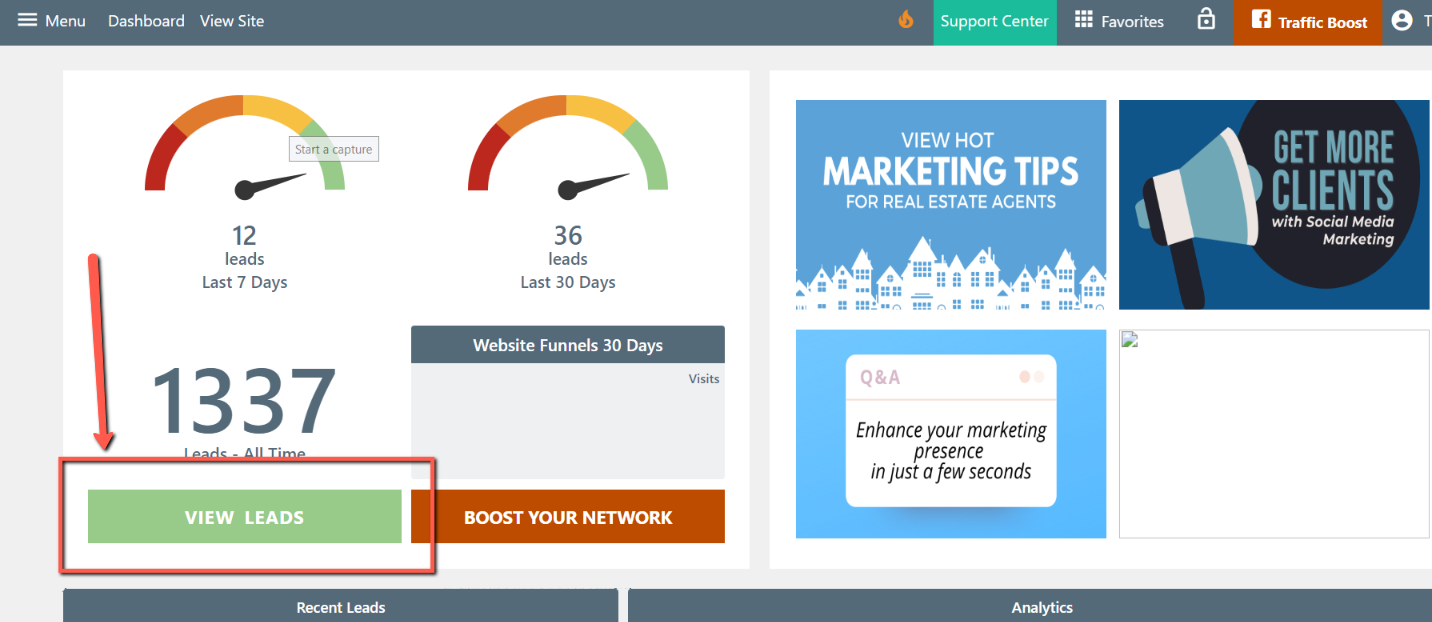
You can configure your lead notification preferences by going to your CRM. From the website dashboard, click on View Leads.
 Once in your CRM, click on Setup at the top, and then Basic Setup, which is under Alert & Email Settings on the left.
From here, you can choose whether you want to be notified via text. You can also update the frequency of email notifications (you will always get an email notification by default). Make sure to click on Save Changes at the bottom when you’re finished making changes.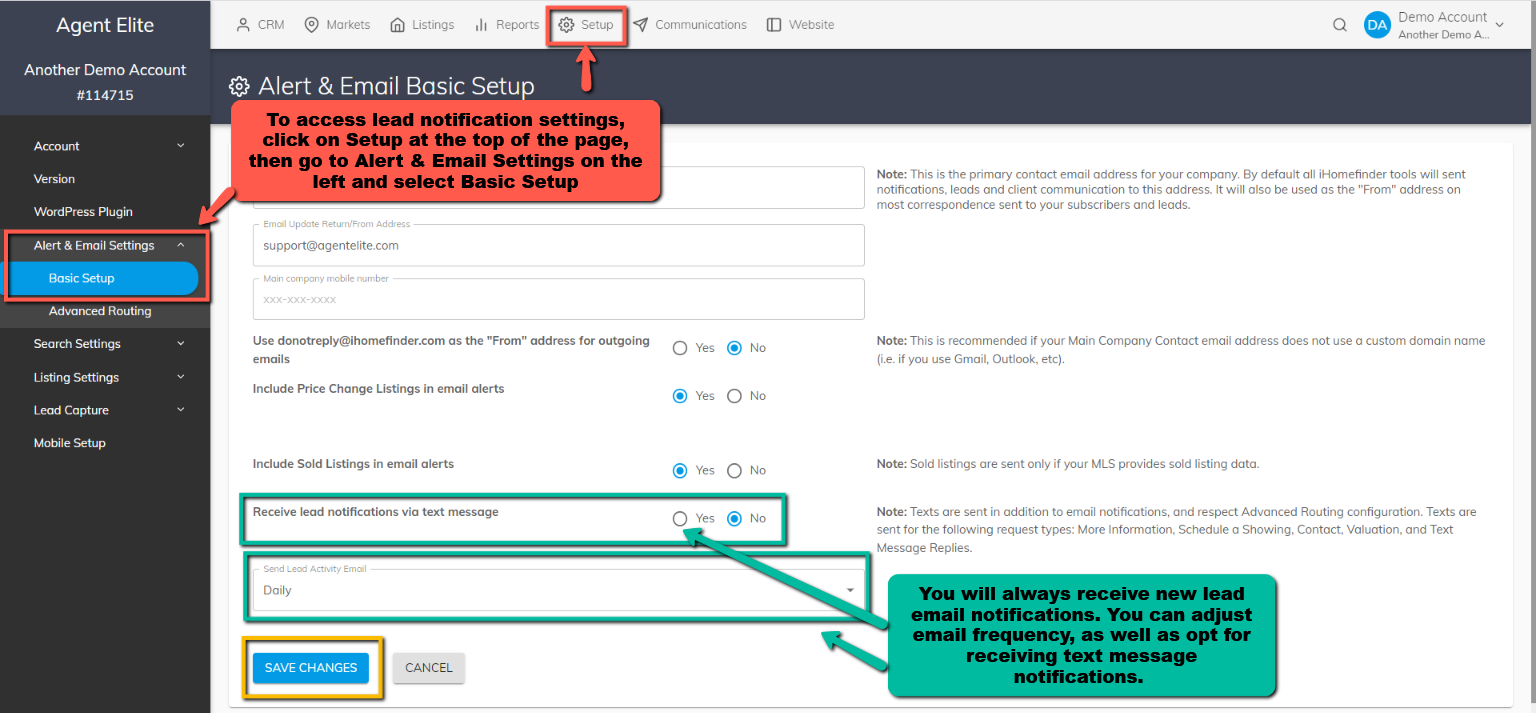
Can I See an Example of What My Real Estate Facebook Ad Will Look Like?
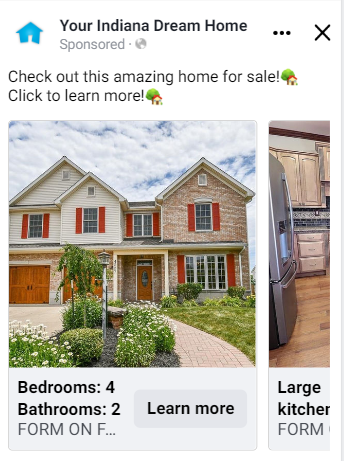
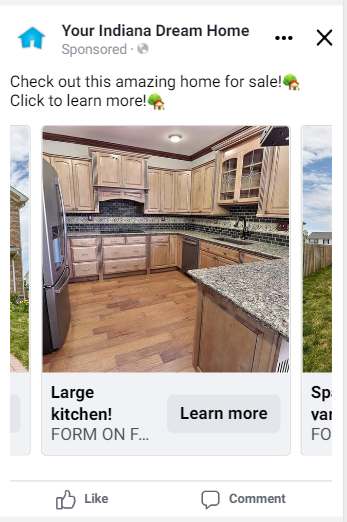
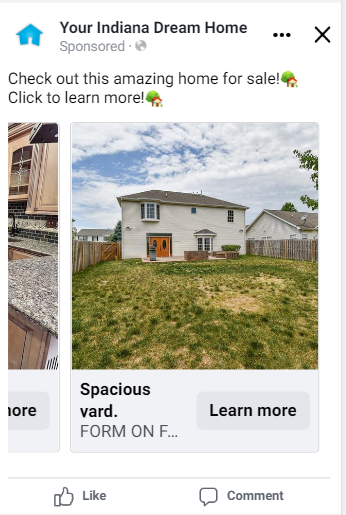
Listing Ads :
 |  |  |
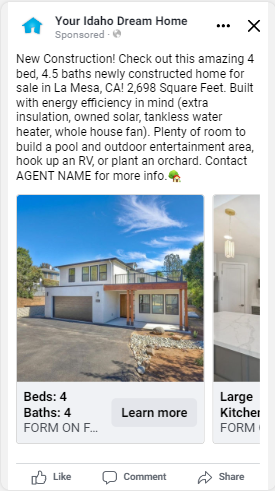
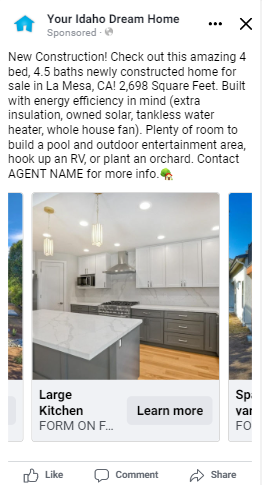
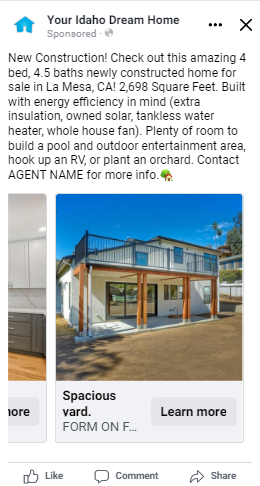
New Construction Listing Ad:
 |  |  |
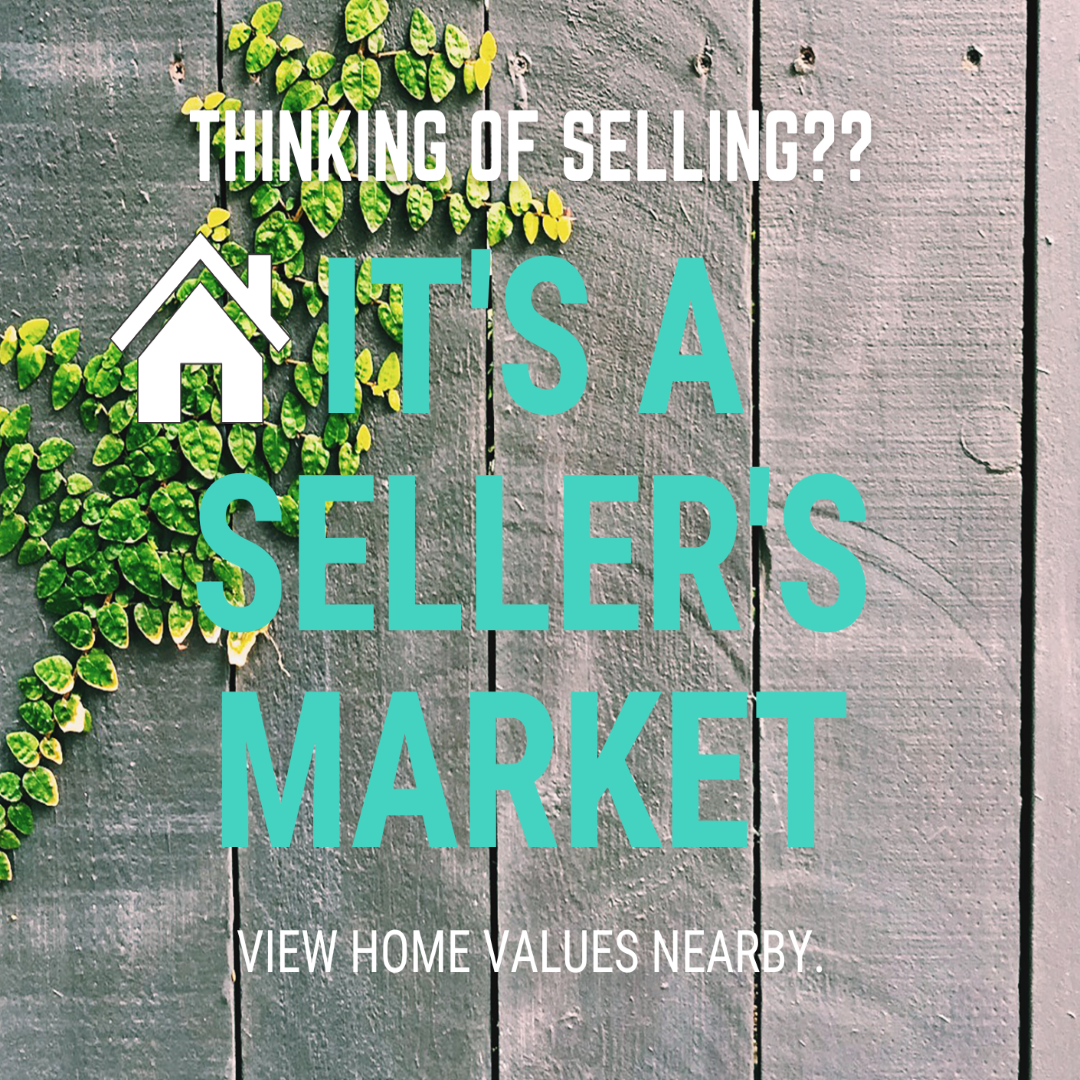
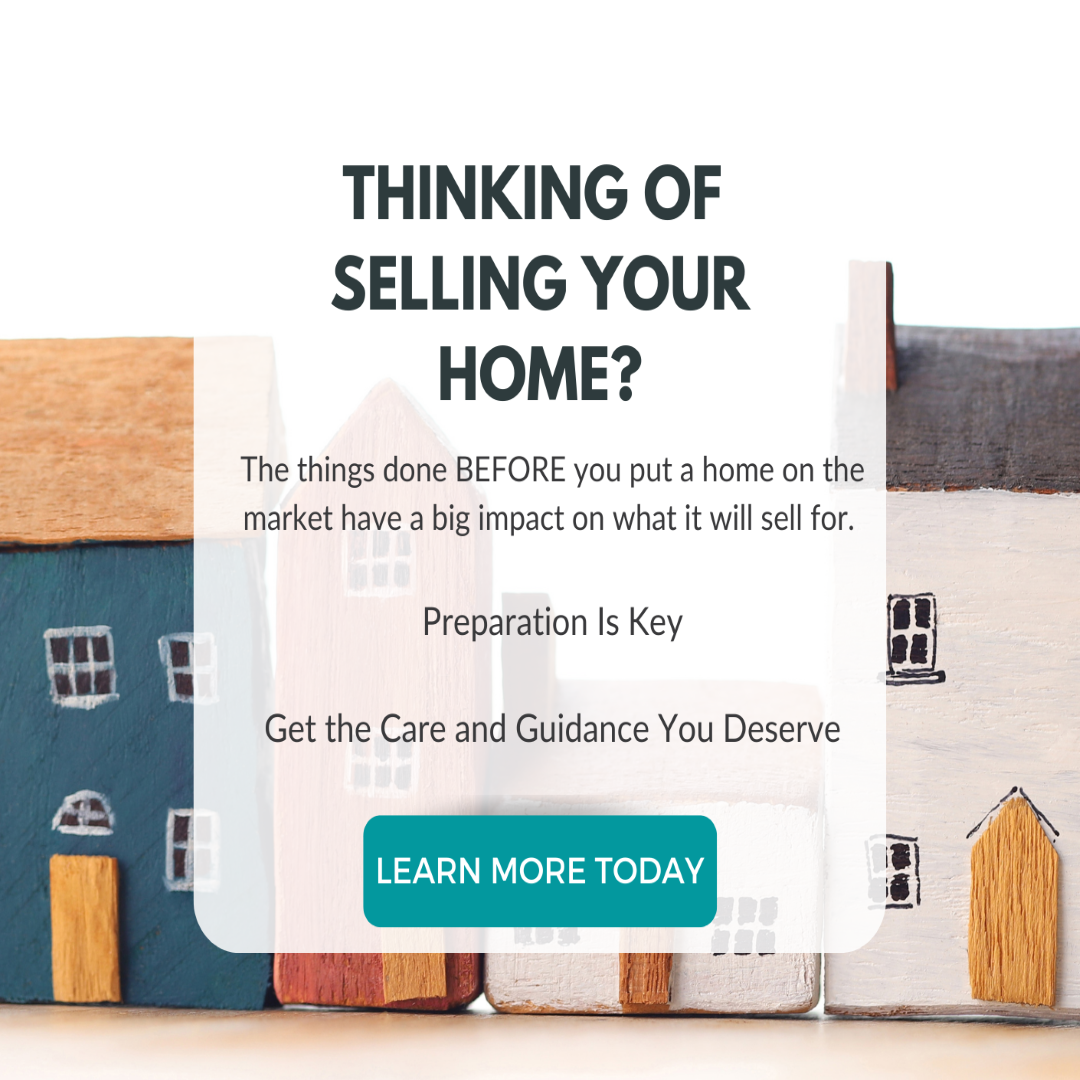
Seller Ads :
- Single-image ads will rotate between the 3 images below
- 3 slide ads will use all 3 images below
 |  |  |
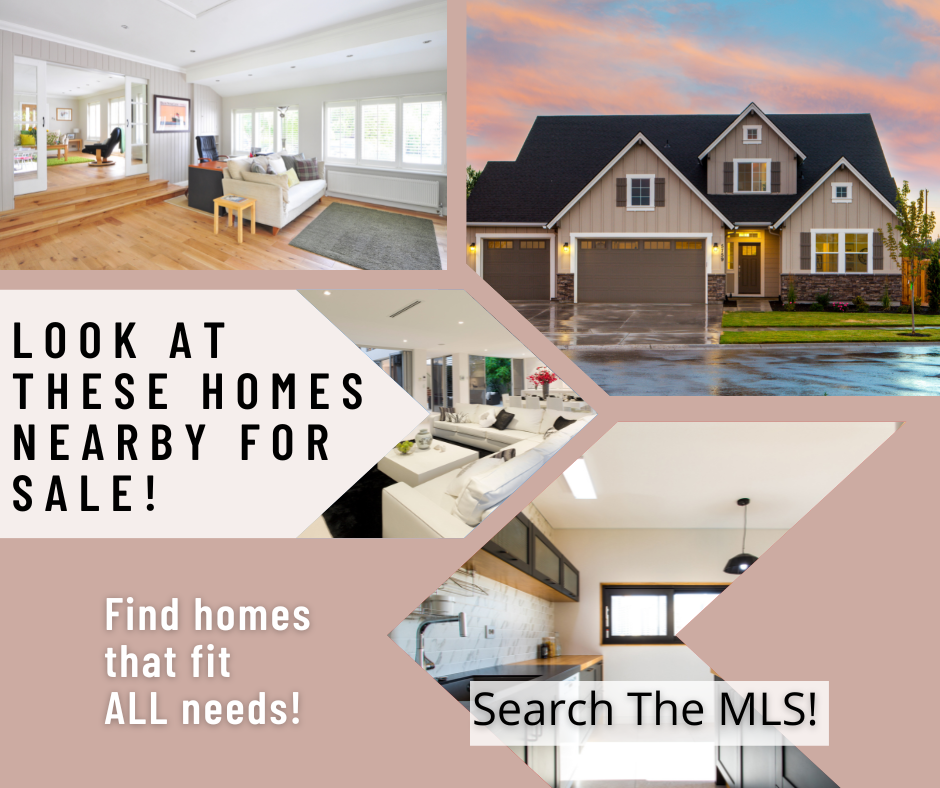
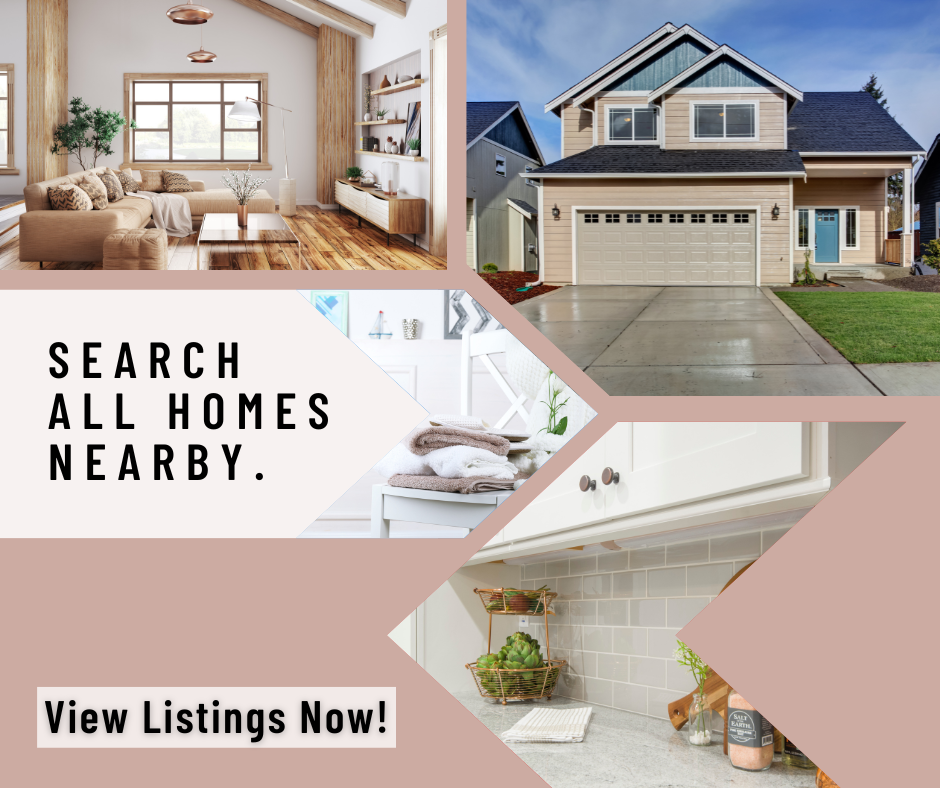
Buyer’s Ads :
- Single image ads will use any 1 of the images below (We try to keep the area in mind but please understand that we do not know each area so it will not always be accurate. You can always request for us to switch out the image.)
- 3 slide ads will use all 3 images below with the designs set
 |  |  |
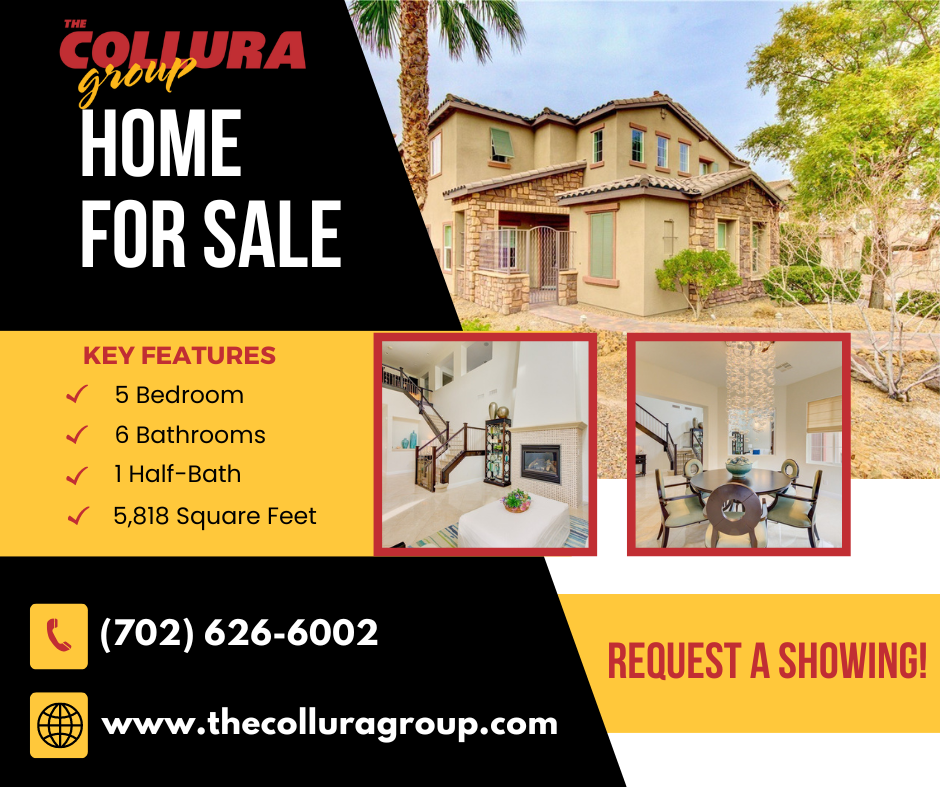
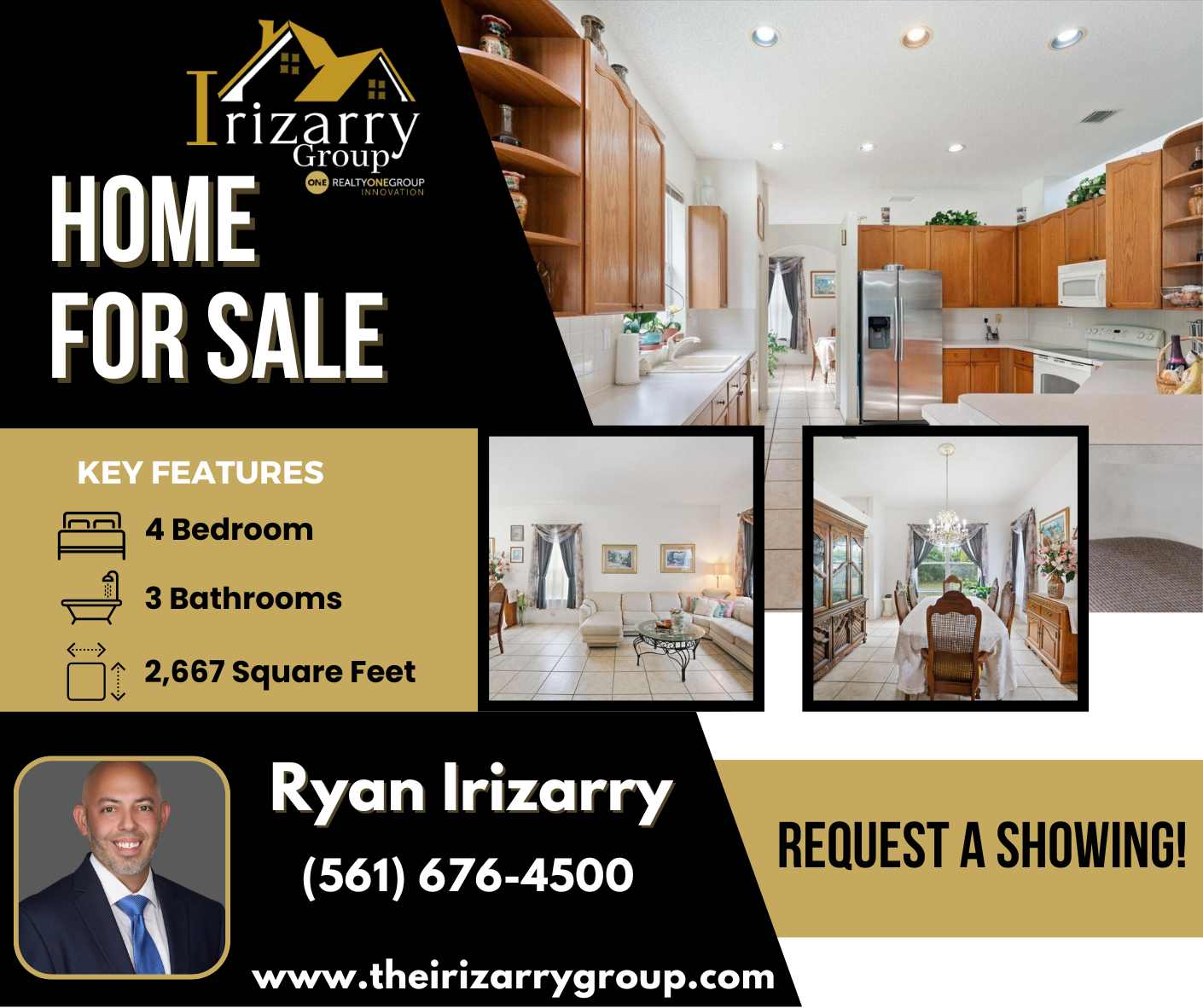
Branded Listing Ads :
 |  |  |
 |
Can I Provide My Own Pictures for Use on a FB Ad?
You are able to provide your own images for a FB ad. However, please keep the following tips in mind when submitting any images.
- Images provided by clients can be no smaller than 600x600px.
- We can NOT use Flyers as an image in a FB ad.
- Images cannot contain more than 30% text overlay
- Must own the rights to use the image
How Do You Select the Pictures To Be Used in the Ad?
Unless instructed otherwise, the process is as follows:
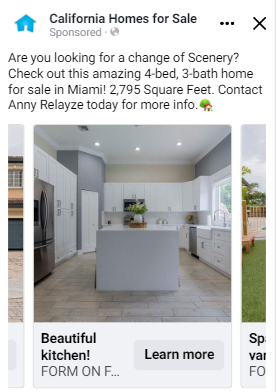
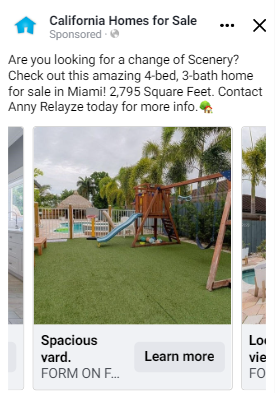
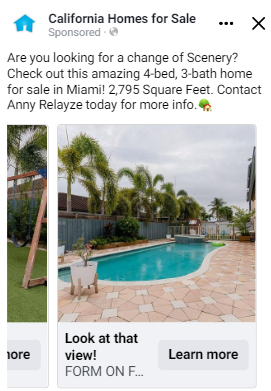
- Listing Ads: We select three pictures – the front of the house, the kitchen, and the back of the house.
- Generic Buyers Ads: We use stock imagery. Most of it will be interior shots of homes. On occasion, we will use an exterior image of a home. There are also slides for different geographical areas (see below).
- Seller Listing Ads: We use the photo attached to the listing. Usually, there is only one. In these circumstances, we recommend that you provide us with additional imagery.
- Generic Sellers Ads: We follow the same process as generic buyer ads.
What Contact Information Is Requested on a Lead Capture Form?
Because FB has restricted most of the housing market advertisements, we can only ask for their Name, Phone Number, and Email address.
What Is The Learning Phase For My Facebook Ad?
Every ad goes through a Learning Phase, where the delivery system learns the best people to target for the ad’s optimum results. Running your ad for a more extended period will optimize its performance because the system will better know who to target.
Facebook ads go through two different phases. The first phase is the “Learning Phase.” This phase lasts about seven days. During this phase, the ad is learning the audience, “who” is looking at the ad, “when” is the ad most active, and “where” is the ad showing up the most.
Once the learning phase is complete, it becomes fully optimized, meaning the quality and quantity of the leads generated increase.
Facebook Targeting
How Many Areas Can I Target in an Ad?
There are a few different scenarios with this. To answer this question without seeing the account is a little tricky. The best way to answer this without specifics is that we can advertise one listing/city in an ad and target one city for every $50 in your ad spend.
For example, suppose you want to advertise an Oklahoma City listing and run the ad in Dallas, Oklahoma City, and Kansas City. In that case, we make one listing ad for the listing in Oklahoma City and run it in the three cities requested. If your budget is $50 per ad, you’d be spending $150.
When Targeting a City, What Radius Around the City Are You Targeting?
Our standard radius for our ads is 25 miles. However, we can target anything within a 15 – 50 mile radius upon request.
What Is Needed To Set the Target Area on the Ad?
We use a city to set the target location on an ad. We cannot use zip codes or counties.
Can You Crop out the MLS Logo From the Pictures on the Listing?
Unfortunately, we cannot alter the pictures pulled from the listings. Doing so would break compliance, so we refrain from changing the images.
Video Ads
Video Duration: 1 second to 241 minutes
The client can provide their own video or we can create a video/slideshow for them at a Custom cost.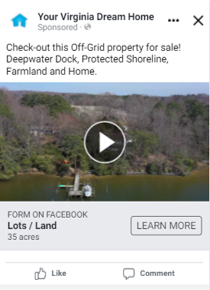
Design Recommendations
Section titled “Design Recommendations”- File Type: MP4 or MOV
- Ratio: 1:1 (for desktop or mobile) or 4:5 (for mobile only)
- Video Settings: H.264 compression, square pixels, fixed frame rate, progressive scan, and stereo AAC audio compression at 128kbps+
- Resolution: At least 1080 x 1080 pixels
- Video Captions: Optional, but recommended
- Video Sound: Optional, but recommended
Videos should not contain edit lists or special boxes in file containers.
Technical Requirements
Section titled “Technical Requirements”- Video Duration: 1 second to 241 minutes
- Maximum File Size: 4GB
- Minimum Width: 120 pixels
- Minimum Height: 120 pixels
I’ve granted Agent Elite access to my Business Page to run ads, but I’m not seeing my leads in my CRM.
If you are running into an issue with your CRM not syncing with your Facebook leads, please be sure that Default Access for Leads is selected or restored within Meta Business Suite.
This access is needed for Agent Elite to be able to access and send the leads to your CRM.
To get to this setting, just navigate to Meta Business Suite settings at business.facebook.com/settings, select ‘Leads Access’, make sure your page is selected, and then click ‘Restore default access’.
Please let your Agent Elite rep know once you’ve done this. Your leads should then start syncing properly. If still not syncing after 24 hours, please let your rep know.
Why Should I Advertise on Facebook?
When it comes to real estate, advertising on Facebook can be a highly effective strategy for several reasons:
-
Reach: Facebook’s advertising platform allows your business to extend your reach beyond your current followers. This means reaching potential clients who may not already be familiar with your business or have liked your page. This is particularly important in real estate where you’re trying to attract both buyers and sellers who might not be actively searching for properties or agents.
-
Targeting: Facebook offers advanced targeting options based on interests, behaviors, and location. This targeted approach ensures that your ads are shown to people who are more likely to be interested in real estate services.
-
Objectives: Facebook ads can be tailored to different objectives, such as increasing website traffic, generating leads, promoting listings, or showcasing expertise through informative content. You can choose the objective that aligns with your current goals, whether it’s driving traffic to your property listings, encouraging sign-ups for a newsletter, or promoting an upcoming open house event.
-
Budget Control: Facebook’s advertising platform allows you to set a budget and control spending effectively. This is particularly advantageous for real estate agents and agencies with varying budgets. Whether you’re a small local agency or a large real estate firm, you can tailor your advertising spend according to your resources and objectives.
Considering these factors, real estate professionals should carefully plan their Facebook ad campaigns by addressing questions such as:
- How do I want to grow my real estate business? (e.g., increase leads, showcase listings, build brand awareness)
- What message do I want to convey in my ads? (e.g., expertise in a particular market, unique selling points of properties)
- Who is my target audience? (e.g., first-time homebuyers, luxury property investors, sellers in a specific neighborhood)
- What is my advertising budget, and how long do I want the campaign to run? (e.g., monthly budget allocation, duration of specific promotions)
By leveraging Facebook’s advertising capabilities and addressing these considerations, real estate professionals can effectively promote their services, attract potential clients, and ultimately drive business growth.
We invite you to explore the exciting possibilities of advertising on Facebook! If you’re interested in leveraging the power of Facebook ads for your business, simply create a ticket in your User Portal. Our dedicated team of experts is eager to assist you in crafting a tailored advertising strategy that aligns perfectly with your goals. Expect personalized guidance and valuable insights as we work together to maximize the impact of your Facebook advertising campaigns. Let’s connect and unlock the potential of your brand on the world’s largest social media platform!
Why Am I Not Seeing My Facebook Ad on My Feed or Page?
Facebook’s Algorithm Prioritizes the Target Audience, Not the Advertiser
Section titled “Facebook’s Algorithm Prioritizes the Target Audience, Not the Advertiser”Facebook’s ad delivery system is designed to show ads to the most relevant audience based on targeting settings, user behavior, and engagement. This means:
- Even if you’re running the ad, Facebook’s system prioritizes delivering it to the most relevant users rather than the advertiser themselves.
- Ads are distributed based on factors like user interests, location, and past interactions, so unless you fit those criteria, you might not see the ad in your feed.
Limited Impressions Per User
Section titled “Limited Impressions Per User”Even if you are part of the target audience, Facebook limits the frequency of ads shown to any individual user. This prevents oversaturation and ensures the ad reaches a broader audience instead of just appearing repeatedly to the same people.
Ad Placements Vary
Section titled “Ad Placements Vary”Your ad is not guaranteed to appear in a specific place, such as your news feed or your business page. Facebook distributes ads across multiple placements, including:
- News Feed (Desktop & Mobile)
- Facebook Stories
- Right Column (Desktop)
- Instagram Feed & Stories
- Audience Network (Ads on third-party apps and websites partnered with Meta)
- Facebook Marketplace
- Facebook Reels
- Instagram Reels
If you have any further questions, please feel free to create a ticket in your User Portal
Section titled “If you have any further questions, please feel free to create a ticket in your User Portal”Can I Do a Relocation Facebook Ad?
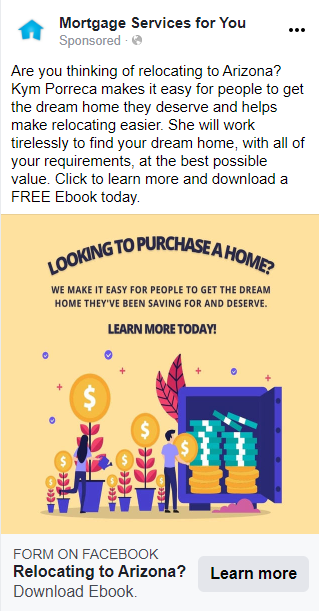
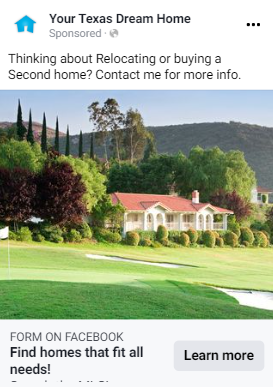
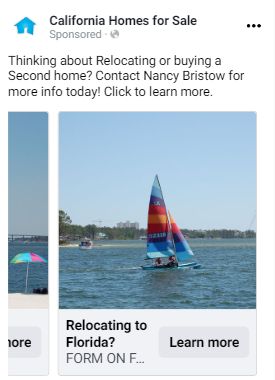
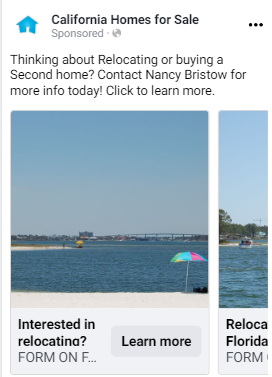
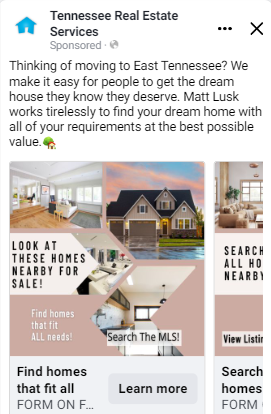
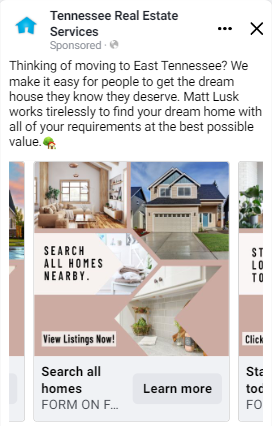
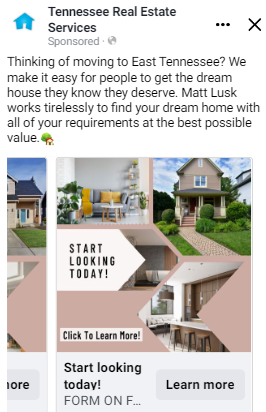
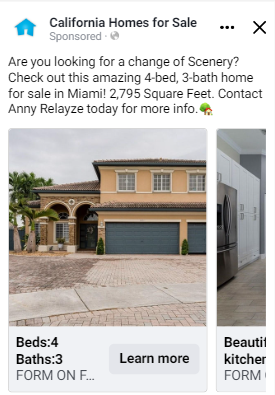
You can do a relocation Facebook ad for real estate or mortgage. See the examples below.
Mortgage
FB 1 slide
FB 2 slides
FB 3+ slides
 |  |  |
Stock Imagery
 |  |  |
Listing Relocation Ad
 |  |  |  |
Why Is My Listing Ad Linked Back to the “Featured Properties” Page?
The following ads are linked back to the Featured Properties page within your website by default:
- Listing ads
- Open House ads
- Relocation Listing ads
What is the Featured Properties Page?
The featured properties page is the page within your website that is designed to feature only your listing and/or your office listing, depending on how you requested this to be set up when the website was created.
*You are able to request that we modify this page to display only your own listing or both your and your office’s listing at any time by contacting us.
Why do we link these types of ads back to the featured listing page and not to the actual listing?
Once a listing is updated to Sold in your MLS, the URL to the listing is changed automatically. Therefore breaking the ad if we were to link directly to the listing page. By linking these types of ads back to the featured listing page, we ensure that if the listing sells while the ad is running, the ad won’t break and can still remain live. This is done since it will allow the user to browse your other available listings.
What Is the Learning Phase for My Facebook Ad?
Every ad goes through a Learning Phase, where the delivery system learns the best people to target for the ad’s optimum results. Running your ad for a more extended period will optimize its performance because the system will better know who to target.
Facebook ads go through two different phases. The first phase is the “Learning Phase.” This phase lasts about seven days. During this phase, the ad is learning the audience, “who” is looking at the ad, “when” is the ad most active, and “where” is the ad showing up the most.
Once the learning phase is complete, it becomes fully optimized, meaning the quality and quantity of the leads generated increase.
What Is the Experience for the Person Who Clicks on the Ad?
The Process of Lead Generation
Section titled “The Process of Lead Generation”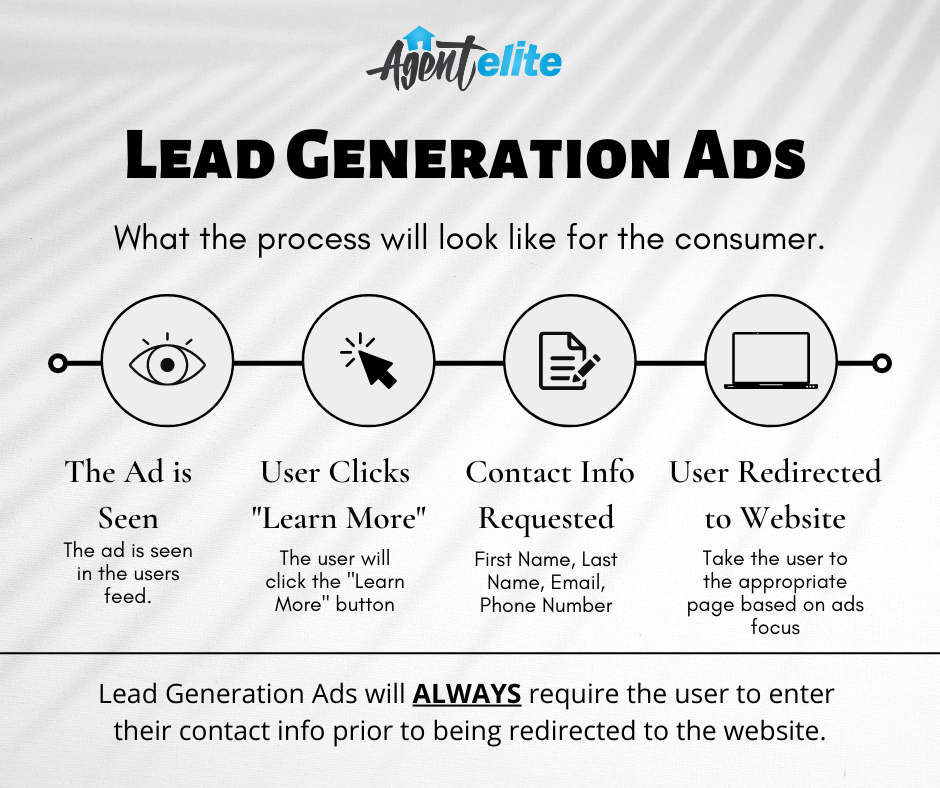
*Please note - We cannot guarantee that you will get leads. No one can. People’s actions are not predictable.
We give you the tools and resources you need to optimize your business’s growth.
Buyer Ads
Section titled “Buyer Ads”When the user clicks the “Learn more” button, it will prompt them to enter their contact information. After they submit, they land on the appropriate Community page.
From there, the user can search listings within that community or navigate away to any other page on the website.
Listing Ads
Section titled “Listing Ads”When the user clicks the “Learn more” button, it will prompt them to enter their contact information. After they submit, they land on the “Featured Properties” page.
From there, the user can browse through the featured listing or navigate away to any other page.
Seller Ads
Section titled “Seller Ads”When the user clicks the “Learn more” button, it will prompt them to enter their contact information. After they submit, they land on the “What’s my home worth?” page.
The user enters their info onto the form to request a home evaluation.
Buyer/Sellers Ads
Section titled “Buyer/Sellers Ads”When the user clicks the “Learn more” button, it will prompt them to enter their contact information. After they submit, they land on the Home page of the site.
From there, the user decides what page to explore further based on their specific needs.
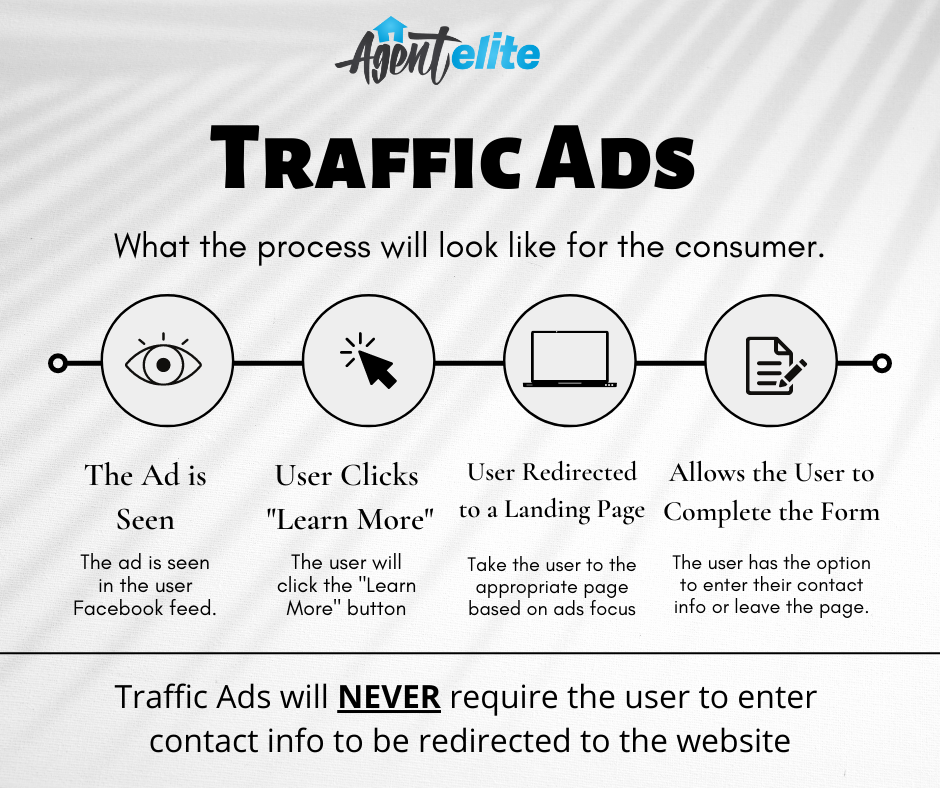
Mortgage – Traffic Ads
Section titled “Mortgage – Traffic Ads”When the user clicks on the “Learn more” button, they automatically land on the Landing Page corresponding to the requested loan type.
From there, the user can either enter their contact information or navigate away from the site.
How to get a Pixel code from Facebook
How to get a Pixel code:
Section titled “How to get a Pixel code:”The Meta Pixel is a piece of code that’s placed on your website to report conversions, build audiences and get insights into how people are using your website.
You may want to create a pixel in Business Manager if:
You already have a Business Manager account.
Someone else manages your Meta ads.
If your business has more than one website, or more than one major product or service.
If you want to take advantage of the pixel’s measurement capabilities, but you’re not ready to start creating ads.
If you would prefer to create a pixel using your individual account, learn how to create and install a pixel.
Note: You can create up to 100 pixels in your Meta Business Manager account. If you reach the limit of 100 pixels in your Business Manager account but you need to create another pixel, you can either:
Create a new ad account within a different Business Manager account, or create a new ad account that isn’t part of a Business Manager account. Then, you can create 1 new pixel in your new ad account. You can also assign permission for the new ad account and new pixel to your Business Manager.
Create a second Business Manager, which will let you create an additional 100 pixels.
Before you begin
Section titled “Before you begin”Make sure you have access to a Business Manager account or create one.
Check that you’re an admin on the Business Manager account you’d like to use.
Remember that you can’t delete a pixel or transfer it to another Business Manager account from the Business Manager account you created it in. Learn more about how to share your Meta Pixel instead.
How to create a Meta Pixel in Business Manager
Section titled “How to create a Meta Pixel in Business Manager”- Go to Business Settings in Business Manager.
- Select your business.
- Click Data Sources.
- Select Pixels.
- Click Add by the search bar at the top of the page.
- Type in a name for your pixel.
- Optional: Enter your website URL.
- Click Continue.
- To install your pixel on your website, click Set up the Pixel Now. If you’d like to stay in Business Manager, click Continue Managing My Business.
Once you set up your Facebook Pixel, send us the code and we will install it for you.
Section titled “Once you set up your Facebook Pixel, send us the code and we will install it for you.”You can send it to support@agentelite.com
Note: Apple has announced changes with iOS 14 that impact how we receive and process conversion events from business tools like the Meta Pixel. To address these changes, we will request permission through Apple’s AppTrackingTransparency framework to measure conversion events occurring on iOS 14 devices. As more people opt out of tracking on iOS 14 devices, ads personalization and performance reporting will be limited for both app and web conversion events. A key impact of this change is that you’ll be limited to the use of 8 conversion events per domain for optimization and reporting.
When you create an ad set you can choose only one of the 8 designated conversion events to optimize for.
Domain verification establishes which Business Manager account has the authority to configure and prioritize the 8 available conversion events for a given domain.
Visit Meta for Developers for instructions on how to verify your domains.
What is the difference between Facebook Reach and Facebook Impressions?
What’s the difference between Facebook reach and impressions?
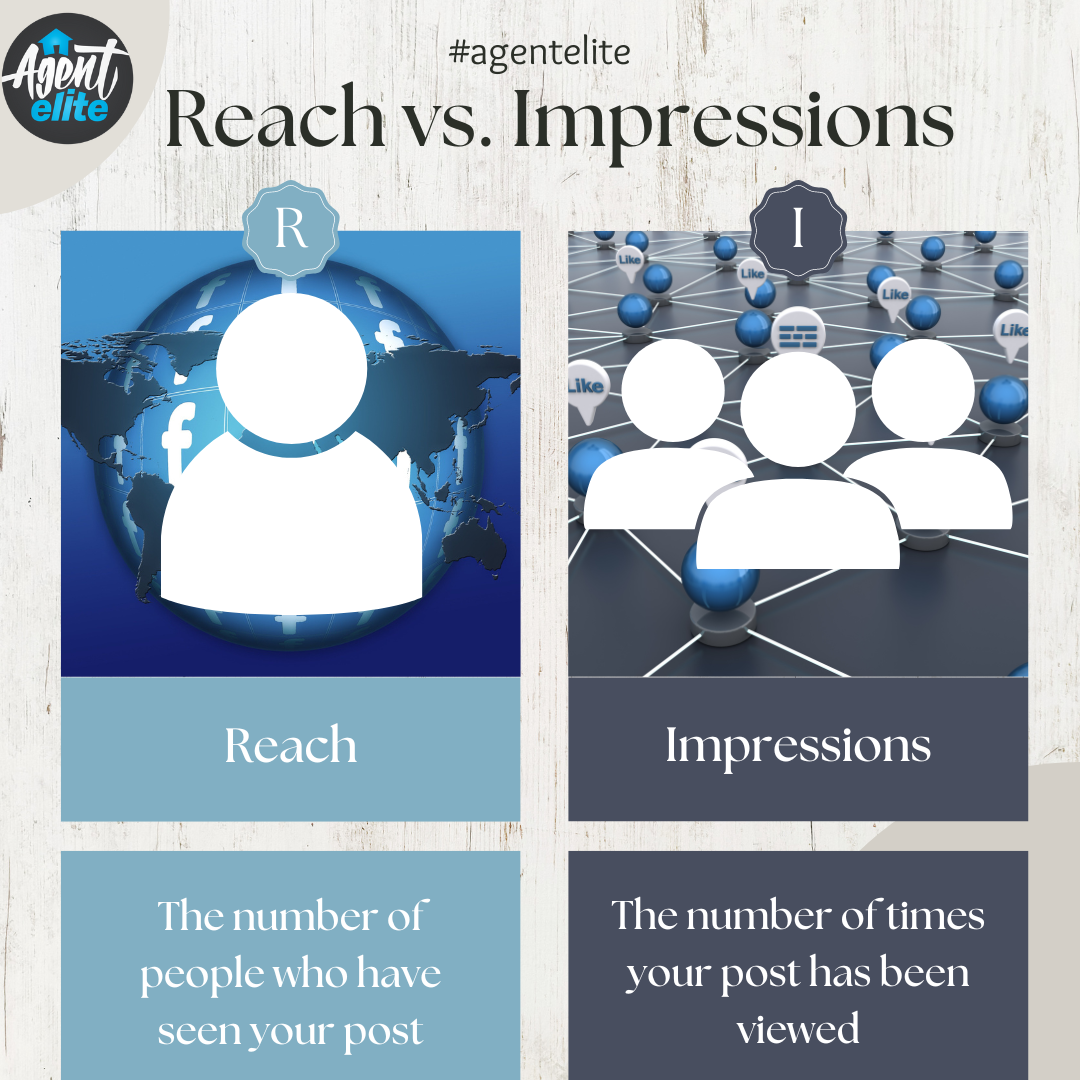
Reach is the number of people who have seen your ad.
Impressions are the total number of times your ad has been viewed.
So if five people view your ad two times each, your reach will be 5, and your impressions will be 10.